PURPLE EASY
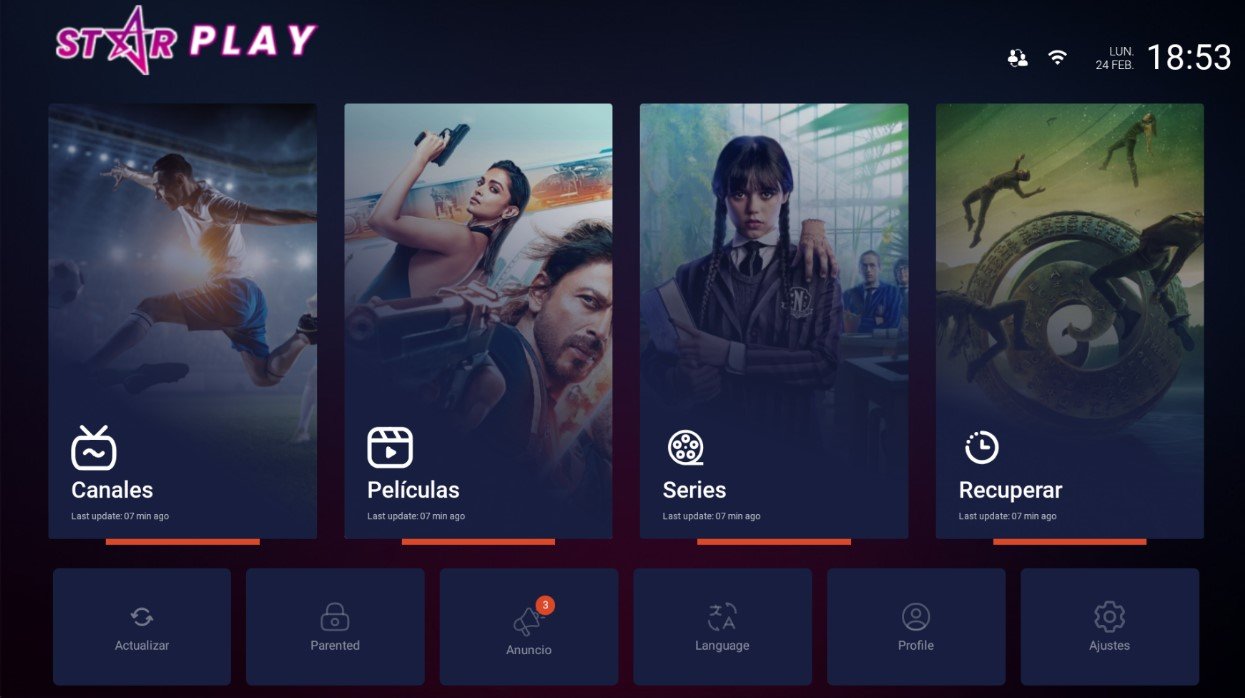
Four tall cards make up the home screen of this Android IPTV app: Canales, Películas, Series and Recuperar, each showing the time of its last refresh. A row of shortcuts sits underneath with refresh, lock, Announcements, language, profile and settings, and the clock and date up top. The Announcements shortcut carries its own unread counter.
- Four tall cards make up the home screen of this Android IPTV app: Canales, Películas, Series and Recuperar, each showing the time of its last refresh. A row of shortcuts sits underneath with refresh, lock, Announcements, language, profile and settings, and the clock and date up top. The Announcements shortcut carries its own unread counter.
- WITH AUTOMATIC BANNER
- WITH MANUAL BANNER
- WITH BANNER SIGN
MY PLAY TV
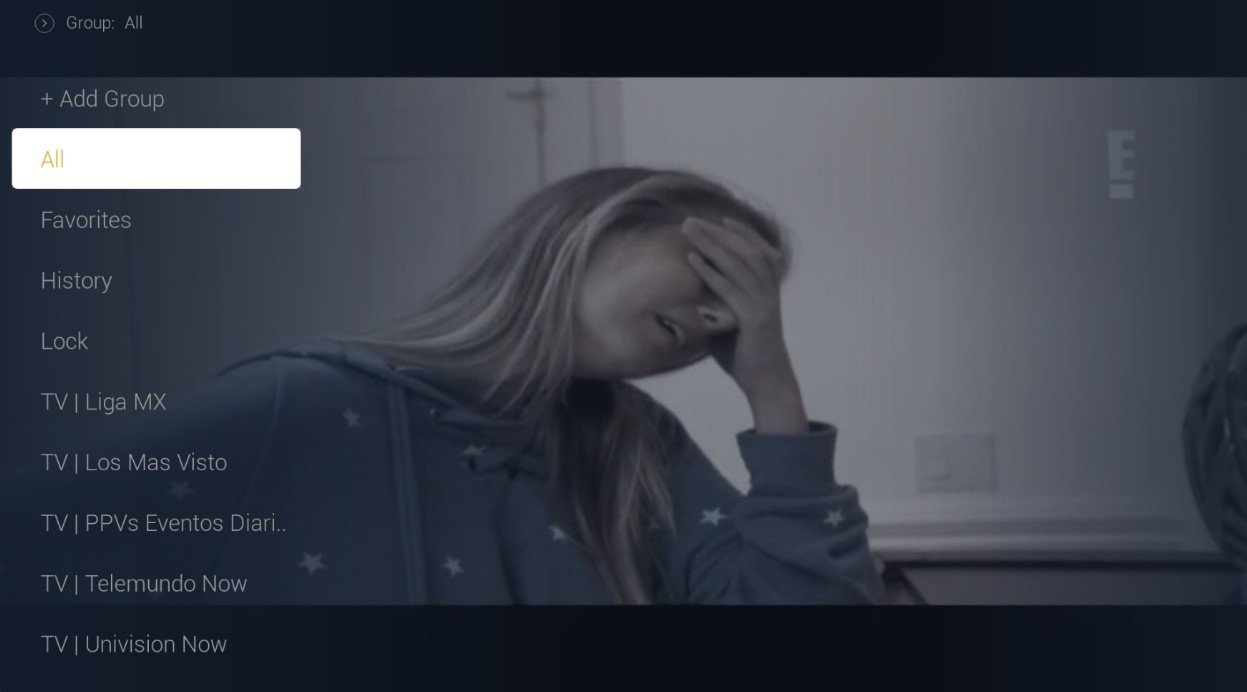
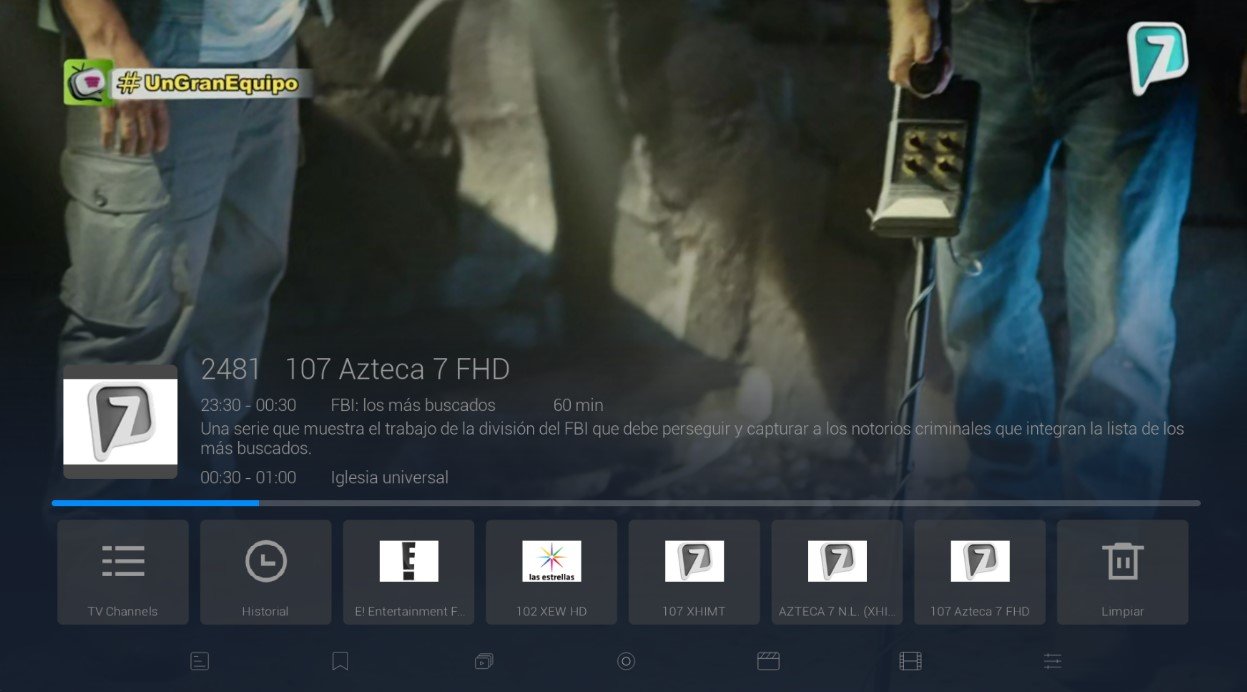
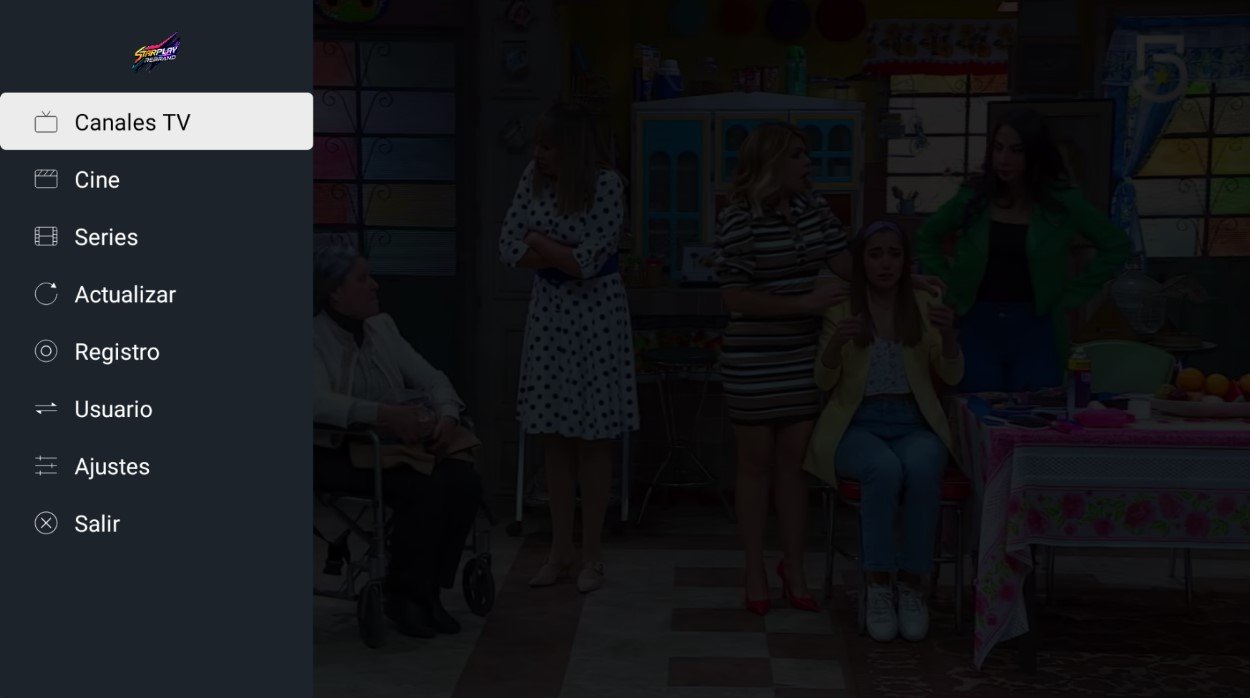
Built for the television set, this Android app works on top of the channel already playing: the group list, with All, Favorites, History, Lock and the provider's own categories, opens as a column over the video. The lower panel gathers channel number and name, the current programme with its time slot and synopsis, what comes next, and a strip of recently watched channels.
- Built for the television set, this Android app works on top of the channel already playing: the group list, with All, Favorites, History, Lock and the provider's own categories, opens as a column over the video. The lower panel gathers channel number and name, the current programme with its time slot and synopsis, what comes next, and a strip of recently watched channels.
- OPTIMIZED FOR TV - WITH YOUR BRAND LOGO
- YOUR BRAND NAME
- MULTI-DNS PANEL
SMARTER ADS V2
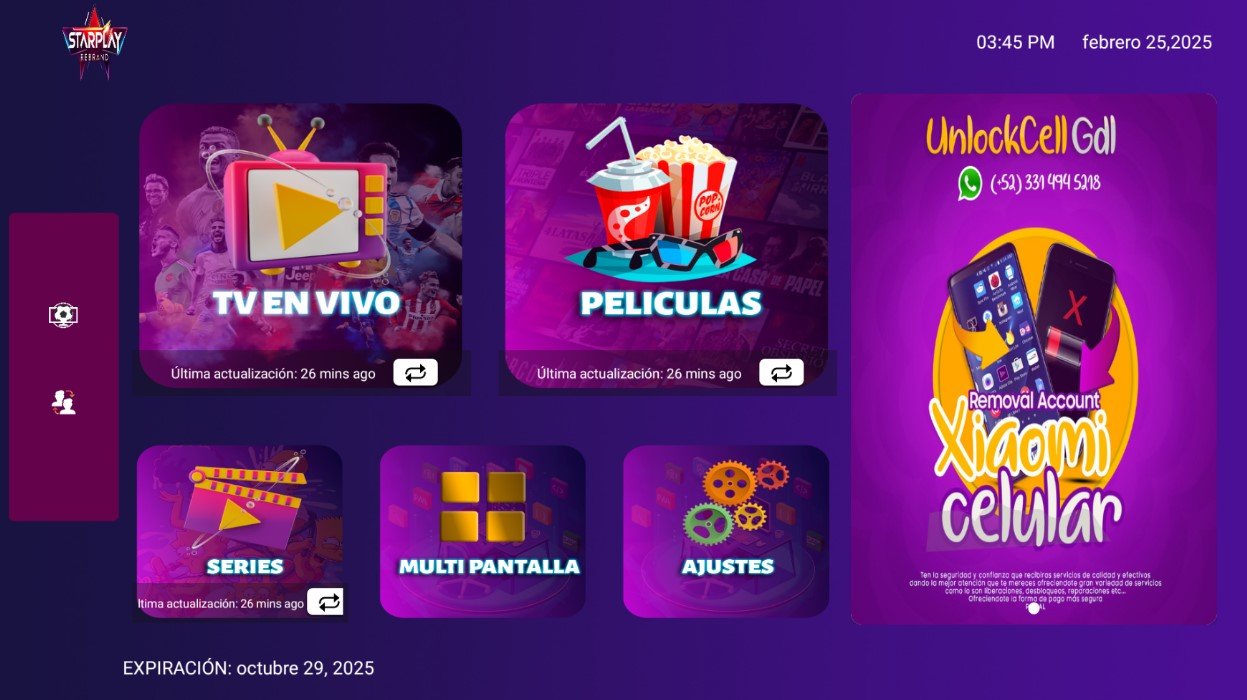
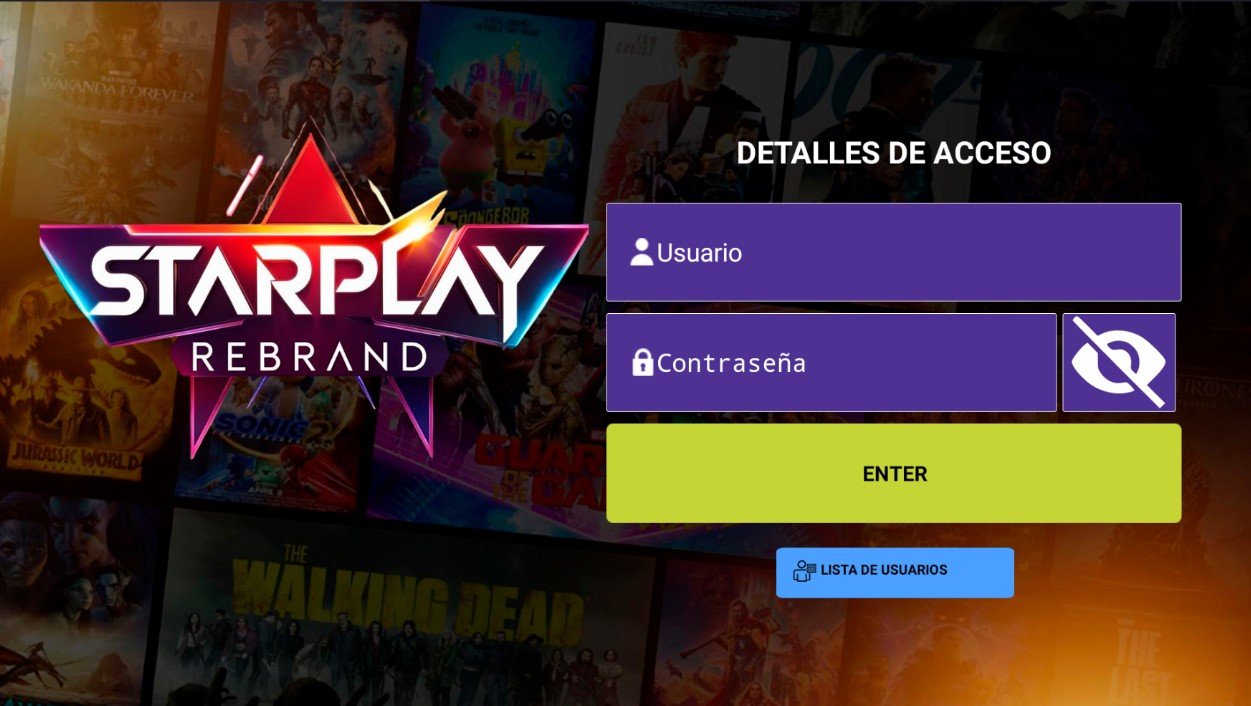
The distinctive part of this Android IPTV app sits on the right of the home screen: a full vertical panel kept for advertising, beside the purple tiles for Live TV, Movies, Series, Multi Screen and Settings. The first three show when they were last refreshed and carry a reload button; the account expiry stays pinned at the bottom. You sign in with username and password or from the saved user list.
- The distinctive part of this Android IPTV app sits on the right of the home screen: a full vertical panel kept for advertising, beside the purple tiles for Live TV, Movies, Series, Multi Screen and Settings. The first three show when they were last refreshed and carry a reload button; the account expiry stays pinned at the bottom. You sign in with username and password or from the saved user list.
- WITH YOUR BRAND LOGO
- YOUR BRAND NAME
- MULTI DNS PANEL
SMARTERS FTG V4
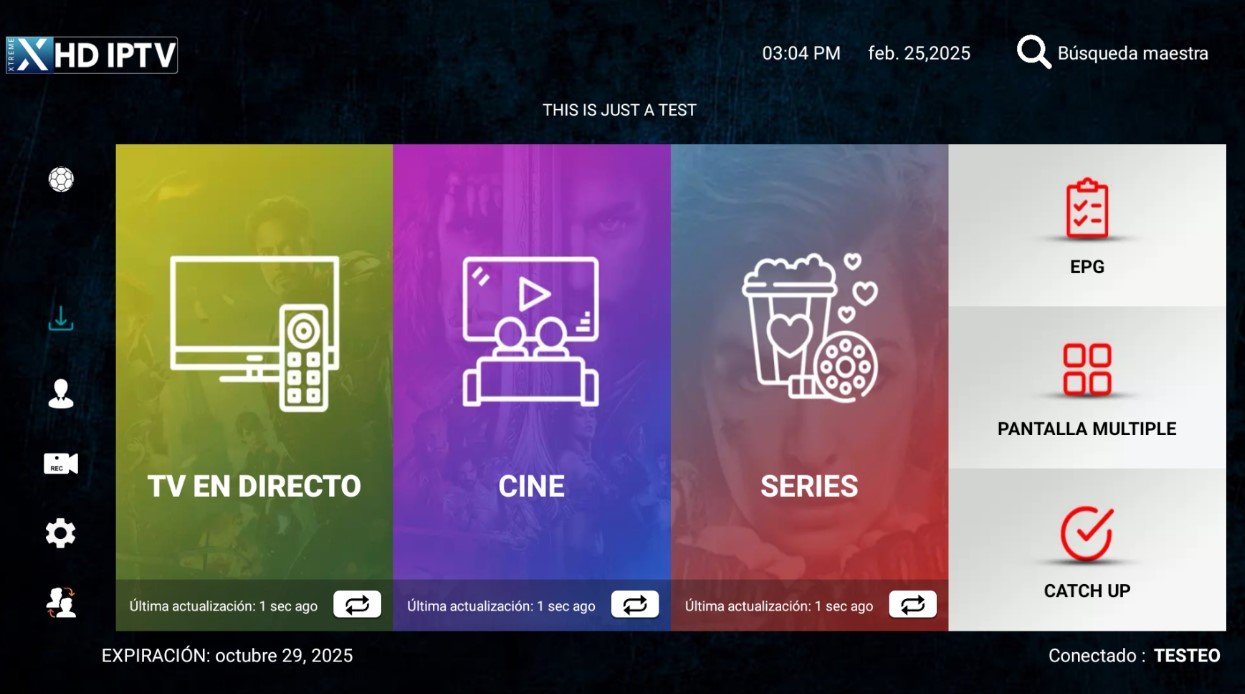
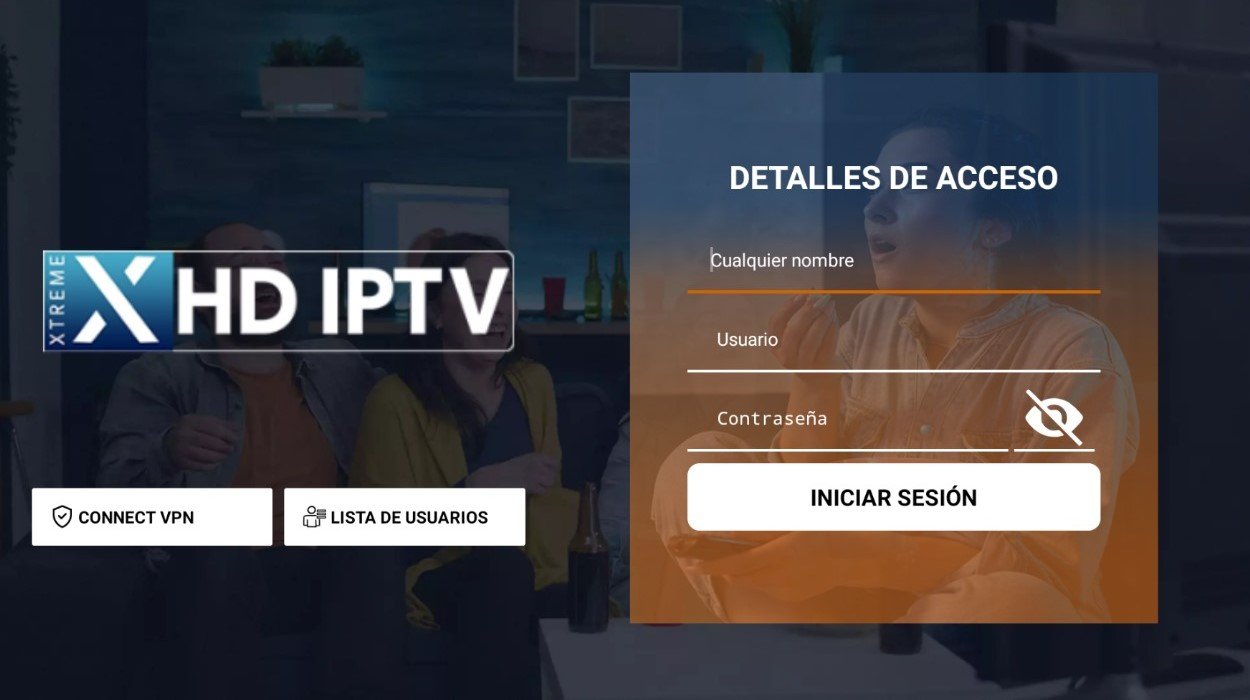
With three colour panels, Live TV, Cinema and Series, this Android app keeps the next column for EPG, Multi Screen and Catch Up, and an icon sidebar for sports, downloads, profile, recording and settings. Master search, clock and date run across the top; the expiry date and the connected user along the bottom. Sign-in accepts any name and offers a VPN button.
- With three colour panels, Live TV, Cinema and Series, this Android app keeps the next column for EPG, Multi Screen and Catch Up, and an icon sidebar for sports, downloads, profile, recording and settings. Master search, clock and date run across the top; the expiry date and the connected user along the bottom. Sign-in accepts any name and offers a VPN button.
- WITH YOUR BRAND LOGO
- YOUR BRAND NAME
- MULTI DNS PANEL
SMARTER V4 MOD8
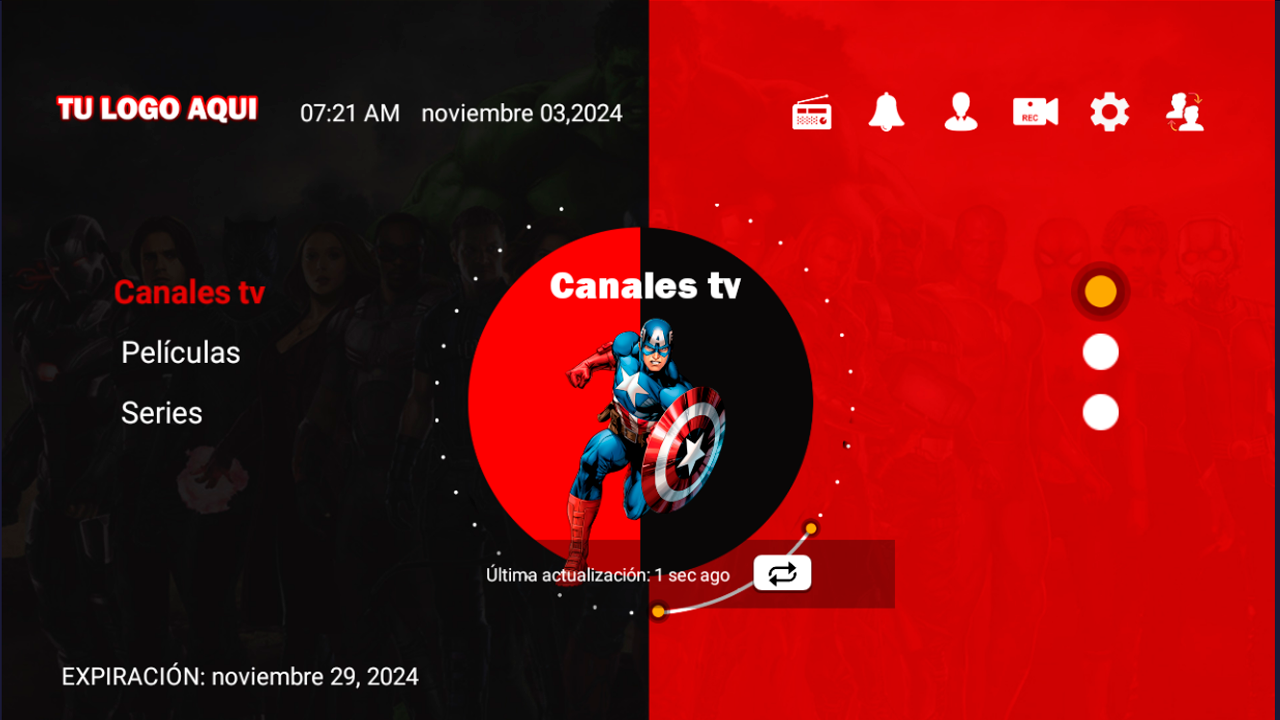
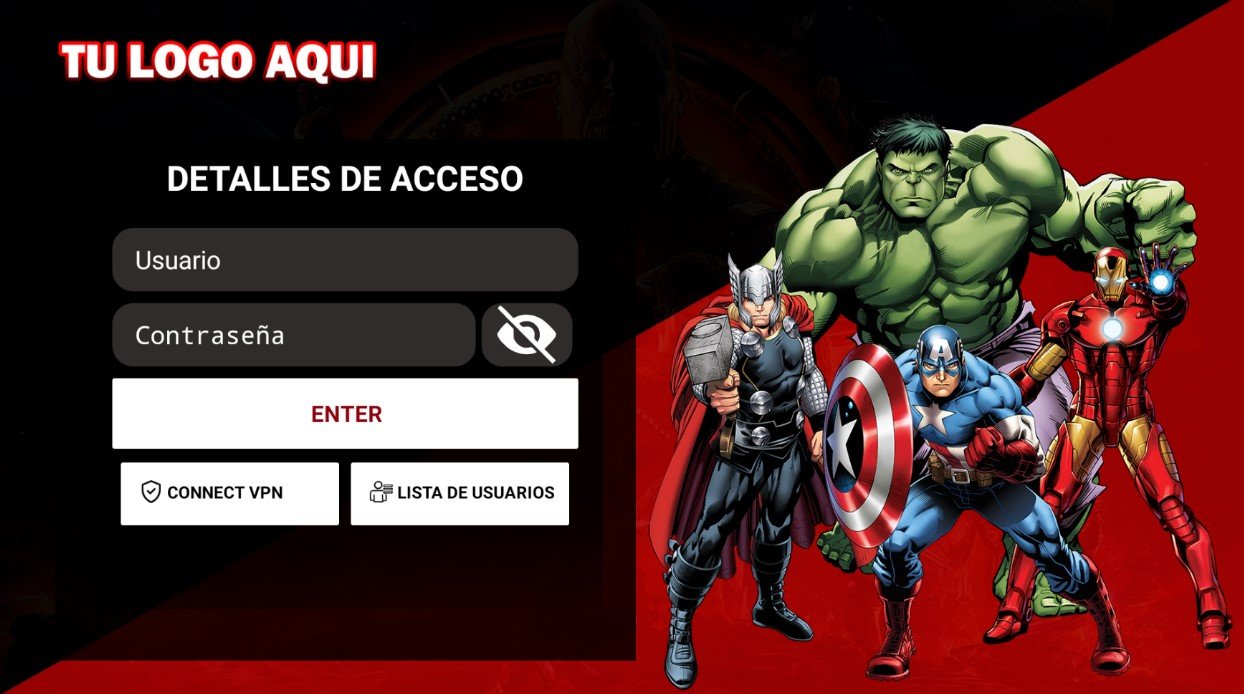
It breaks with the usual Android IPTV grid: the home screen splits into black and red, with a three-item vertical menu, TV Channels, Movies and Series, and a central circle that shows whichever section is selected. The top strip carries radio, alerts, profile, recording, settings and user switching, with the expiry date below.
- It breaks with the usual Android IPTV grid: the home screen splits into black and red, with a three-item vertical menu, TV Channels, Movies and Series, and a central circle that shows whichever section is selected. The top strip carries radio, alerts, profile, recording, settings and user switching, with the expiry date below.
- WITH YOUR BRAND LOGO
- YOUR BRAND NAME
- MULTI DNS PANEL
SMARTER V4.03
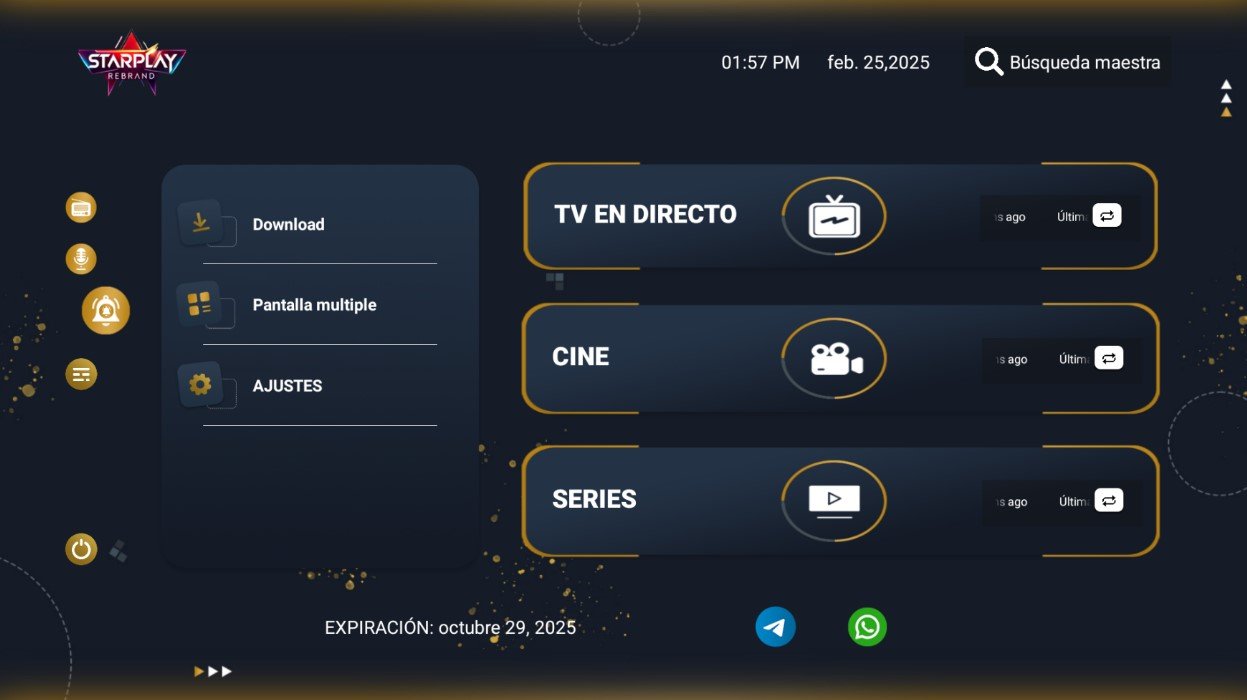
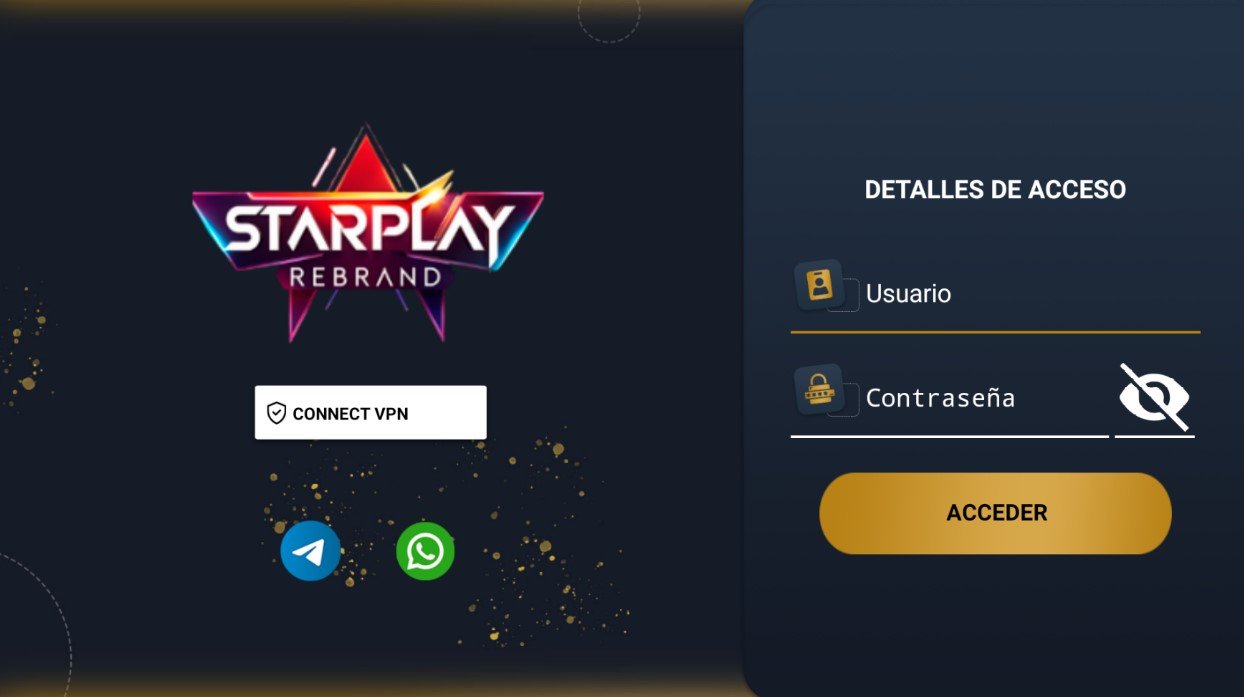
Midnight blue and gold in an Android IPTV app: the sections, Live TV, Cinema and Series, stack as three wide bars outlined in gold, with a side card for Downloads, Multi Screen and Settings. The WhatsApp and Telegram buttons appear both on the home screen and on the sign-in page, which also offers a VPN connection. Master search, clock and date sit on top.
- Midnight blue and gold in an Android IPTV app: the sections, Live TV, Cinema and Series, stack as three wide bars outlined in gold, with a side card for Downloads, Multi Screen and Settings. The WhatsApp and Telegram buttons appear both on the home screen and on the sign-in page, which also offers a VPN connection. Master search, clock and date sit on top.
- WITH YOUR BRAND LOGO
- YOUR BRAND NAME
- WHATSAPP BUTTON
SMARTERV4 RATON
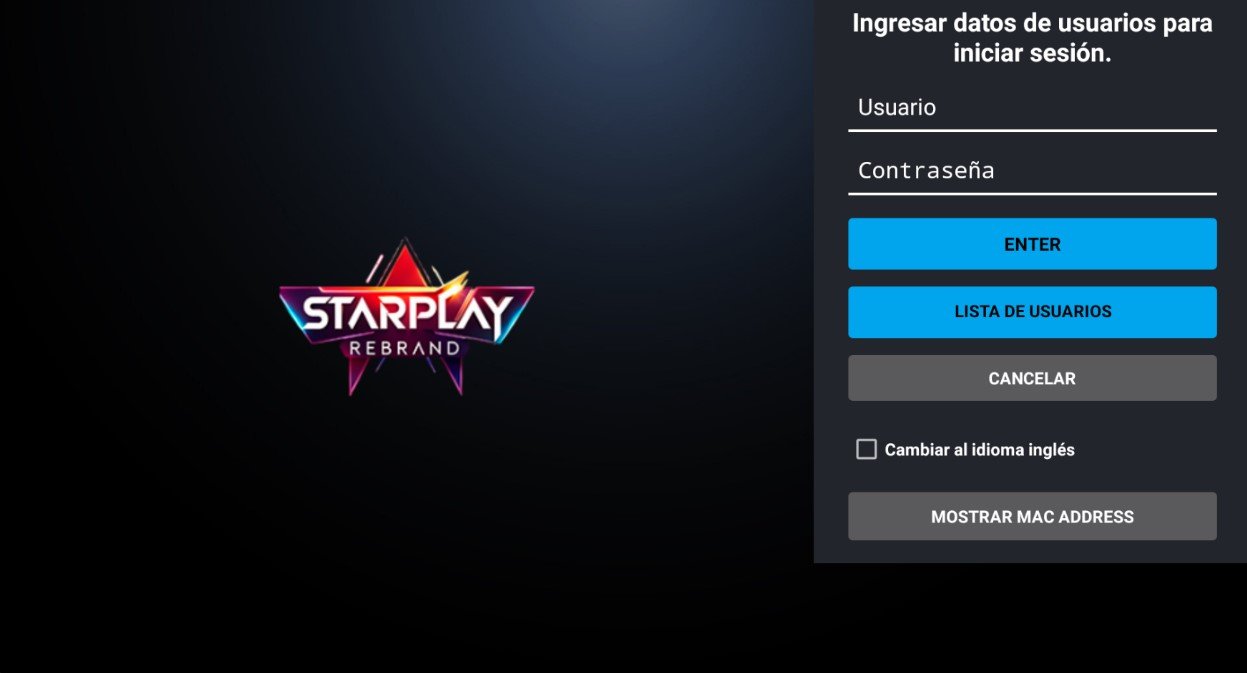
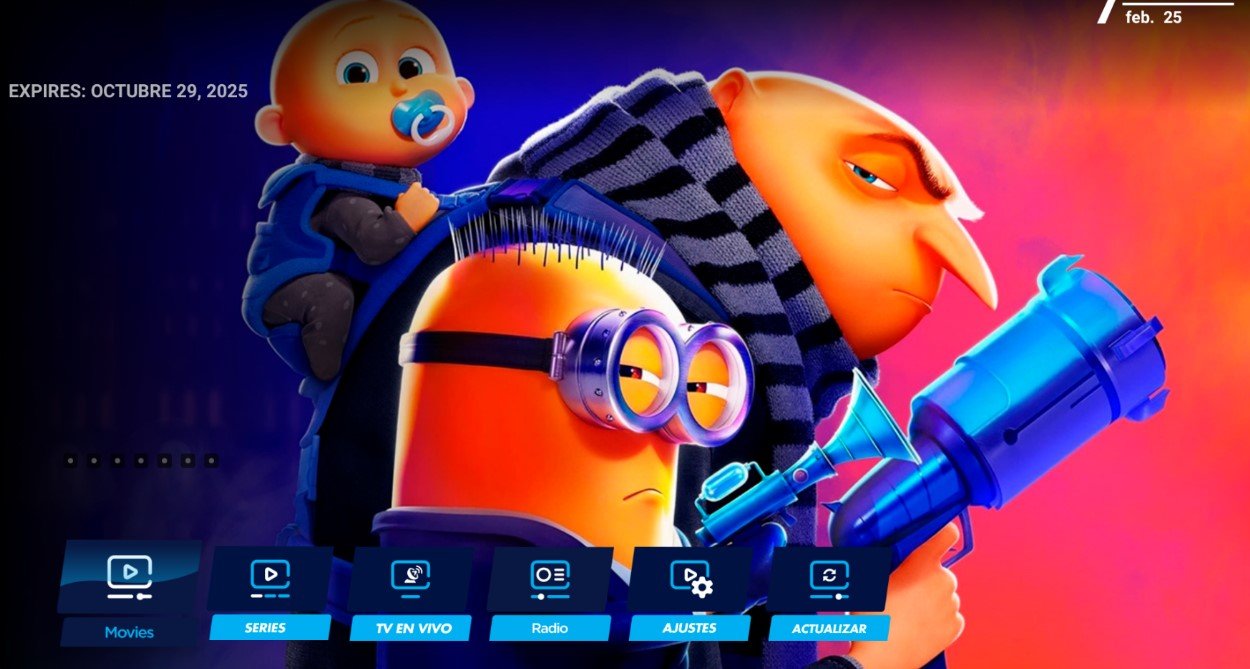
Here the artwork rules: this Android app fills the screen with a full-bleed image and drops the sections into a low row of blue buttons, Movies, Series, Live TV, Radio, Settings and Refresh, with carousel dots to move through the backdrops. The expiry date reads in the top corner. Sign-in adds a user list, an English-language checkbox and a button that shows the MAC address.
- Here the artwork rules: this Android app fills the screen with a full-bleed image and drops the sections into a low row of blue buttons, Movies, Series, Live TV, Radio, Settings and Refresh, with carousel dots to move through the backdrops. The expiry date reads in the top corner. Sign-in adds a user list, an English-language checkbox and a button that shows the MAC address.
- REMOTE CONTROL USAGE
- WITH YOUR BRAND LOGO
- YOUR BRAND NAME
XCIPTV 910
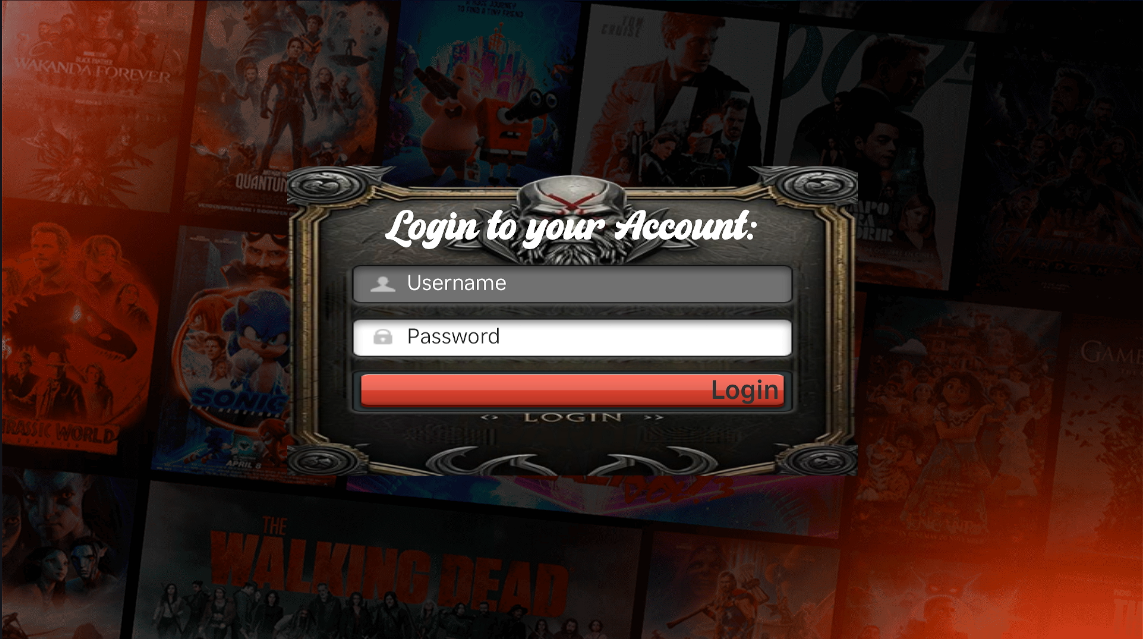
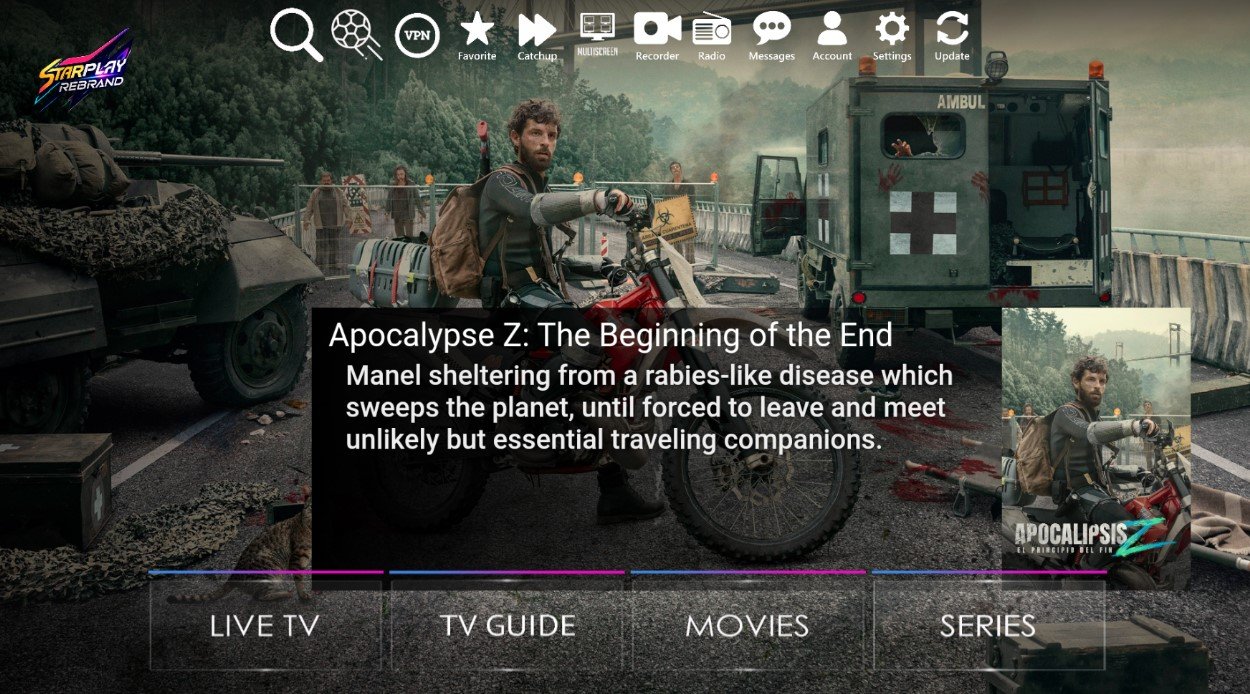
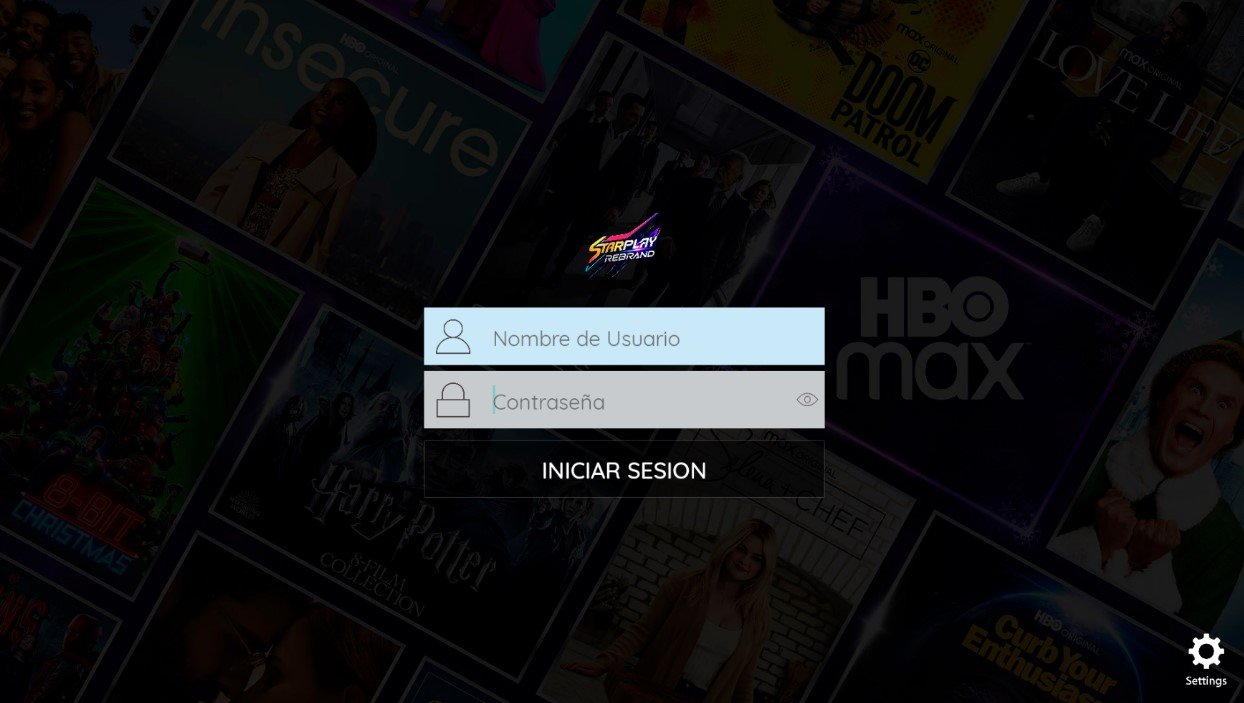
The home screen fills the display with a still and the synopsis of the featured title, and four fixed tabs sit underneath: LIVE TV, TV GUIDE, MOVIES and SERIES. A row of icons along the top gathers search, VPN, favourites, catch-up, multiscreen, recording, radio, messages and account. The Spanish sign-in screen asks for a username and a password over a mosaic of posters.
- The home screen fills the display with a still and the synopsis of the featured title, and four fixed tabs sit underneath: LIVE TV, TV GUIDE, MOVIES and SERIES. A row of icons along the top gathers search, VPN, favourites, catch-up, multiscreen, recording, radio, messages and account. The Spanish sign-in screen asks for a username and a password over a mosaic of posters.
- REMOTE CONTROL USAGE
- WITH YOUR BRAND LOGO
- YOUR BRAND NAME
9XTREAM
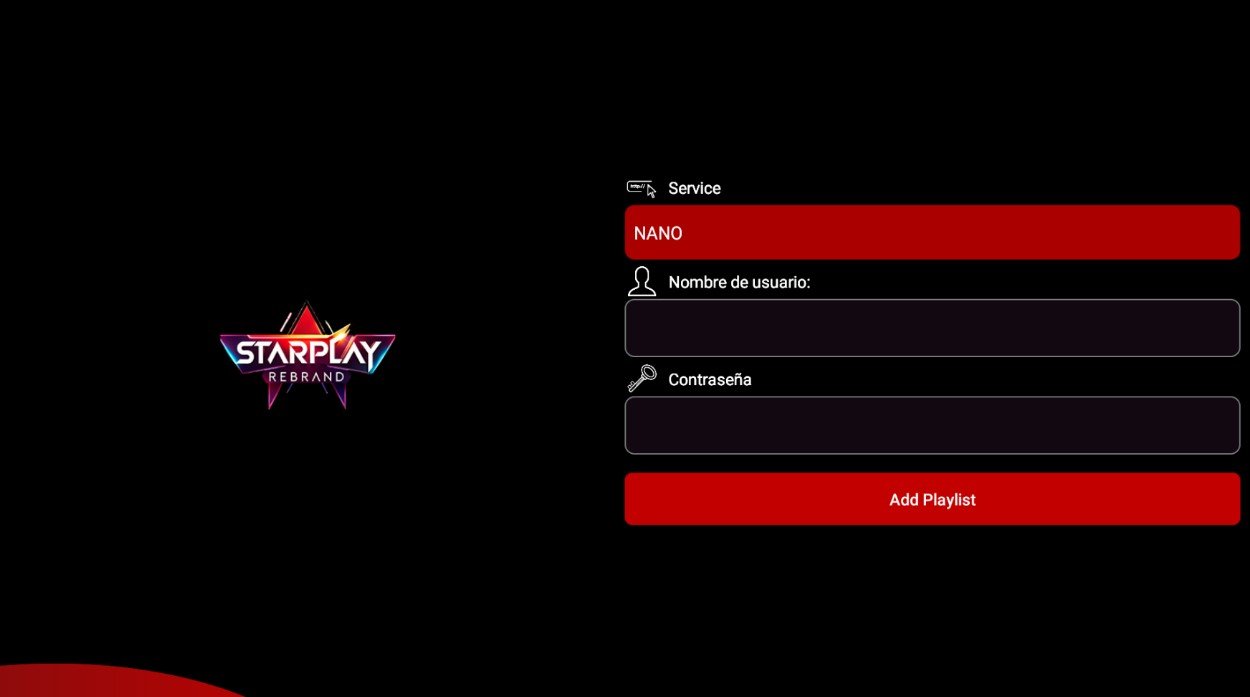
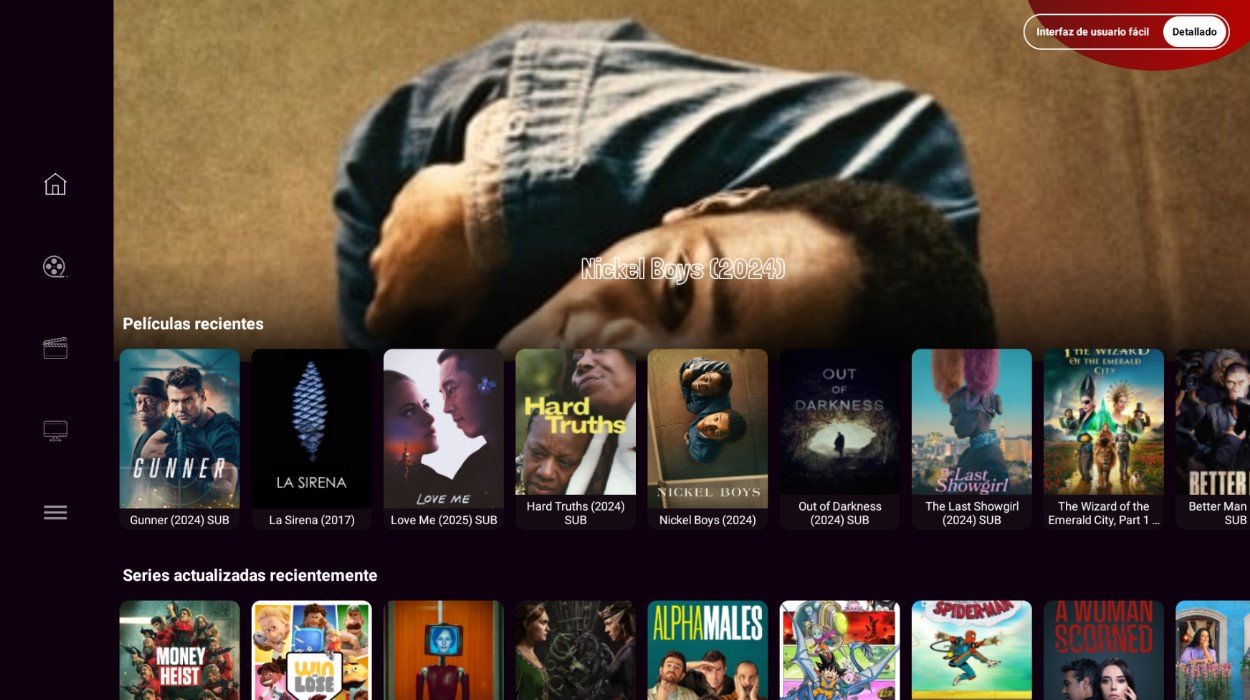
A narrow icon sidebar sits next to rows of cover art, Recent movies and Recently updated series, under a full-screen featured title on a near-black purple with red accents. A switch in the corner flips between the simple and the detailed interface. Login asks for a server, a username and a password, then stores the list with Add Playlist.
- A narrow icon sidebar sits next to rows of cover art, Recent movies and Recently updated series, under a full-screen featured title on a near-black purple with red accents. A switch in the corner flips between the simple and the detailed interface. Login asks for a server, a username and a password, then stores the list with Add Playlist.
- WITH YOUR BRAND LOGO
- YOUR BRAND NAME
- MULTI DNS PANEL
SMARTER NETFLIX
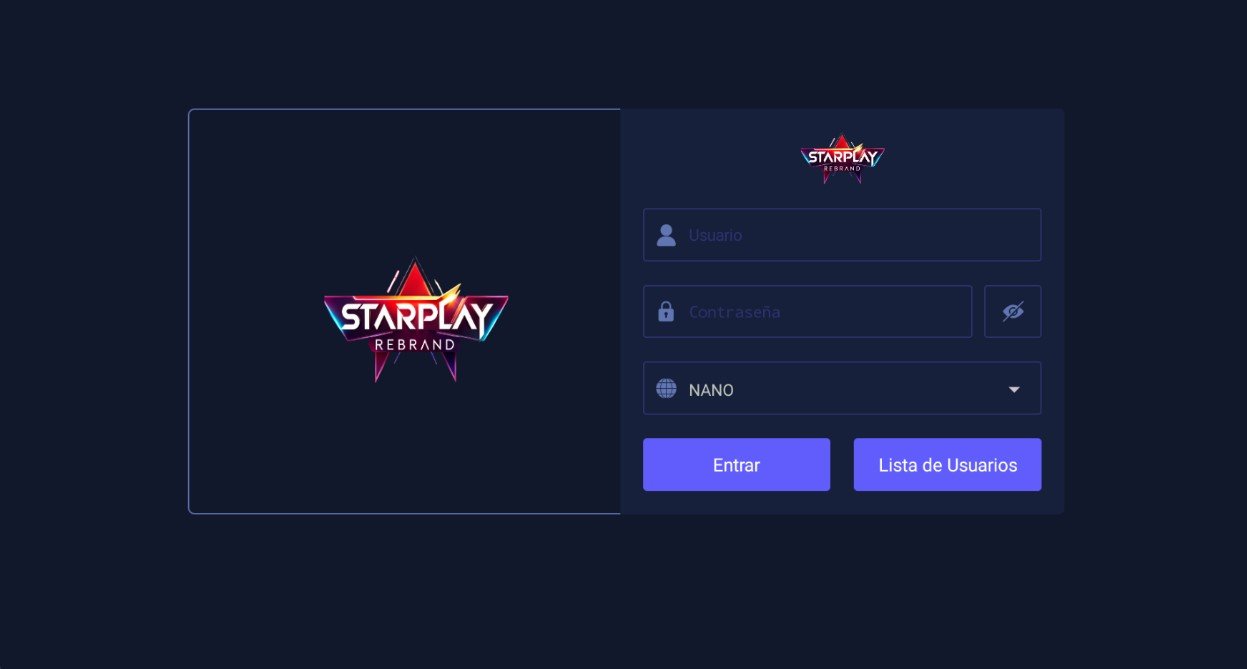
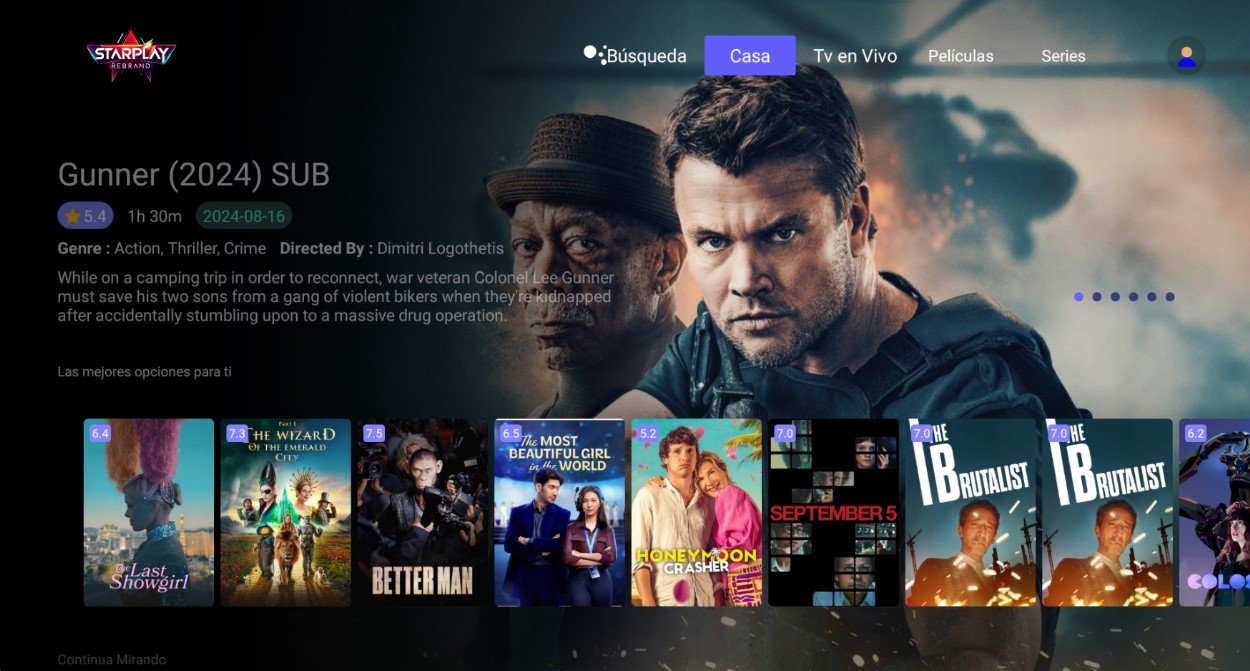
A horizontal top menu carries Search, Home, Live TV, Movies and Series next to the profile avatar, with rows such as Top picks for you and Continue watching below, each poster showing its score. The featured title arrives with rating, runtime, date, genre, director and synopsis. The sign-in screen keeps several accounts in a user list.
- A horizontal top menu carries Search, Home, Live TV, Movies and Series next to the profile avatar, with rows such as Top picks for you and Continue watching below, each poster showing its score. The featured title arrives with rating, runtime, date, genre, director and synopsis. The sign-in screen keeps several accounts in a user list.
- WITH YOUR BRAND LOGO
- YOUR BRAND NAME
- MULTI DNS PANEL
IBO MAC & ADS
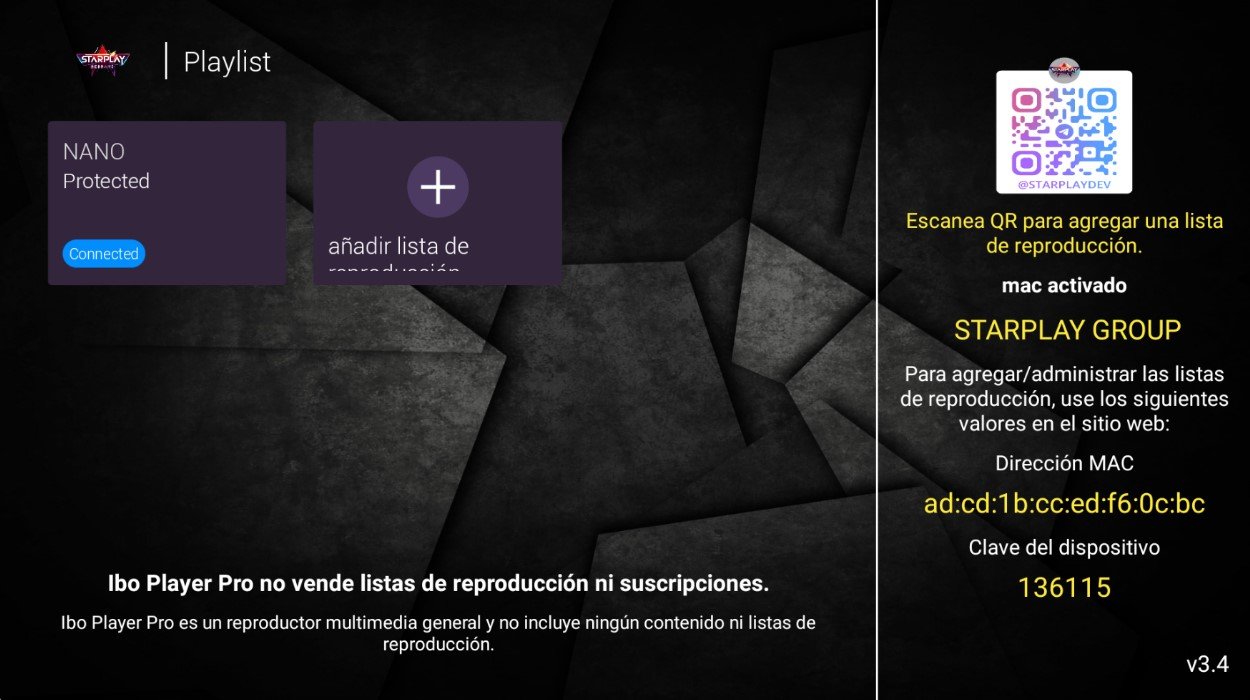
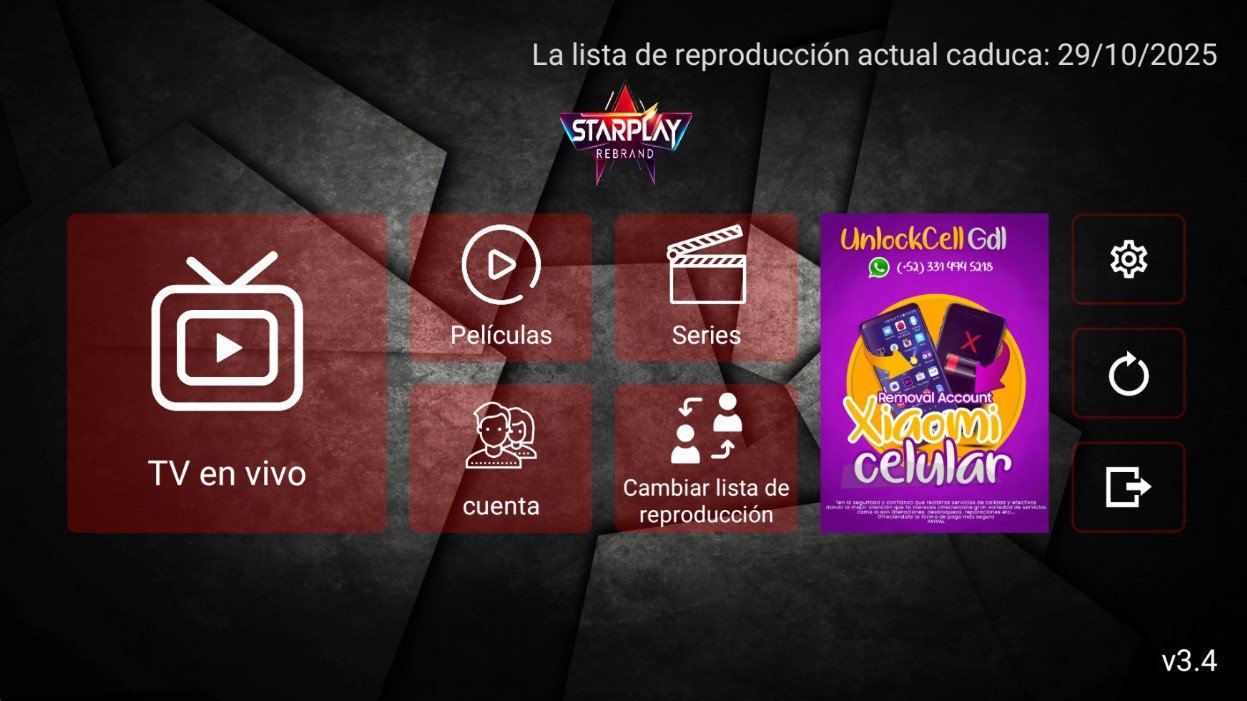
An Android IPTV app activated by MAC address: the setup screen shows that address, the device key and a QR code for registering the playlist from the web. Home is a dark tile mosaic with Live TV, Movies, Series, account and playlist switching, the expiry date along the top and an advertising poster slot beside the tiles.
- An Android IPTV app activated by MAC address: the setup screen shows that address, the device key and a QR code for registering the playlist from the web. Home is a dark tile mosaic with Live TV, Movies, Series, account and playlist switching, the expiry date along the top and an advertising poster slot beside the tiles.
- 6 THEMES AVAILABLE
- ADVERTISING
- MAC ACTIVATION ONLY
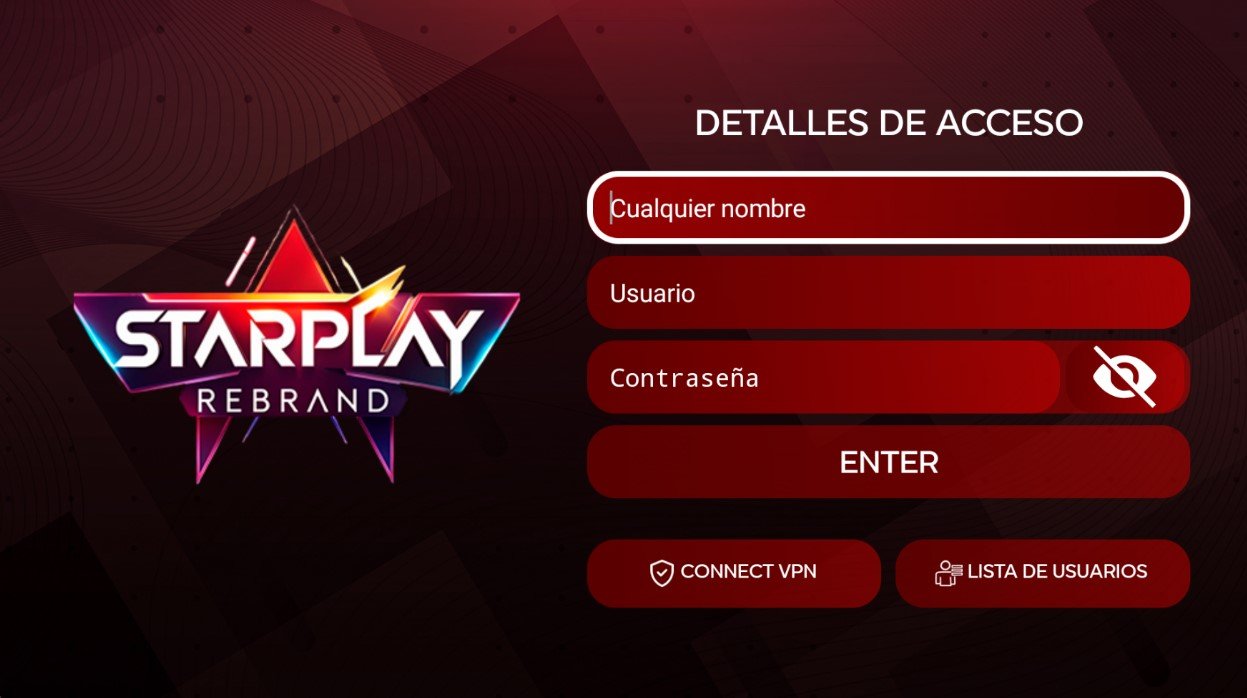
SMARTER V4 VER
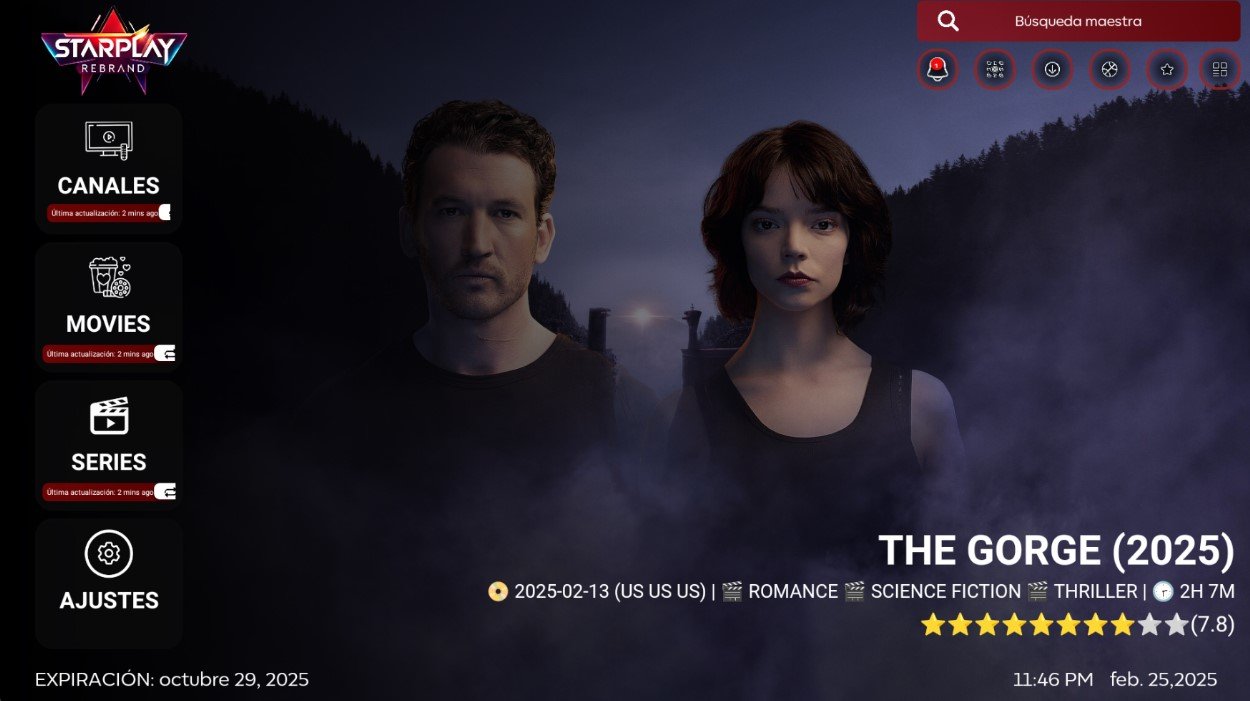
Four stacked cards run down the left, CANALES, MOVIES, SERIES and AJUSTES, the first three stamped with the time of their last refresh. Behind them runs the still of the featured title, shown with date, genres, runtime and a star rating. A master search bar and round shortcut buttons sit top right; the account expiry date and the clock close the screen at the bottom.
- Four stacked cards run down the left, CANALES, MOVIES, SERIES and AJUSTES, the first three stamped with the time of their last refresh. Behind them runs the still of the featured title, shown with date, genres, runtime and a star rating. A master search bar and round shortcut buttons sit top right; the account expiry date and the clock close the screen at the bottom.
- INTRO WITH YOUR BRAND LOGO
- YOUR BRAND NAME
- MULTI DNS PANEL
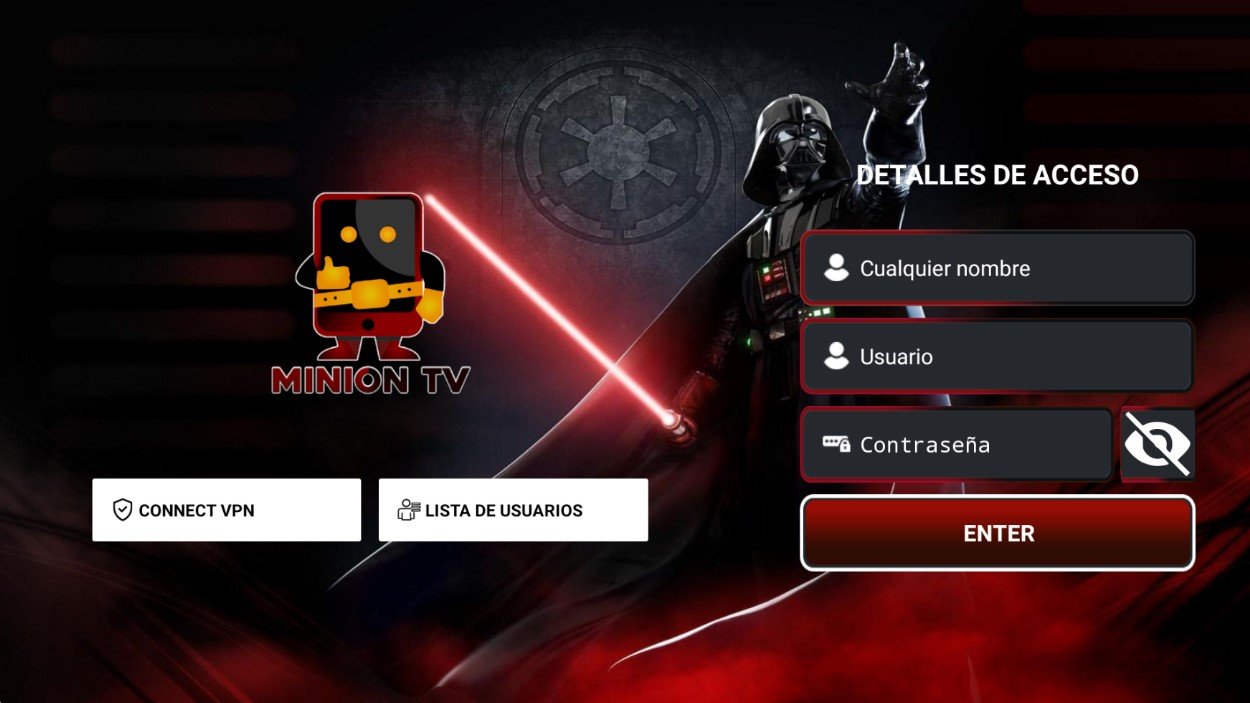
SMARTER V3 CALL
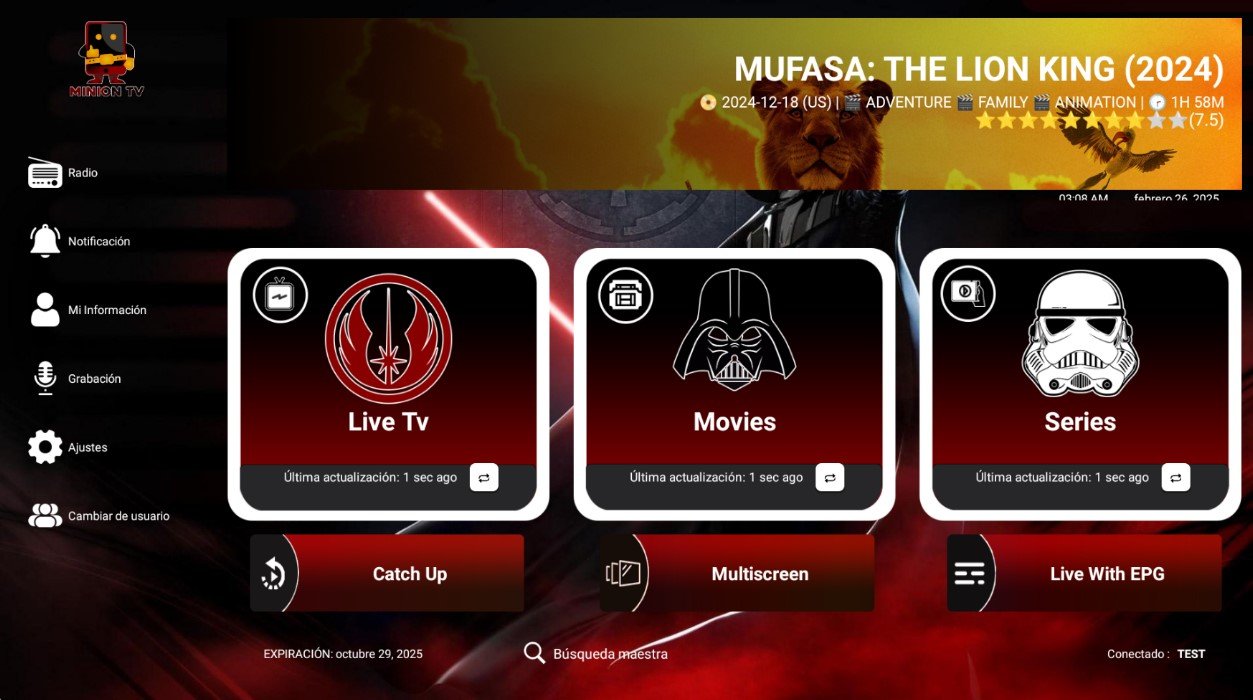
The featured title rides in a wide banner across the top with date, genres, runtime and stars, while three cards below, Live Tv, Movies and Series, report when each section was last refreshed. A row of buttons adds Catch Up, Multiscreen and Live With EPG, and the side menu holds Radio, Recording, My Info and user switching.
- The featured title rides in a wide banner across the top with date, genres, runtime and stars, while three cards below, Live Tv, Movies and Series, report when each section was last refreshed. A row of buttons adds Catch Up, Multiscreen and Live With EPG, and the side menu holds Radio, Recording, My Info and user switching.
- BANNER
- WITH YOUR BRAND LOGO
- YOUR BRAND NAME
ONE STREAM
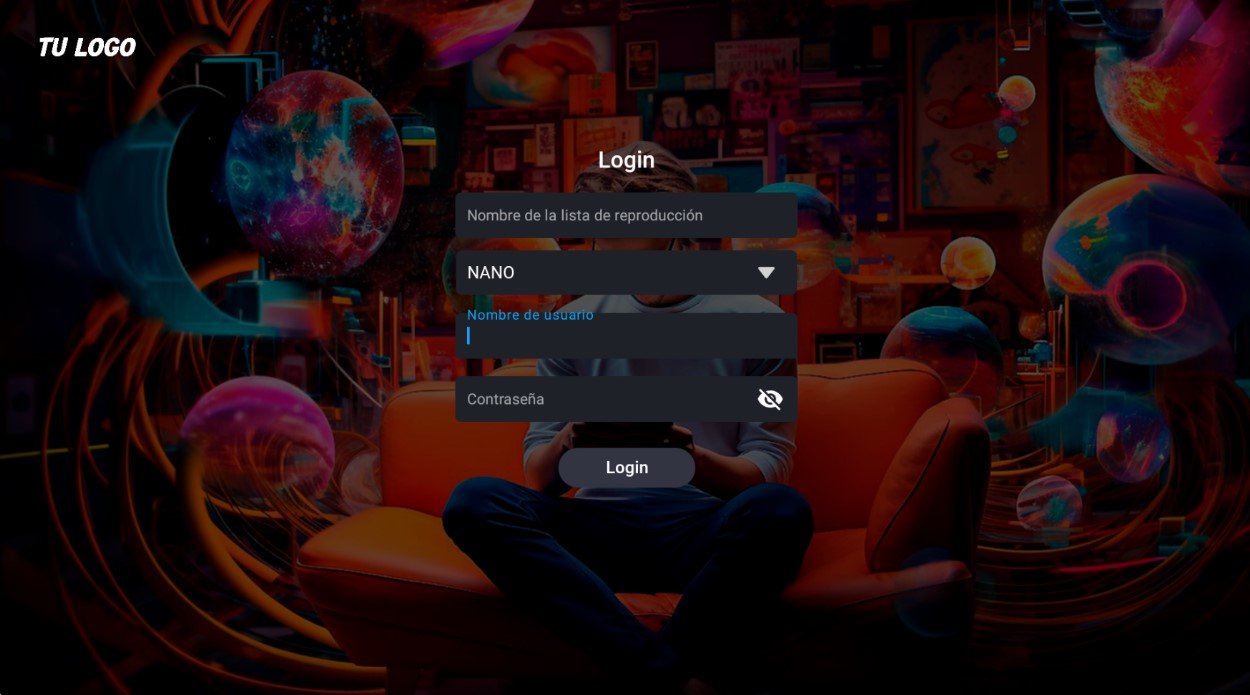
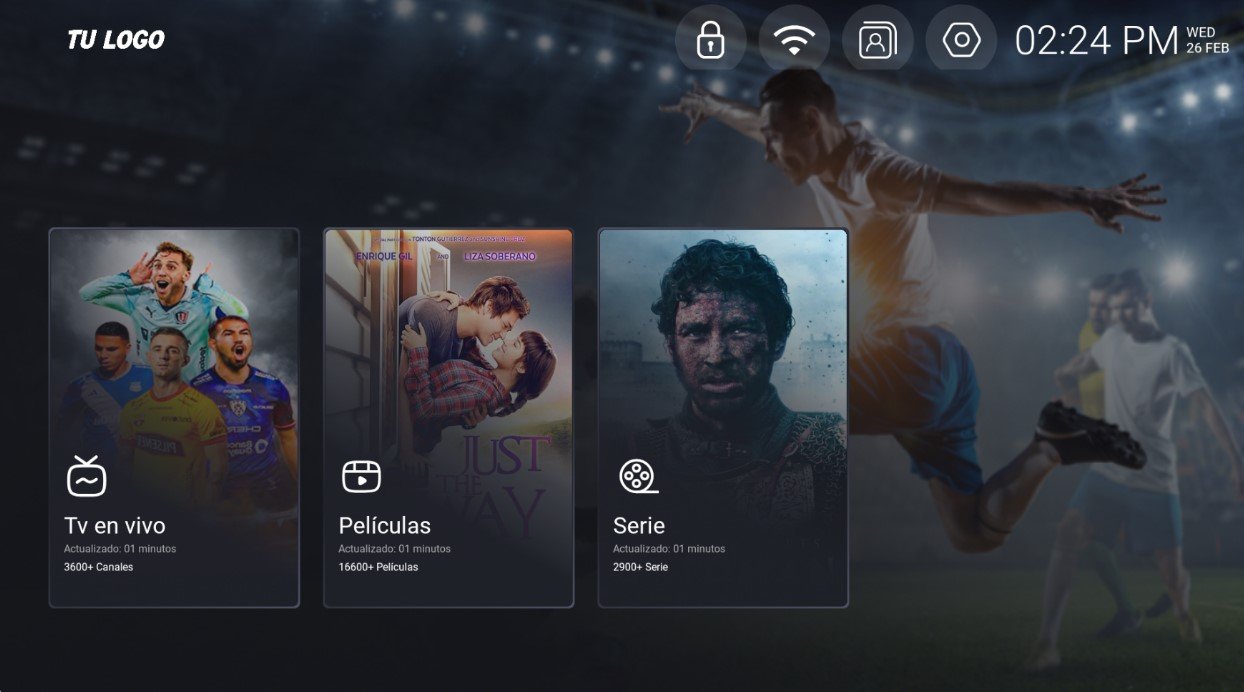
Three tall poster-style cards carry the whole navigation, Live TV, Movies and Series, and each one reports when it was refreshed and how many items the loaded playlist holds. The top bar carries a lock, connection status, profile and settings, with the clock and weekday on the right. Signing in means naming the playlist and picking server, username and password.
- Three tall poster-style cards carry the whole navigation, Live TV, Movies and Series, and each one reports when it was refreshed and how many items the loaded playlist holds. The top bar carries a lock, connection status, profile and settings, with the clock and weekday on the right. Signing in means naming the playlist and picking server, username and password.
- WITH YOUR BRAND LOGO
- YOUR BRAND NAME
- MULTI DNS PANEL
SMARTERS MOD 1
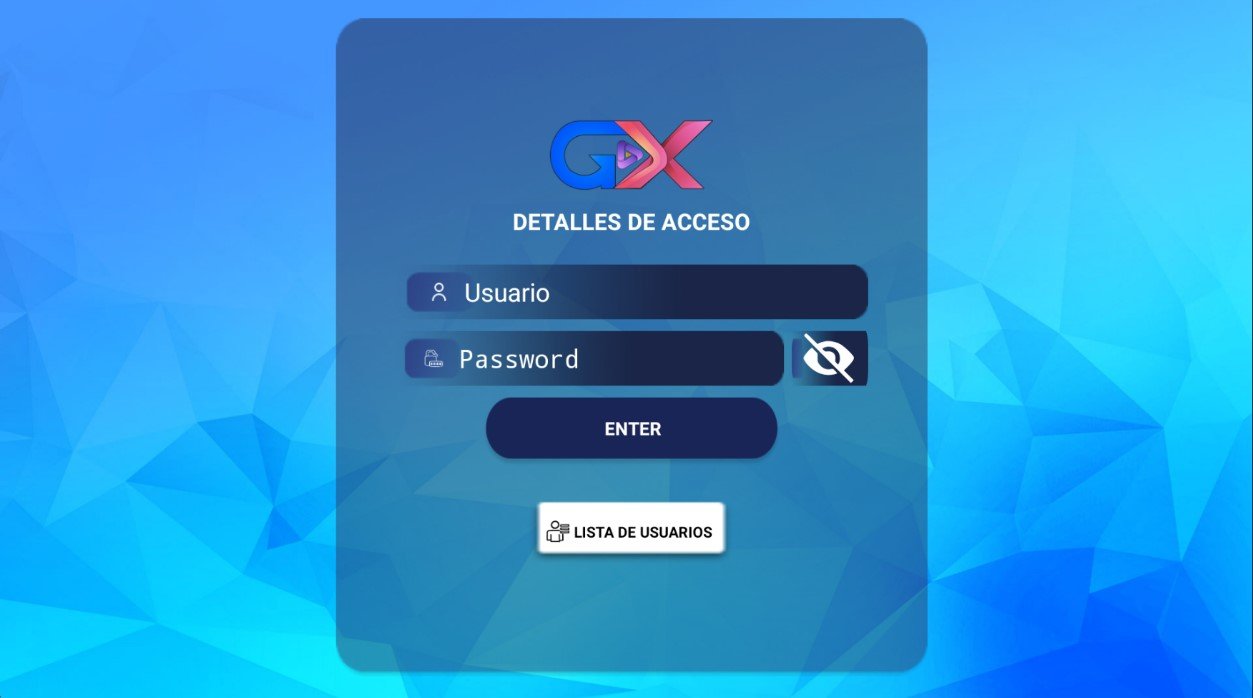
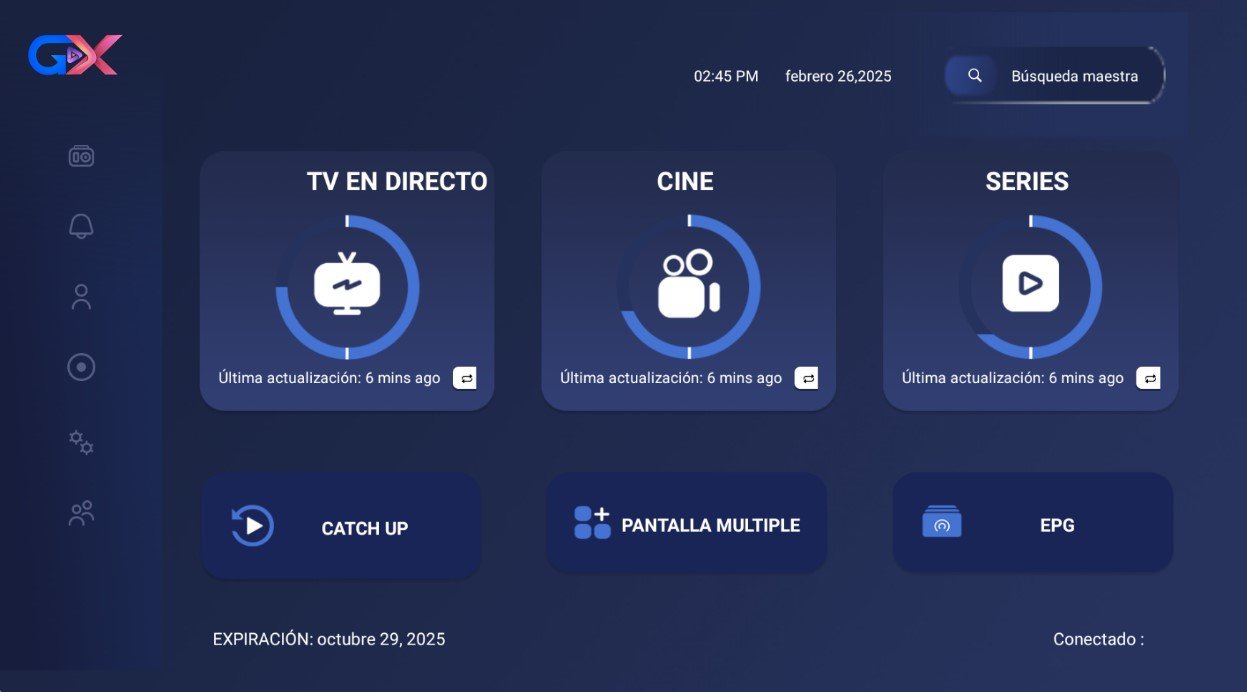
A navy-blue Smarters build whose home screen gathers Live TV, Movies and Series into three ring cards stamped with their last refresh, alongside an icon sidebar and a master search bar on top. Catch Up, Multi-Screen and EPG sit right below, and the footer shows the account expiry date. Sign-in is by username and password, with a saved user list.
- A navy-blue Smarters build whose home screen gathers Live TV, Movies and Series into three ring cards stamped with their last refresh, alongside an icon sidebar and a master search bar on top. Catch Up, Multi-Screen and EPG sit right below, and the footer shows the account expiry date. Sign-in is by username and password, with a saved user list.
- WITH YOUR BRAND LOGO
- YOUR BRAND NAME
- MULTI DNS PANEL
SMARTERS MOD 2
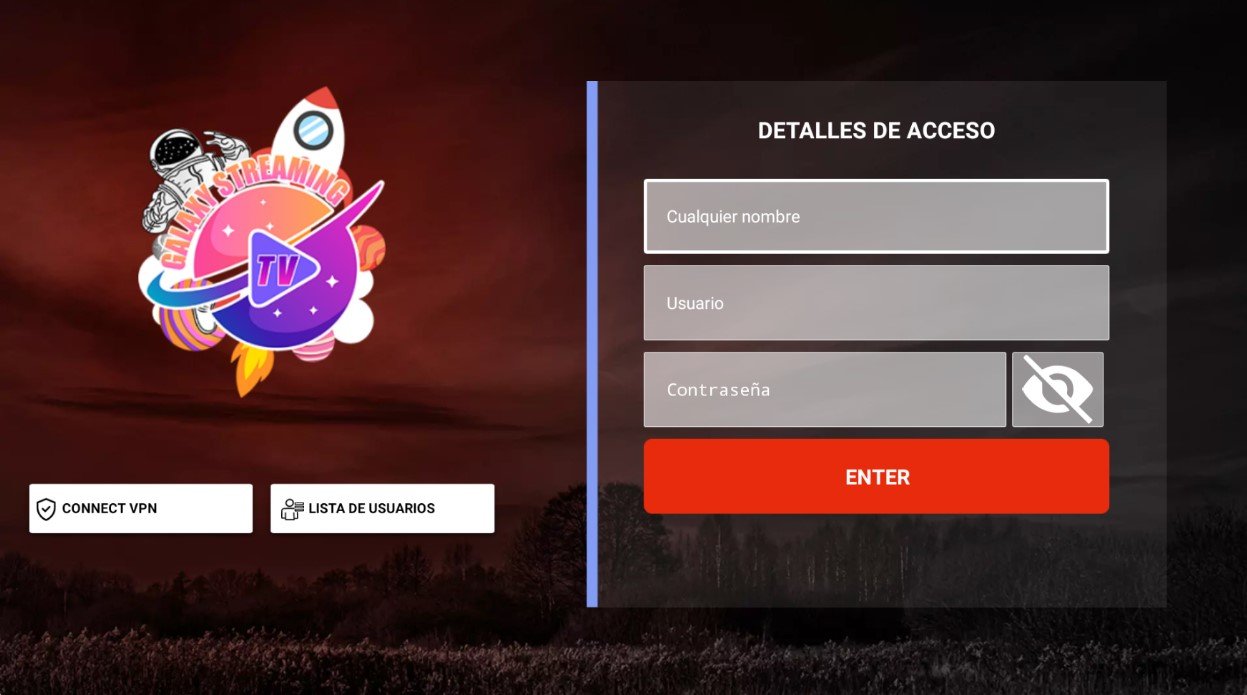
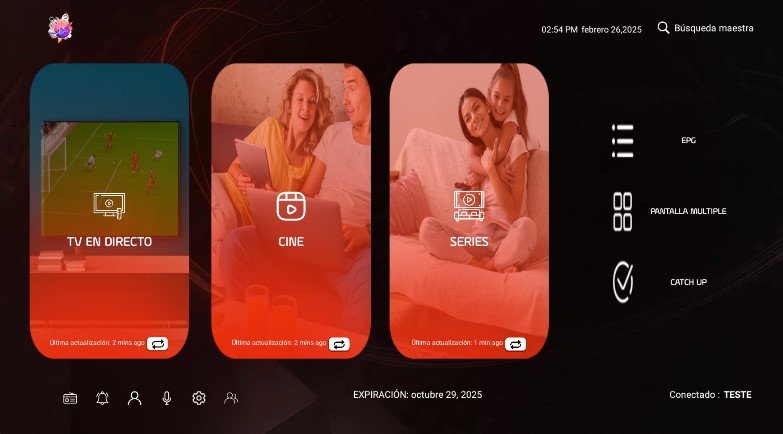
Three tall photo panels carry the home screen here, Live TV, Movies and Series, over a black background washed in red, with EPG, Multi-Screen and Catch Up kept in a separate column. The login takes a profile name on top of username and password, and adds VPN connect and saved-user buttons.
- Three tall photo panels carry the home screen here, Live TV, Movies and Series, over a black background washed in red, with EPG, Multi-Screen and Catch Up kept in a separate column. The login takes a profile name on top of username and password, and adds VPN connect and saved-user buttons.
- WITH YOUR BRAND LOGO
- YOUR BRAND NAME
- MULTI DNS PANEL
PURPLE V12
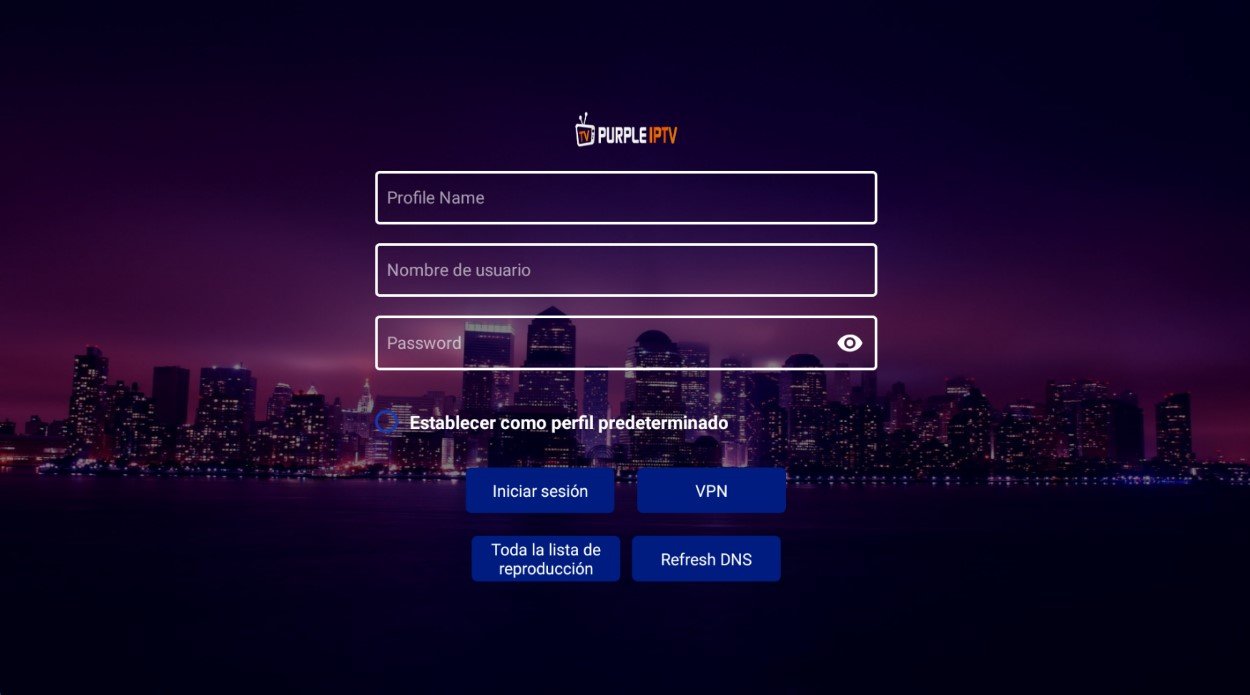
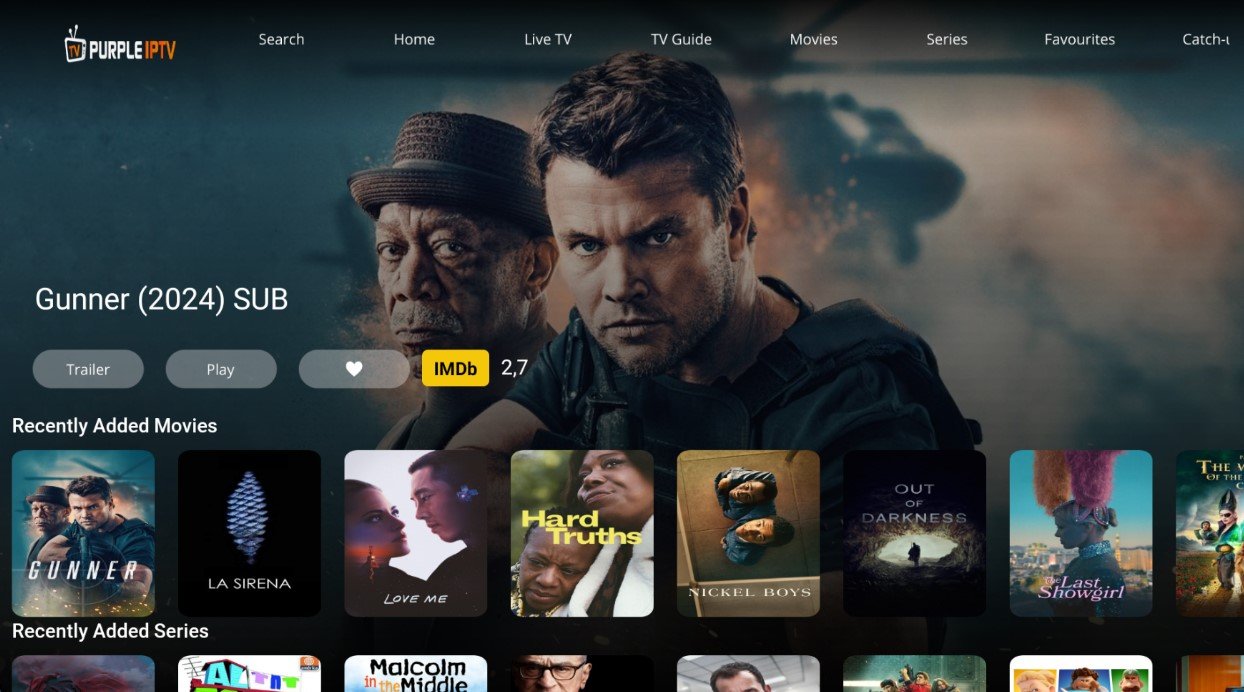
Purple IPTV with a streaming look: a full-width hero poster with trailer, play, favourite and an IMDb score, and beneath it carousels of recently added movies and series. The top menu runs all the way to Favourites and Catch-up. Its Spanish sign-in page, set over a purple skyline, creates a profile, sets it as default and adds VPN, all-playlist and DNS refresh.
- Purple IPTV with a streaming look: a full-width hero poster with trailer, play, favourite and an IMDb score, and beneath it carousels of recently added movies and series. The top menu runs all the way to Favourites and Catch-up. Its Spanish sign-in page, set over a purple skyline, creates a profile, sets it as default and adds VPN, all-playlist and DNS refresh.
- 16 THEMES AVAILABLE
- WITH YOUR BRAND LOGO
- YOUR BRAND NAME
IBO 3.9 NUEVA
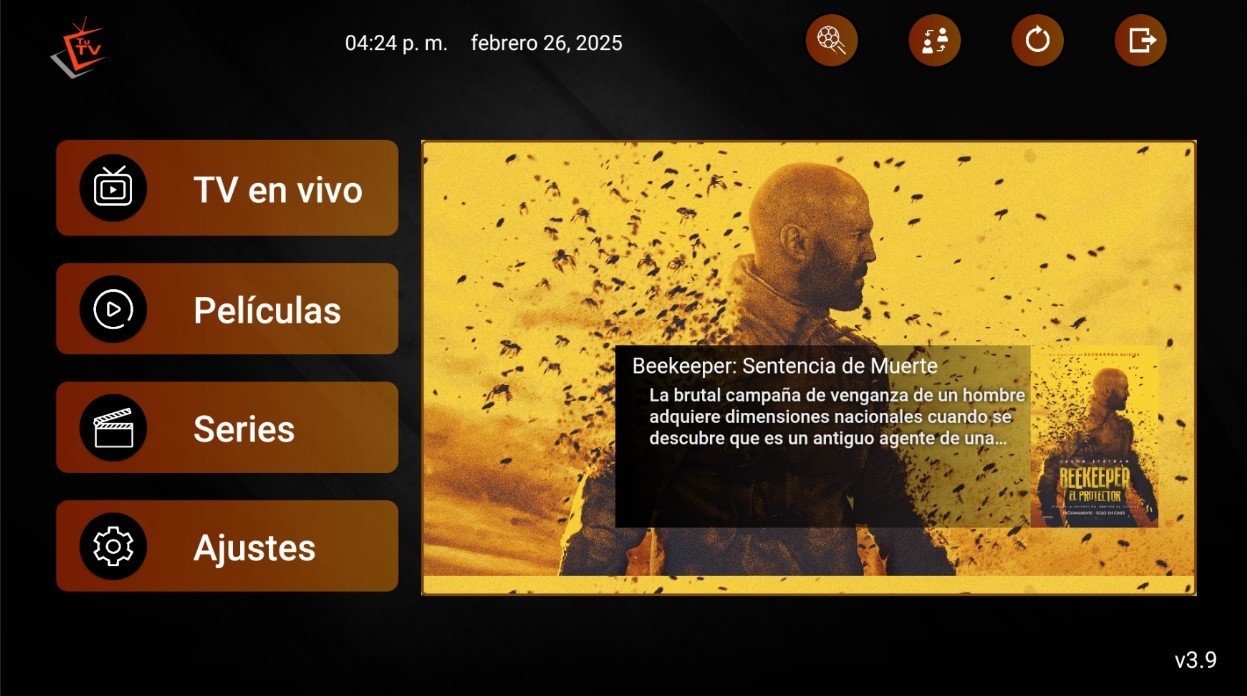
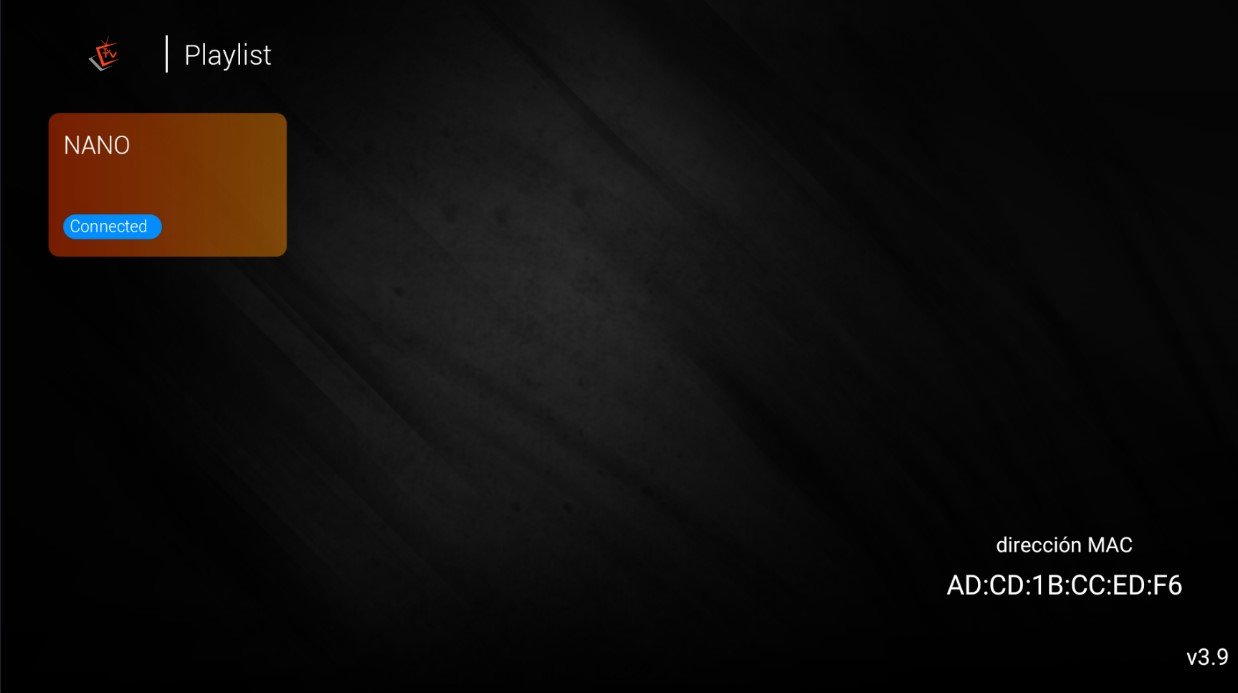
IBO's 3.9 release lines everything up in four large left-hand buttons, Live TV, Movies, Series and Settings, next to a preview panel showing the featured title's artwork and synopsis. Clock, date, search, user switch and reload sit along the top. Accounts are handled as playlists, and the device MAC address is shown on screen.
- IBO's 3.9 release lines everything up in four large left-hand buttons, Live TV, Movies, Series and Settings, next to a preview panel showing the featured title's artwork and synopsis. Clock, date, search, user switch and reload sit along the top. Accounts are handled as playlists, and the device MAC address is shown on screen.
- WITH YOUR BRAND LOGO
- YOUR BRAND NAME
- MULTI DNS PANEL
SMARTER DORADA
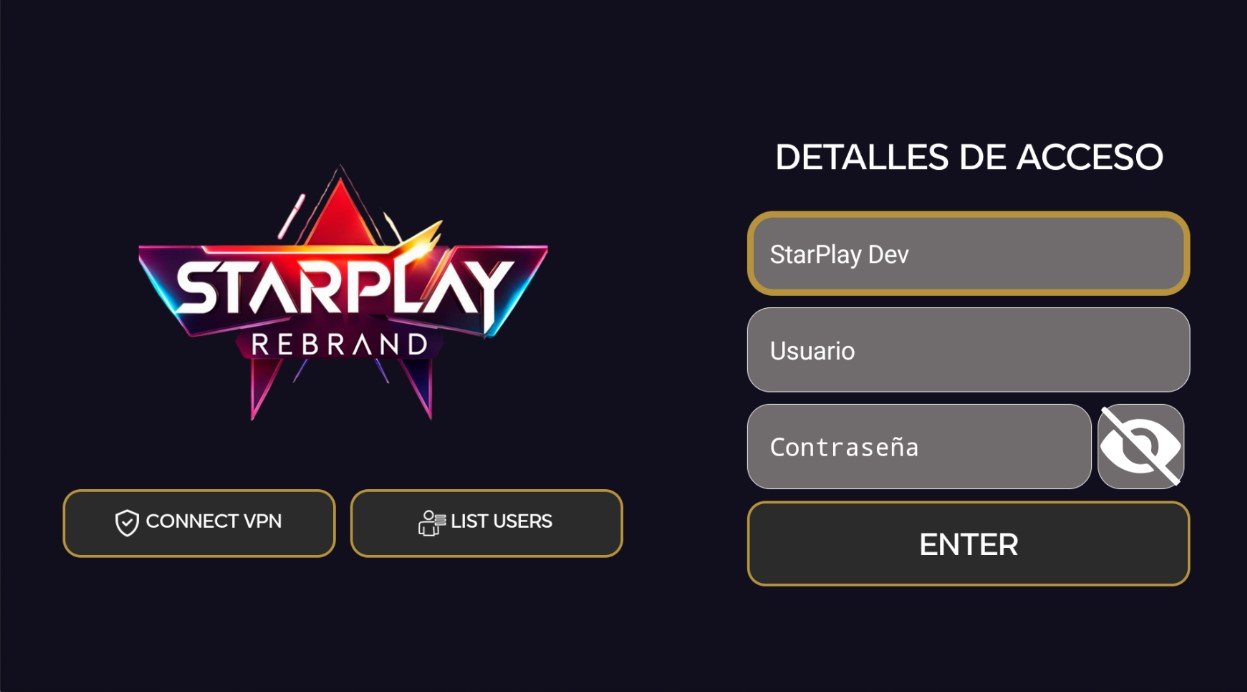
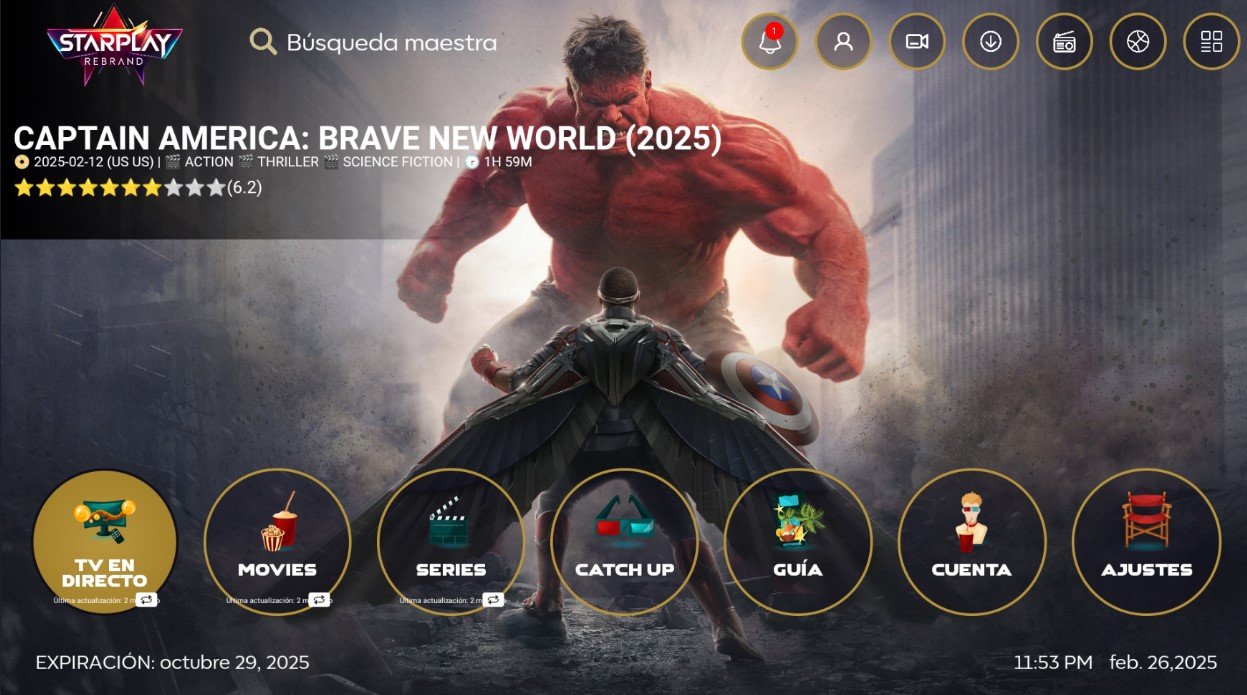
Gold trim runs through this one from the login screen in: the home screen fills the display with a film still carrying its title, genres, running time and star rating, then lines up seven gold-rimmed circles for Live TV, Movies, Series, Catch Up, Guide, Account and Settings. The sign-in screen adds VPN connect and a user list.
- Gold trim runs through this one from the login screen in: the home screen fills the display with a film still carrying its title, genres, running time and star rating, then lines up seven gold-rimmed circles for Live TV, Movies, Series, Catch Up, Guide, Account and Settings. The sign-in screen adds VPN connect and a user list.
- WITH YOUR BRAND LOGO
- YOUR BRAND NAME
- MULTI DNS PANEL
SMARTER ORANGE
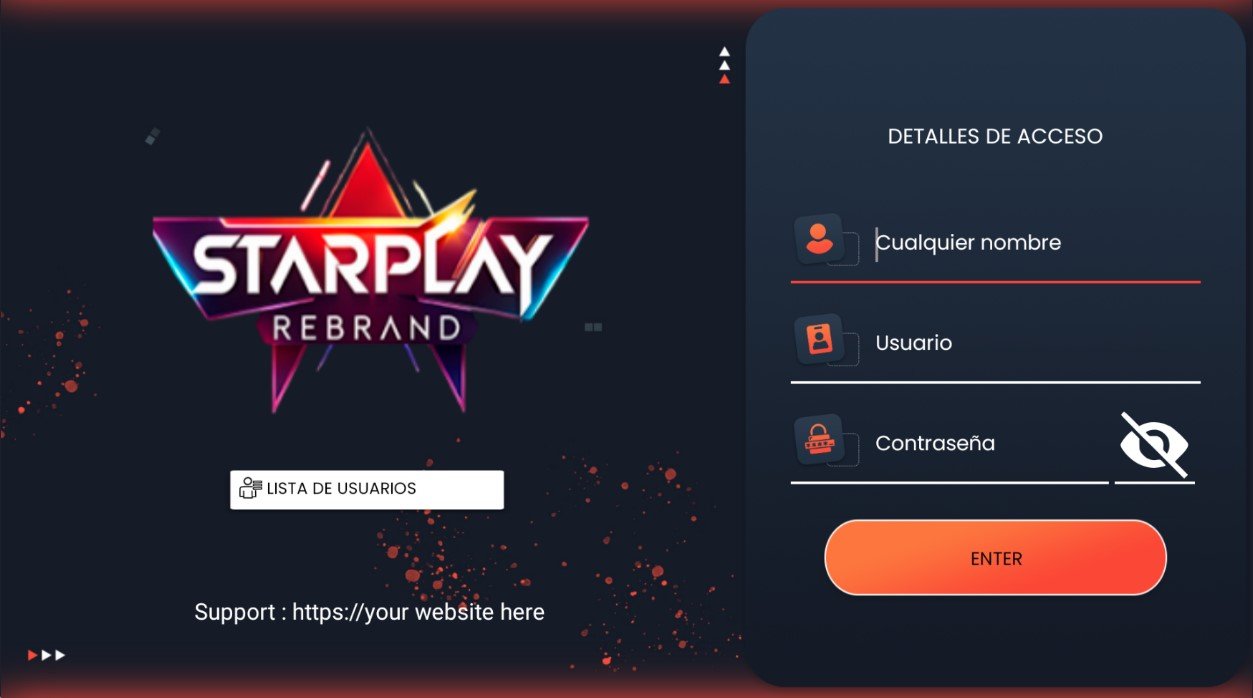
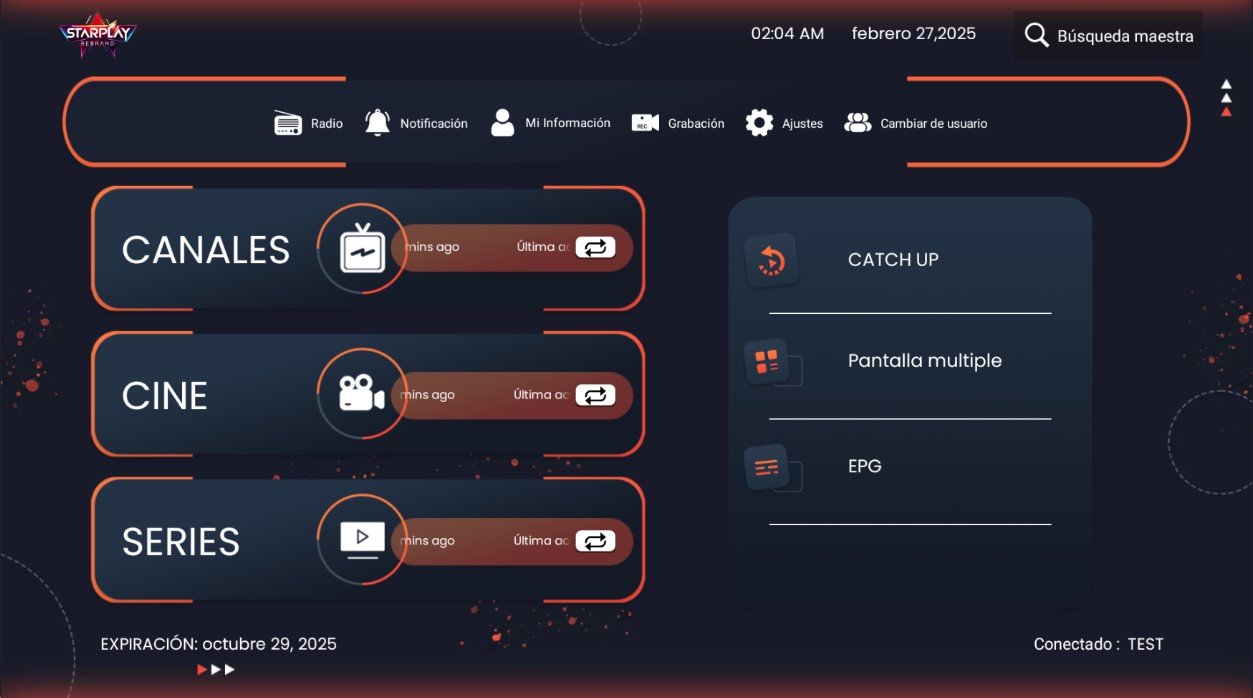
Orange outlining runs across a very dark blue interface: Channels, Movies and Series take three wide stacked bars with their last refresh, while Catch Up, Multiscreen and EPG sit in a card on the right. A top ribbon gathers Radio, Notifications, My Info, Recording, Settings and Switch User. The login screen even carries an editable support line.
- Orange outlining runs across a very dark blue interface: Channels, Movies and Series take three wide stacked bars with their last refresh, while Catch Up, Multiscreen and EPG sit in a card on the right. A top ribbon gathers Radio, Notifications, My Info, Recording, Settings and Switch User. The login screen even carries an editable support line.
- WITH YOUR BRAND LOGO
- YOUR BRAND NAME
- MULTI DNS PANEL
SMARTER PLUS
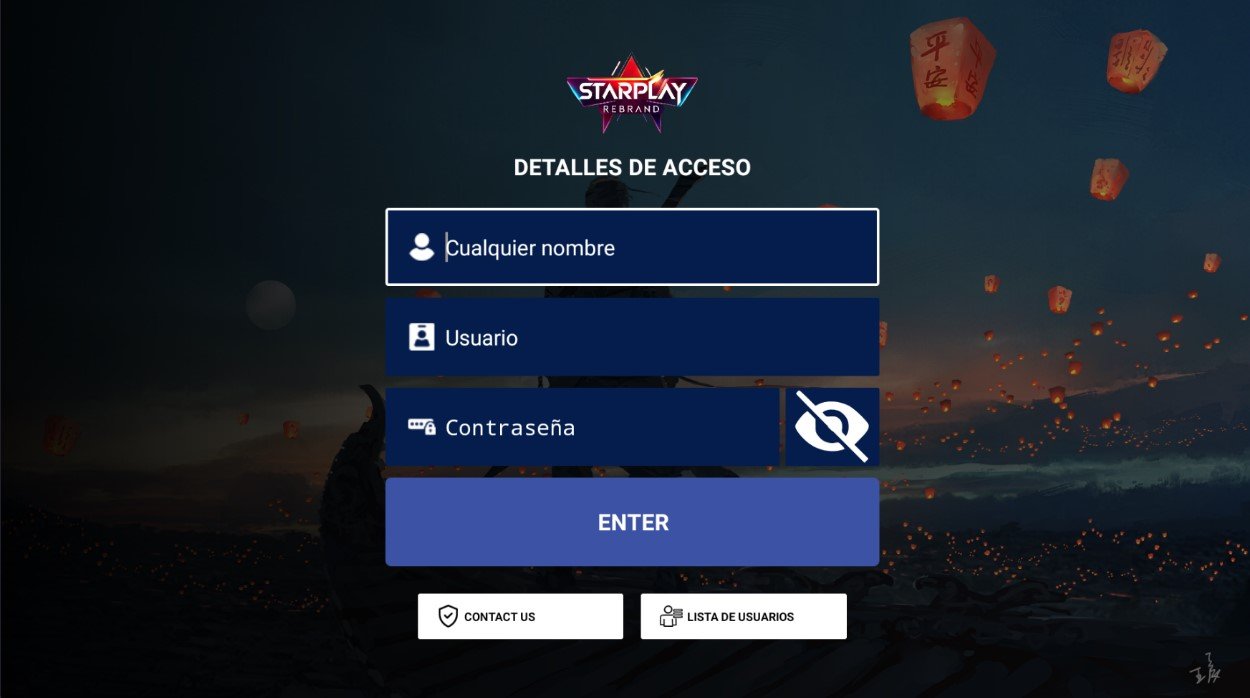
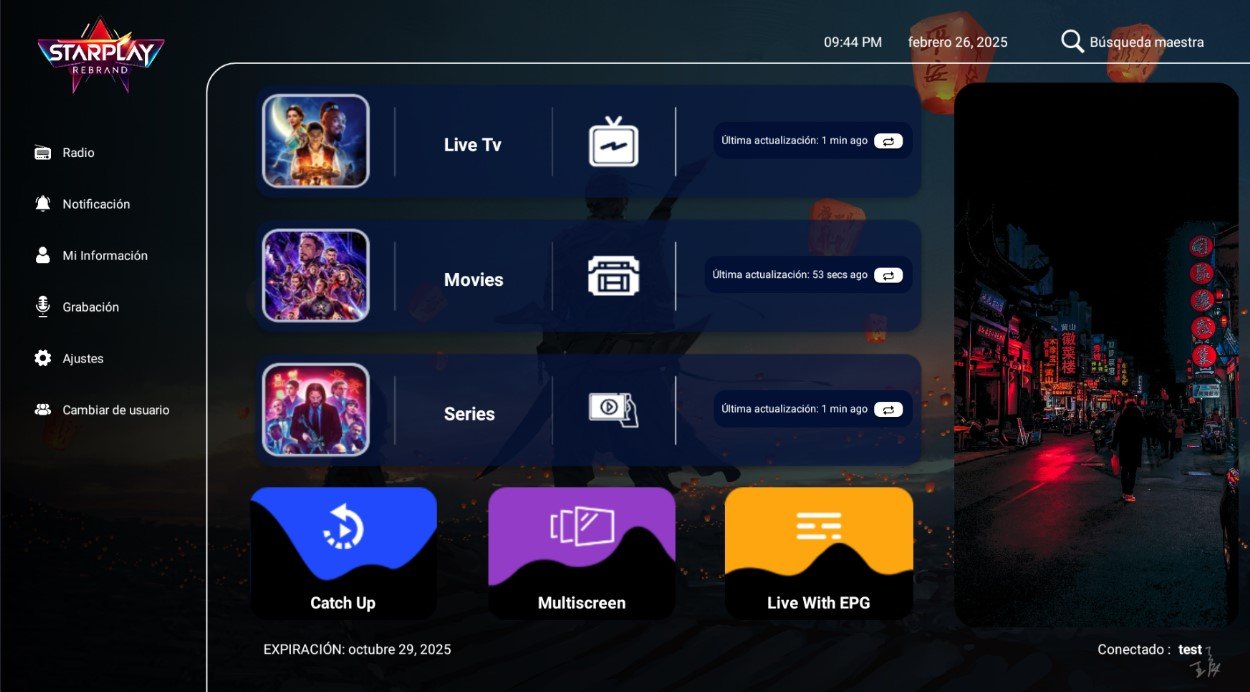
A labelled side menu, Radio, Notifications, My Info, Recording, Settings and Switch User, frames a centre column of three wide rows for Live Tv, Movies and Series, each showing a sample poster. Below them sit three coloured buttons for Catch Up, Multiscreen and Live With EPG, with a tall image panel on the right. The login sits over an illustrated backdrop and offers a contact button.
- A labelled side menu, Radio, Notifications, My Info, Recording, Settings and Switch User, frames a centre column of three wide rows for Live Tv, Movies and Series, each showing a sample poster. Below them sit three coloured buttons for Catch Up, Multiscreen and Live With EPG, with a tall image panel on the right. The login sits over an illustrated backdrop and offers a contact button.
- WITH YOUR BRAND LOGO
- YOUR BRAND NAME
- MULTI DNS PANEL
IBO 3.9 ULTRA
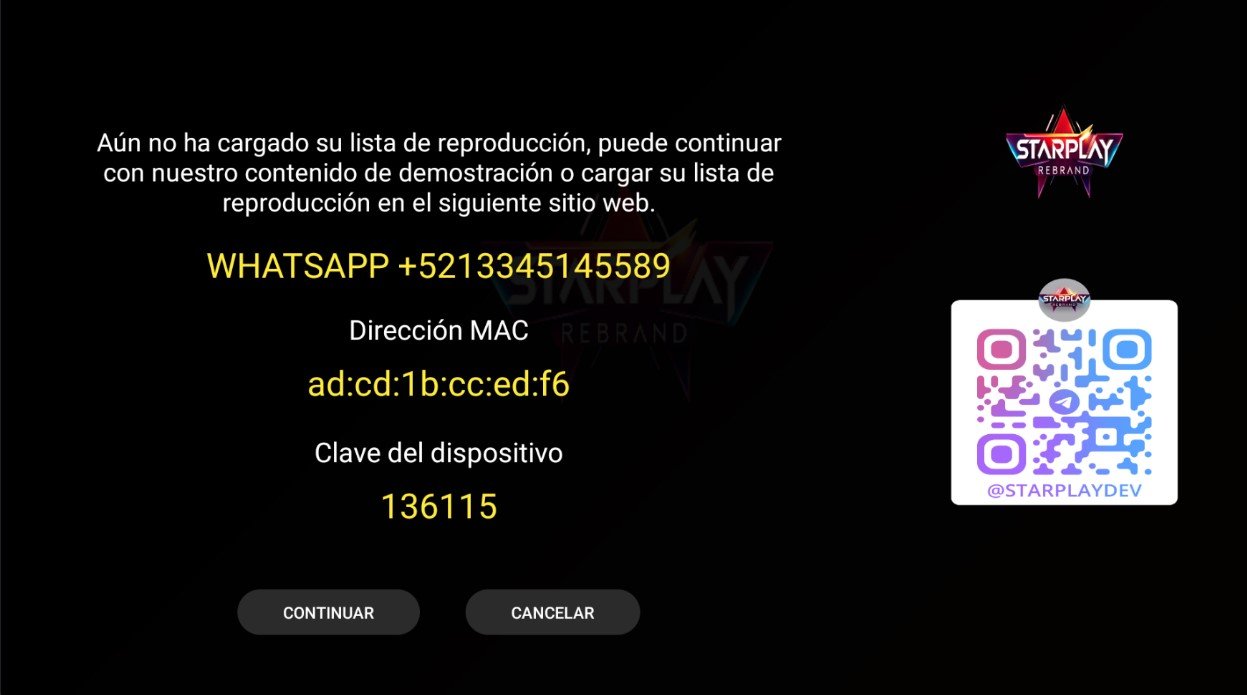
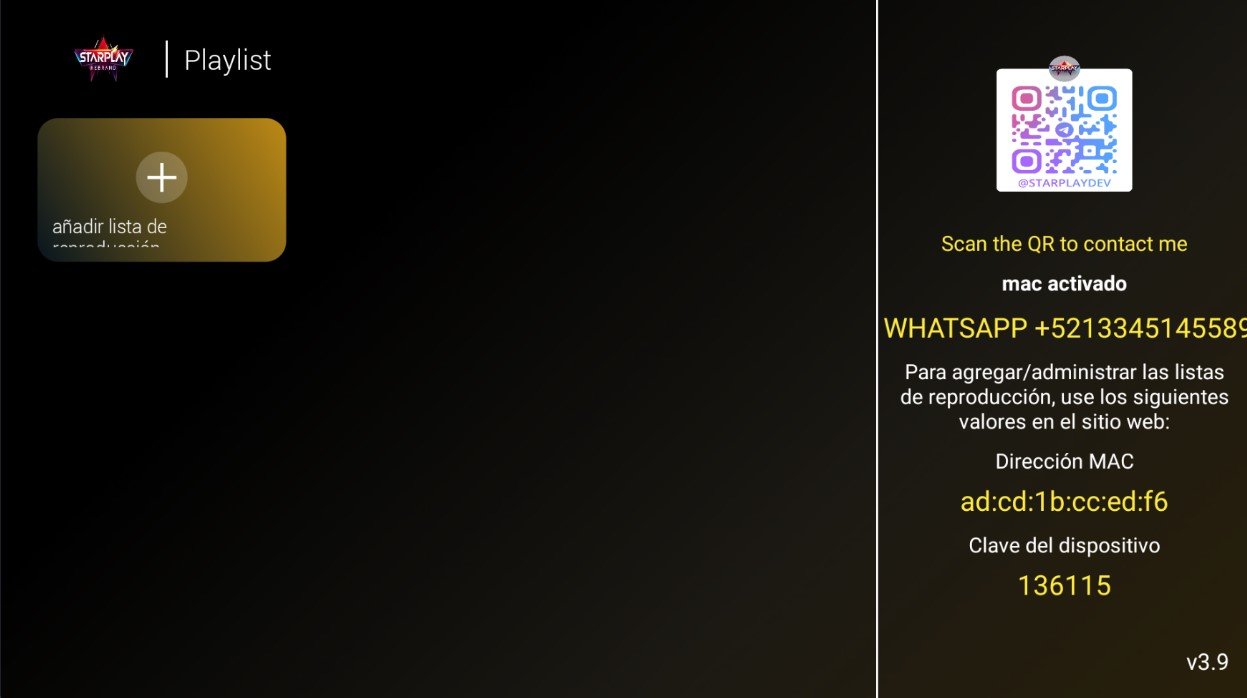
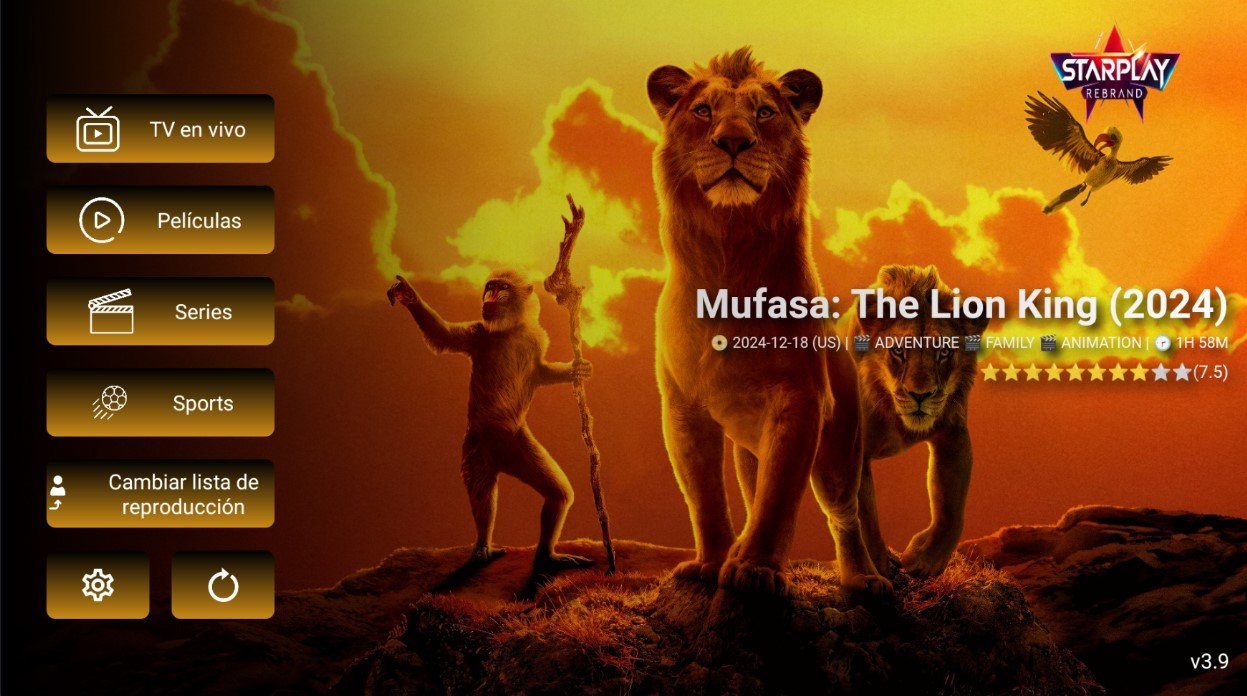
Setup happens on the TV screen itself: the app shows the MAC address and the device key so the playlist can be registered on the website, and meanwhile offers to continue with demo content. Its playlist screen is plain black, marked version 3.9, with the add-playlist tile and a contact QR code in view. The listing states that 17 themes are available.
- Setup happens on the TV screen itself: the app shows the MAC address and the device key so the playlist can be registered on the website, and meanwhile offers to continue with demo content. Its playlist screen is plain black, marked version 3.9, with the add-playlist tile and a contact QR code in view. The listing states that 17 themes are available.
- 17 THEMES AVAILABLE
- MAC ACTIVATION
- CODE ACTIVATION
SMARTER V3 ADS
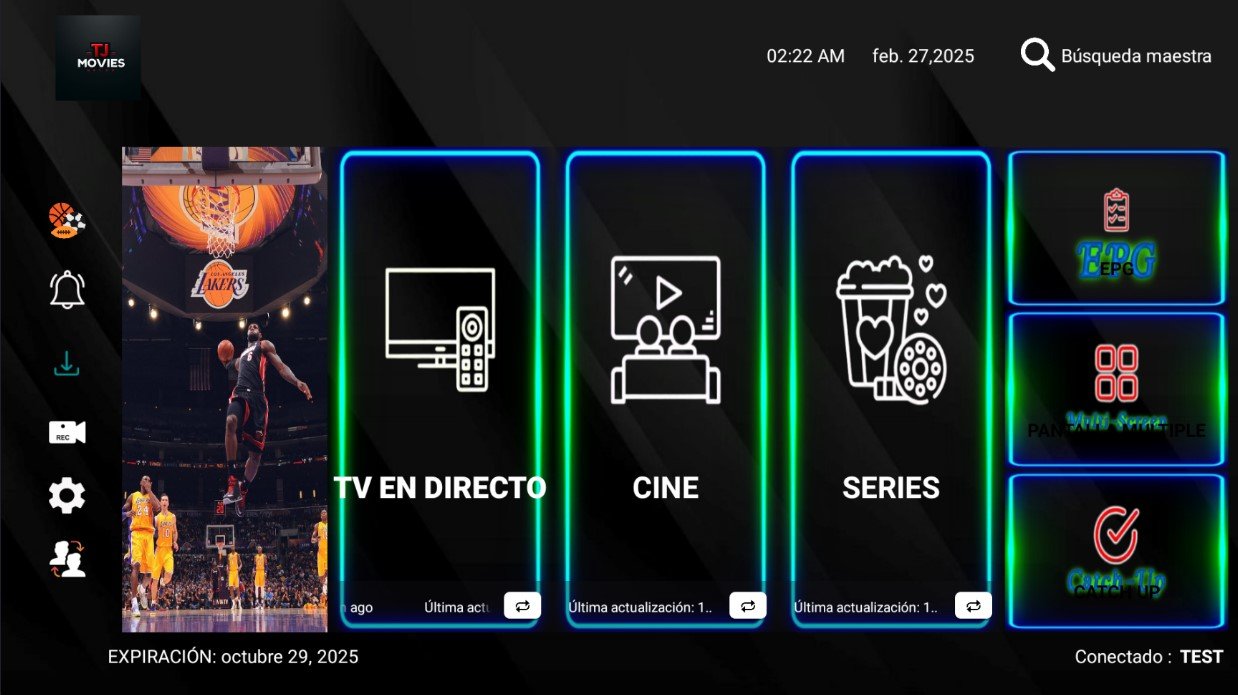
A home screen of neon-edged cards in blue and green: live TV, movies and series up front, with EPG, multi-screen and catch-up alongside. Next to the icon menu sits a tall poster-sized image slot. You sign in by typing a name, username and password, with VPN and saved-user-list buttons at hand.
- A home screen of neon-edged cards in blue and green: live TV, movies and series up front, with EPG, multi-screen and catch-up alongside. Next to the icon menu sits a tall poster-sized image slot. You sign in by typing a name, username and password, with VPN and saved-user-list buttons at hand.
- WITH YOUR BRAND LOGO
- YOUR BRAND NAME
- MULTI-DNS PANEL
SMARTER HOR V4
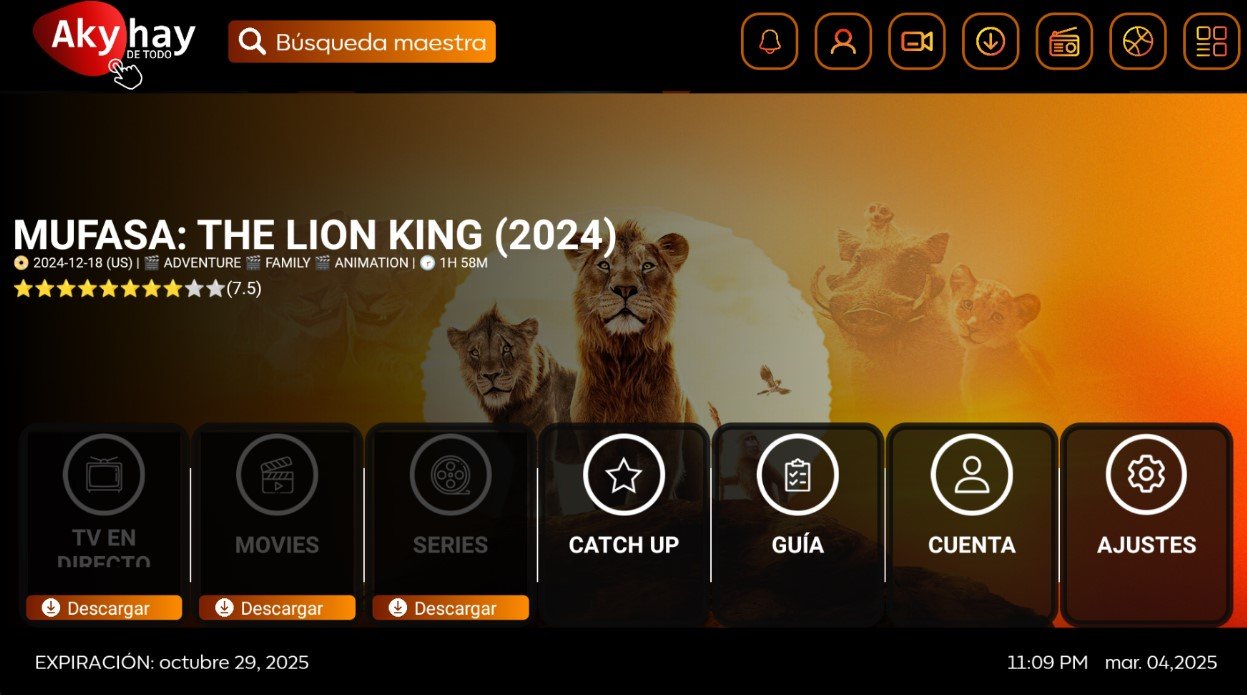
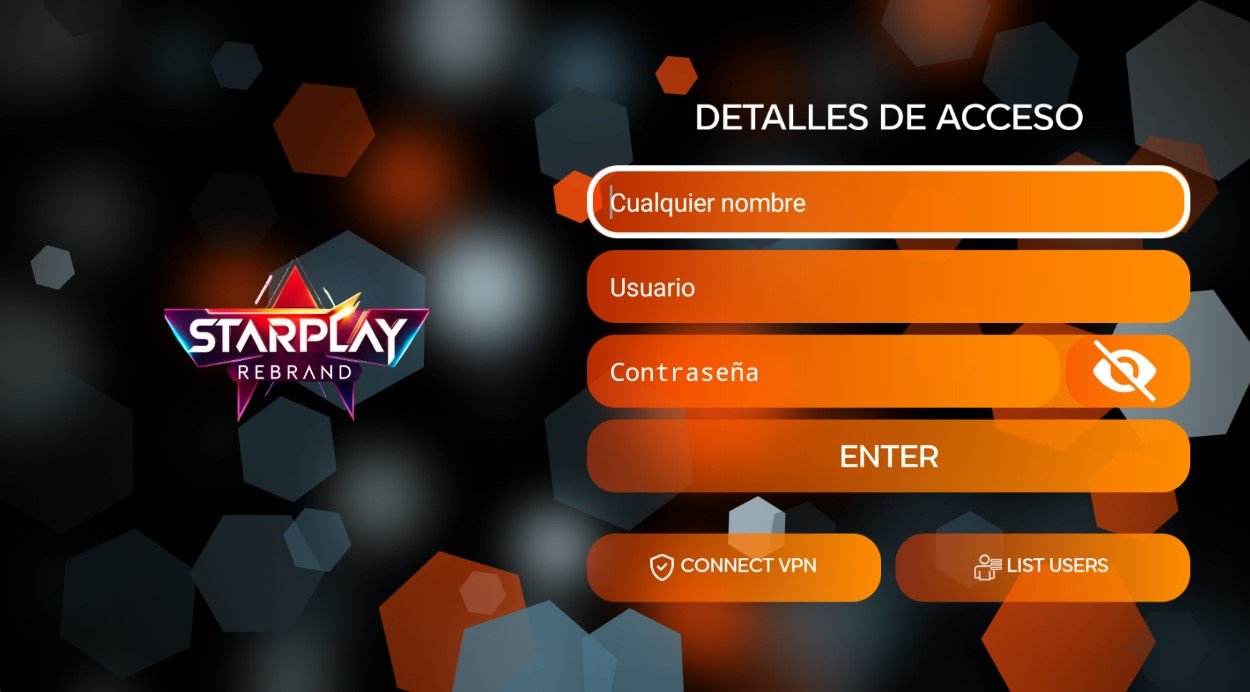
A full-width backdrop carries the title, year, genres, running time and rating, and under it runs one horizontal row of buttons: live TV, movies, series, catch-up, guide, account and settings. The look is orange on black, with a search box and a line of round icons across the top. Sign-in asks for a name, username and password.
- A full-width backdrop carries the title, year, genres, running time and rating, and under it runs one horizontal row of buttons: live TV, movies, series, catch-up, guide, account and settings. The look is orange on black, with a search box and a line of round icons across the top. Sign-in asks for a name, username and password.
- WITH YOUR BRAND LOGO
- YOUR BRAND NAME
- MULTI DNS PANEL
SMARTER FTG
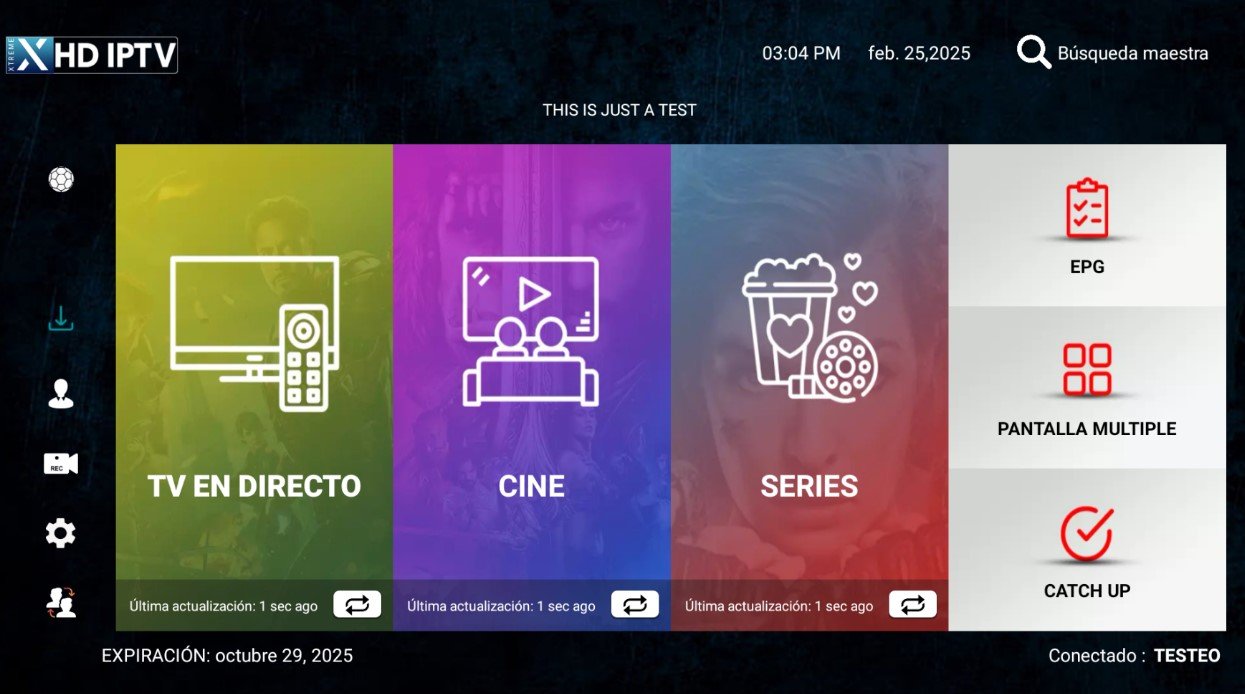
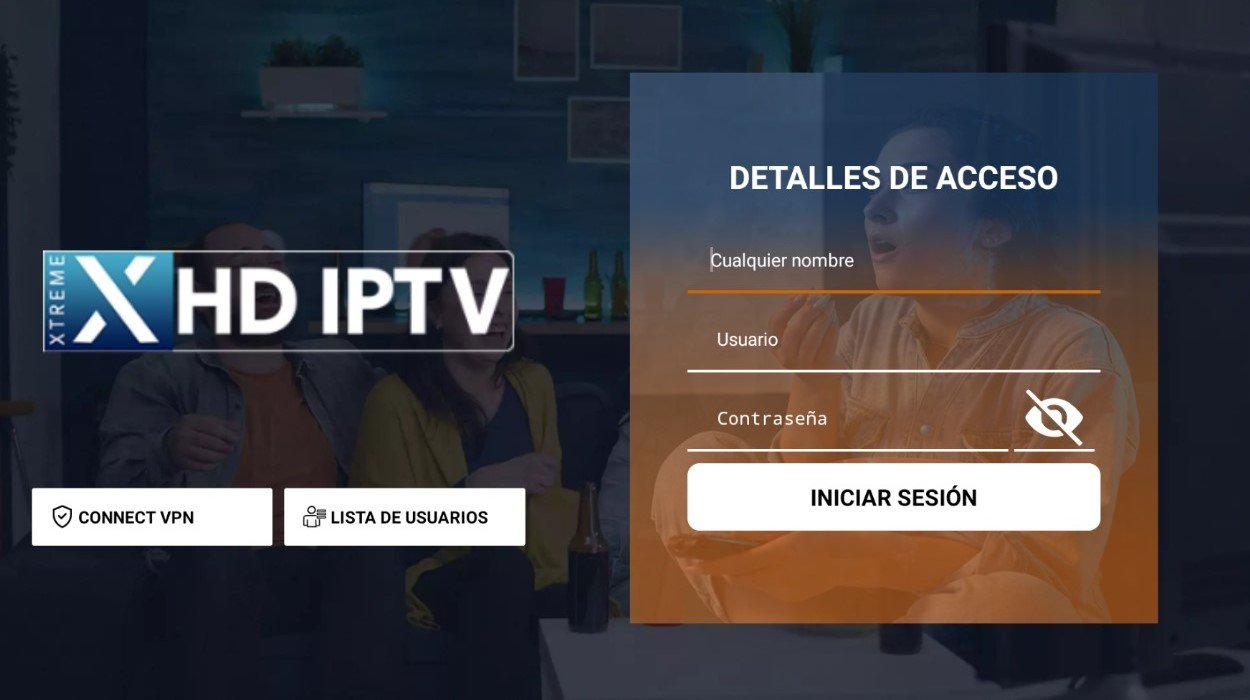
Its home screen keeps a centred notice line right under the clock, above three colour blocks backed by film artwork - green, purple and red - each stating its last refresh next to a white column for EPG, multi-screen and catch-up. Sports, downloads, profile, recording and settings icons run down the left. Sign-in sits over a photo of people watching TV.
- Its home screen keeps a centred notice line right under the clock, above three colour blocks backed by film artwork - green, purple and red - each stating its last refresh next to a white column for EPG, multi-screen and catch-up. Sports, downloads, profile, recording and settings icons run down the left. Sign-in sits over a photo of people watching TV.
- WITH YOUR BRAND LOGO
- YOUR BRAND NAME
- MULTI DNS PANEL
SMARTER MOBILE
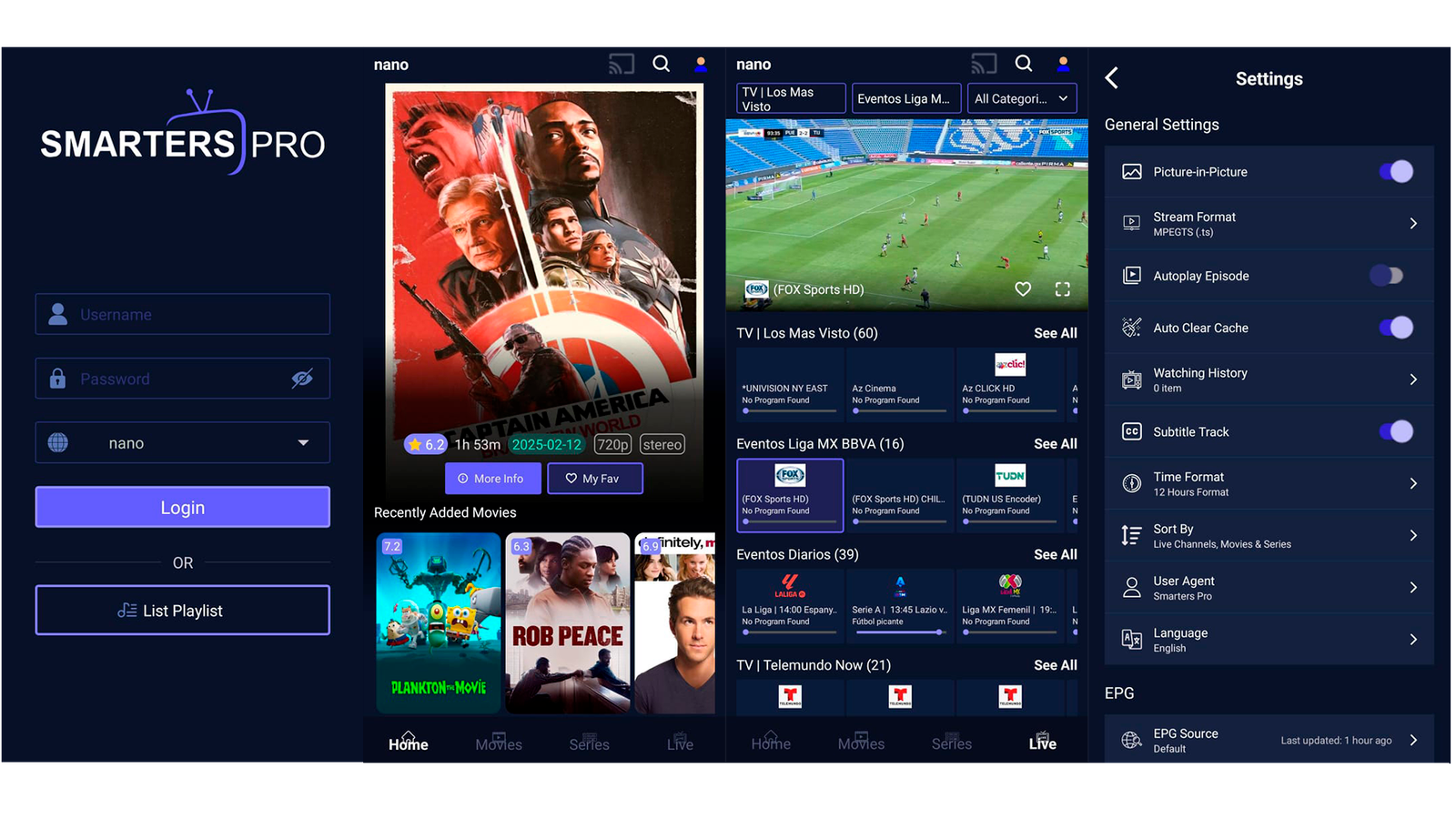
The mobile half of Smarters Pro, portrait and sharing one panel with the TV app: home opens on the film poster with its score and running time, then rows of recent additions; on the live tab the channel plays in a box at the top while you keep browsing categories. Settings include picture-in-picture, stream format, subtitles, watch history and language.
- The mobile half of Smarters Pro, portrait and sharing one panel with the TV app: home opens on the film poster with its score and running time, then rows of recent additions; on the live tab the channel plays in a box at the top while you keep browsing categories. Settings include picture-in-picture, stream format, subtitles, watch history and language.
- Smarters Pro - Móvil y TV
- Versión móvil 1.5.0
- Versión de TV 2.0.0
IBO TIVI
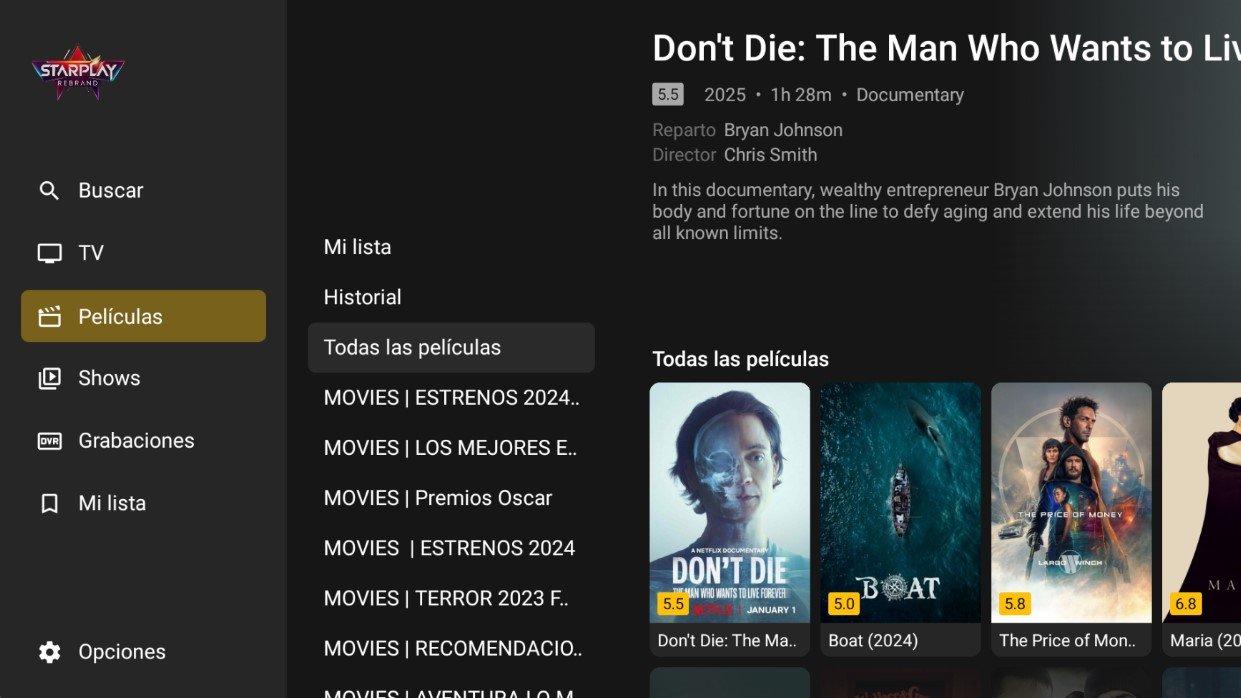
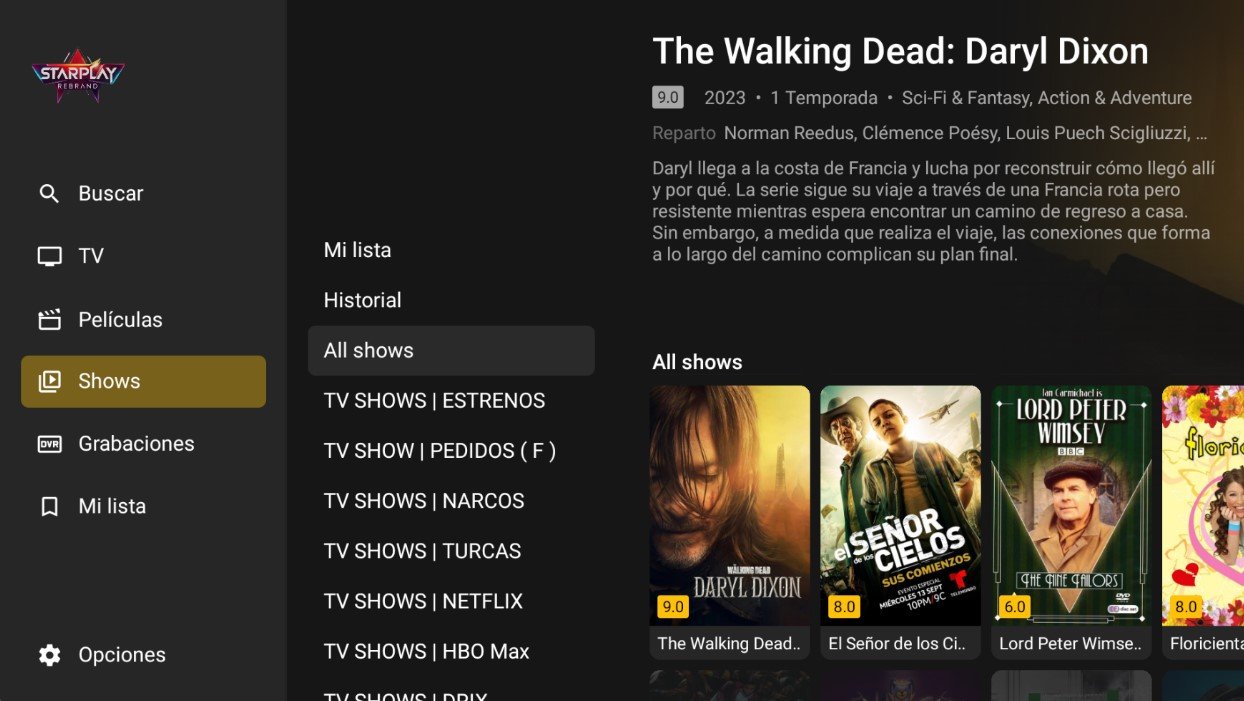
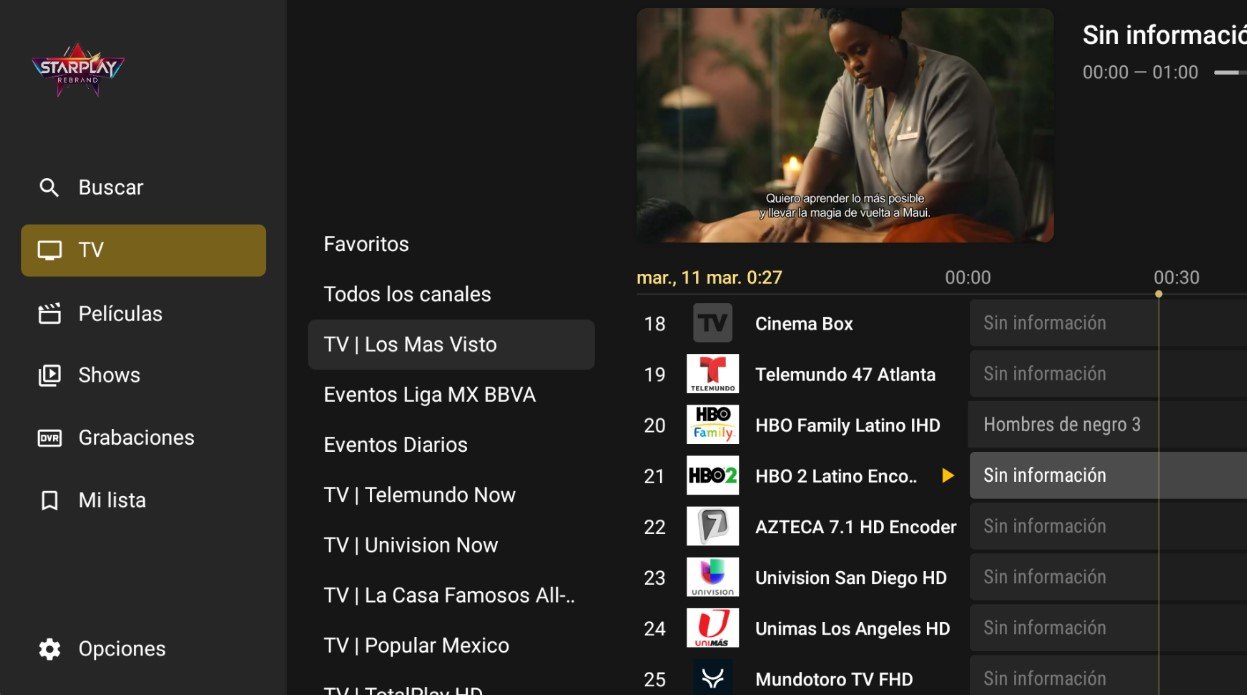
A fixed side menu holds Search, TV, Movies, Shows, Recordings and My List, a second column lists the categories, and the right side shows the title card: score, year, running time, genre, cast, director and synopsis above a poster grid where every cover carries its own yellow score tag. Dark theme, active item in amber, driven with the remote.
- A fixed side menu holds Search, TV, Movies, Shows, Recordings and My List, a second column lists the categories, and the right side shows the title card: score, year, running time, genre, cast, director and synopsis above a poster grid where every cover carries its own yellow score tag. Dark theme, active item in amber, driven with the remote.
- FOR USE WITH A CONTROLLER
- WITH YOUR BRAND LOGO
- YOUR BRAND NAME
SMARTER 405
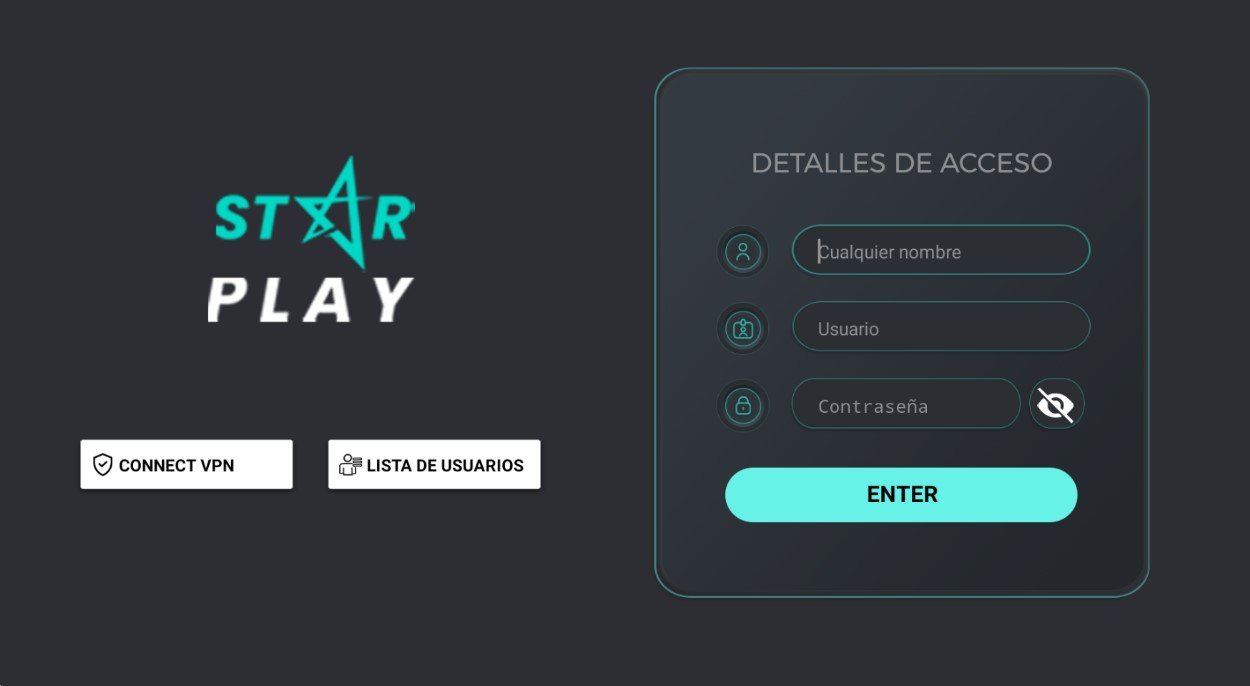
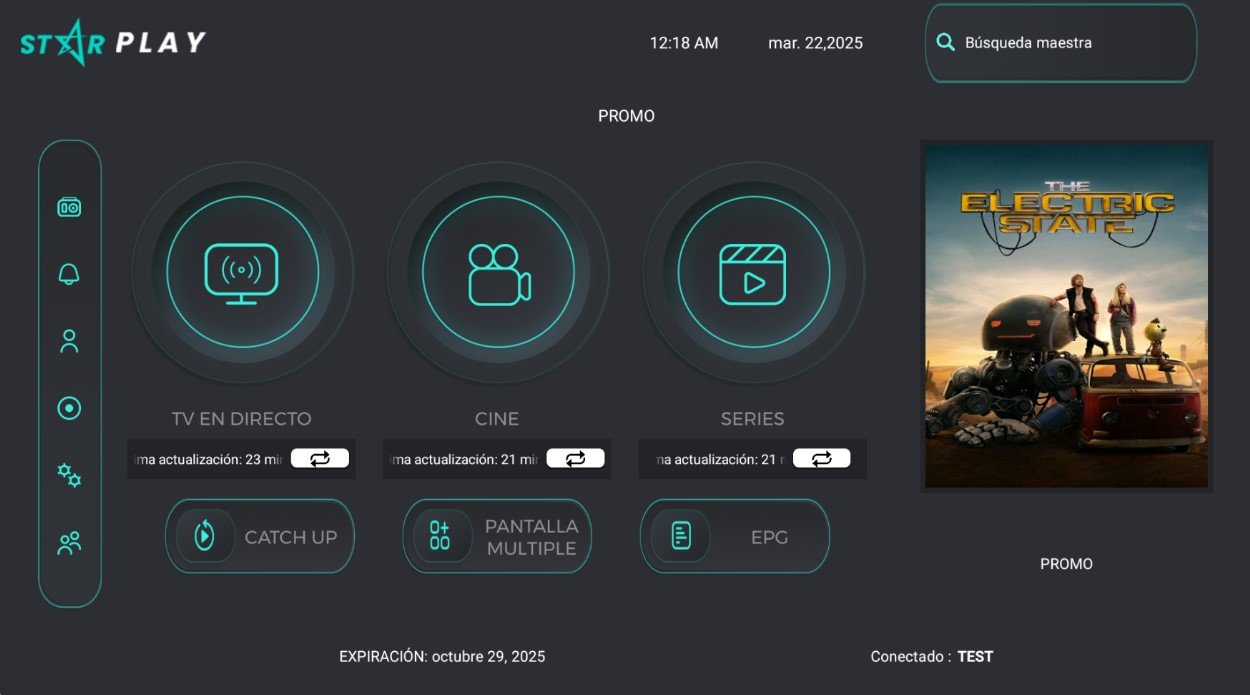
Turquoise on dark grey: home is three large circles for live TV, movies and series, with three pills below for catch-up, multi-screen and EPG and, on the right, a slot labelled PROMO holding a poster. Account, alerts, recording and settings icons live in a narrow side rail. Sign-in is one card asking for name, username and password.
- Turquoise on dark grey: home is three large circles for live TV, movies and series, with three pills below for catch-up, multi-screen and EPG and, on the right, a slot labelled PROMO holding a poster. Account, alerts, recording and settings icons live in a narrow side rail. Sign-in is one card asking for name, username and password.
- FOR USE WITH A CONTROLLER
- WITH YOUR BRAND LOGO
- YOUR BRAND NAME
IBO 17 TOPICS
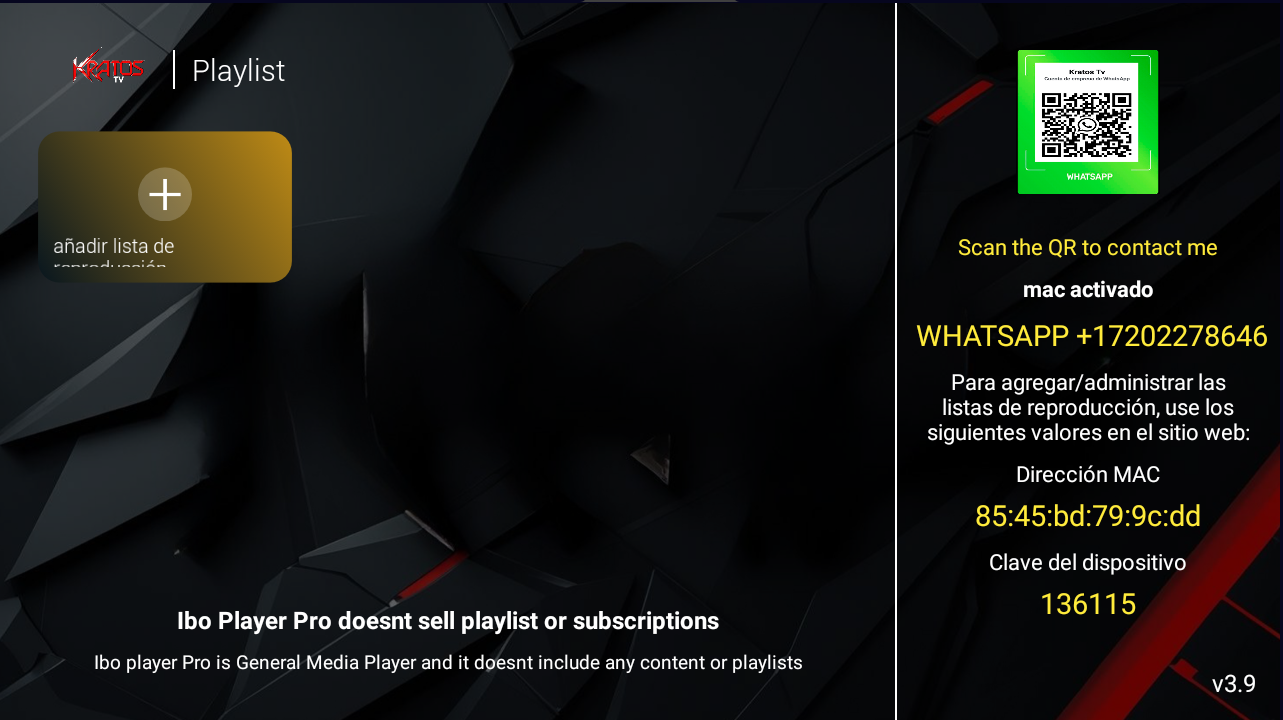
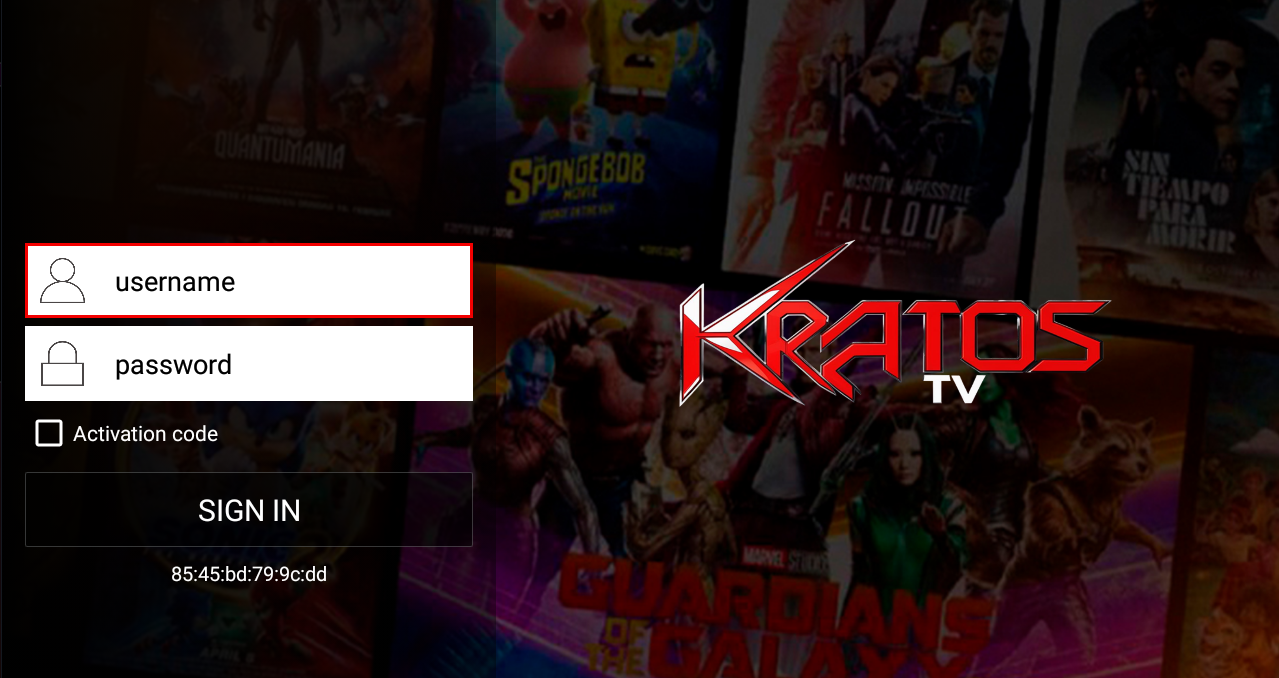
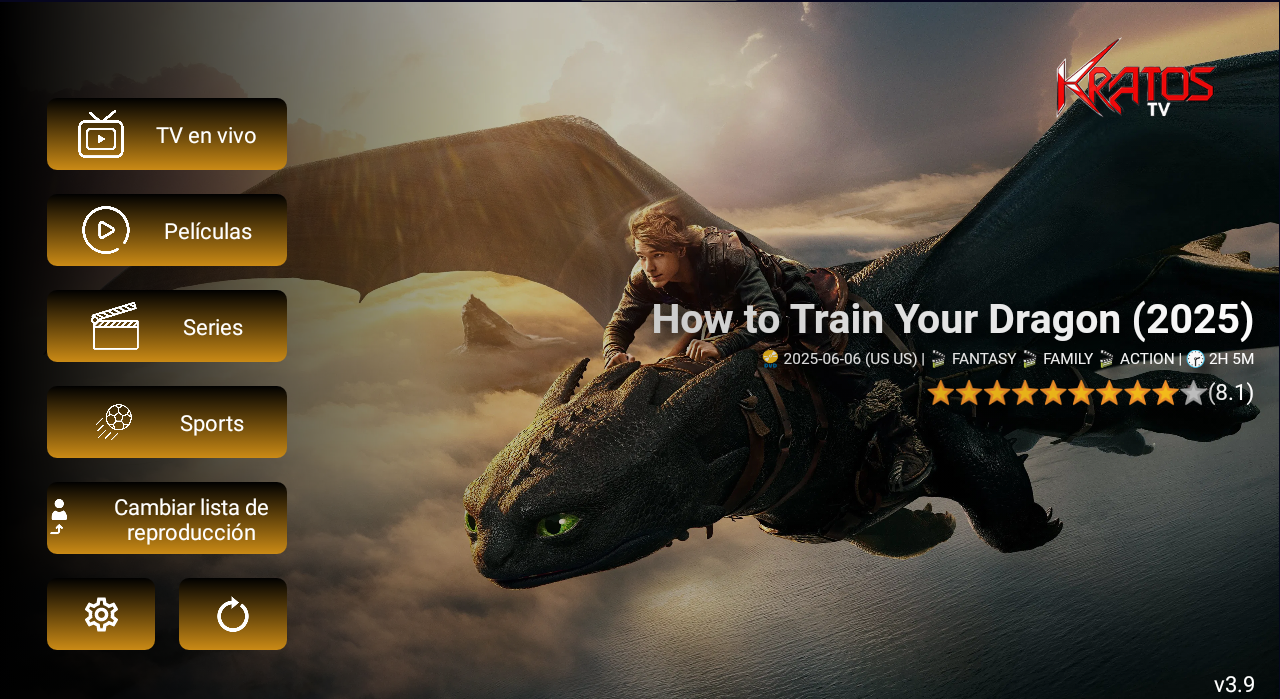
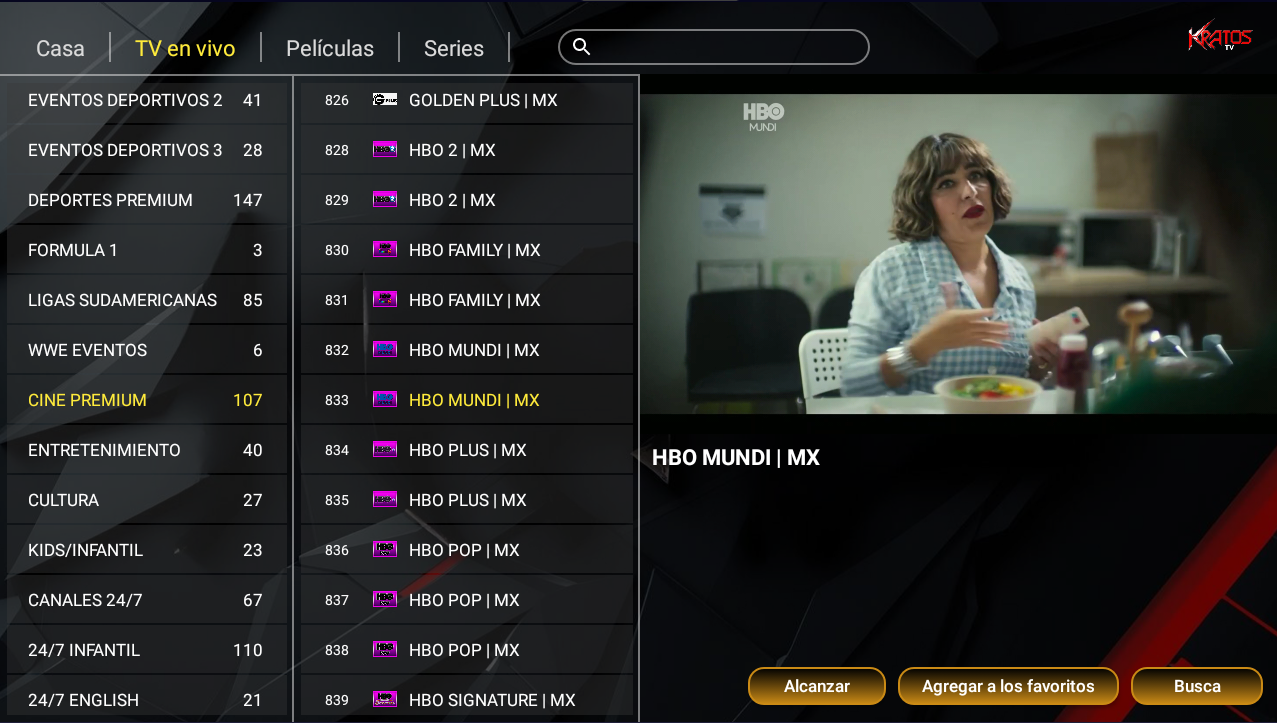
Built on Ibo Player Pro with 17 switchable themes, it activates two ways: username and password inside the app, or a MAC address registered from the panel. The playlist screen shows the device MAC and key next to a QR code pointing at your WhatsApp contact. Internal logo, background, launcher text and ads are all changed from the panel, never in the APK.
- Built on Ibo Player Pro with 17 switchable themes, it activates two ways: username and password inside the app, or a MAC address registered from the panel. The playlist screen shows the device MAC and key next to a QR code pointing at your WhatsApp contact. Internal logo, background, launcher text and ads are all changed from the panel, never in the APK.
- IBO 17 THEMES with code activation system
- Multi-DNS Panel
- Activation via username and password from the application
SMARTERS THEME 3 V3
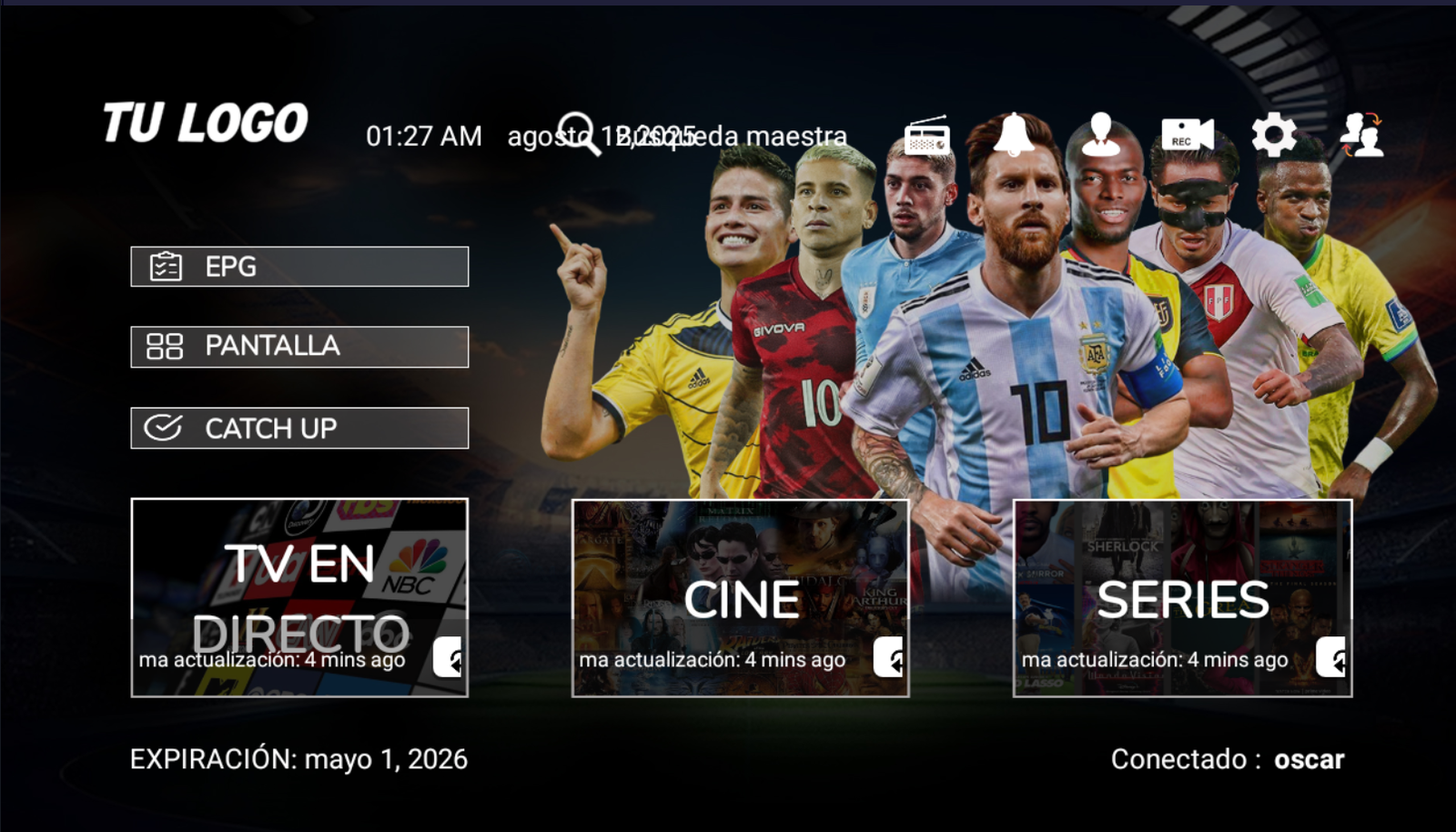
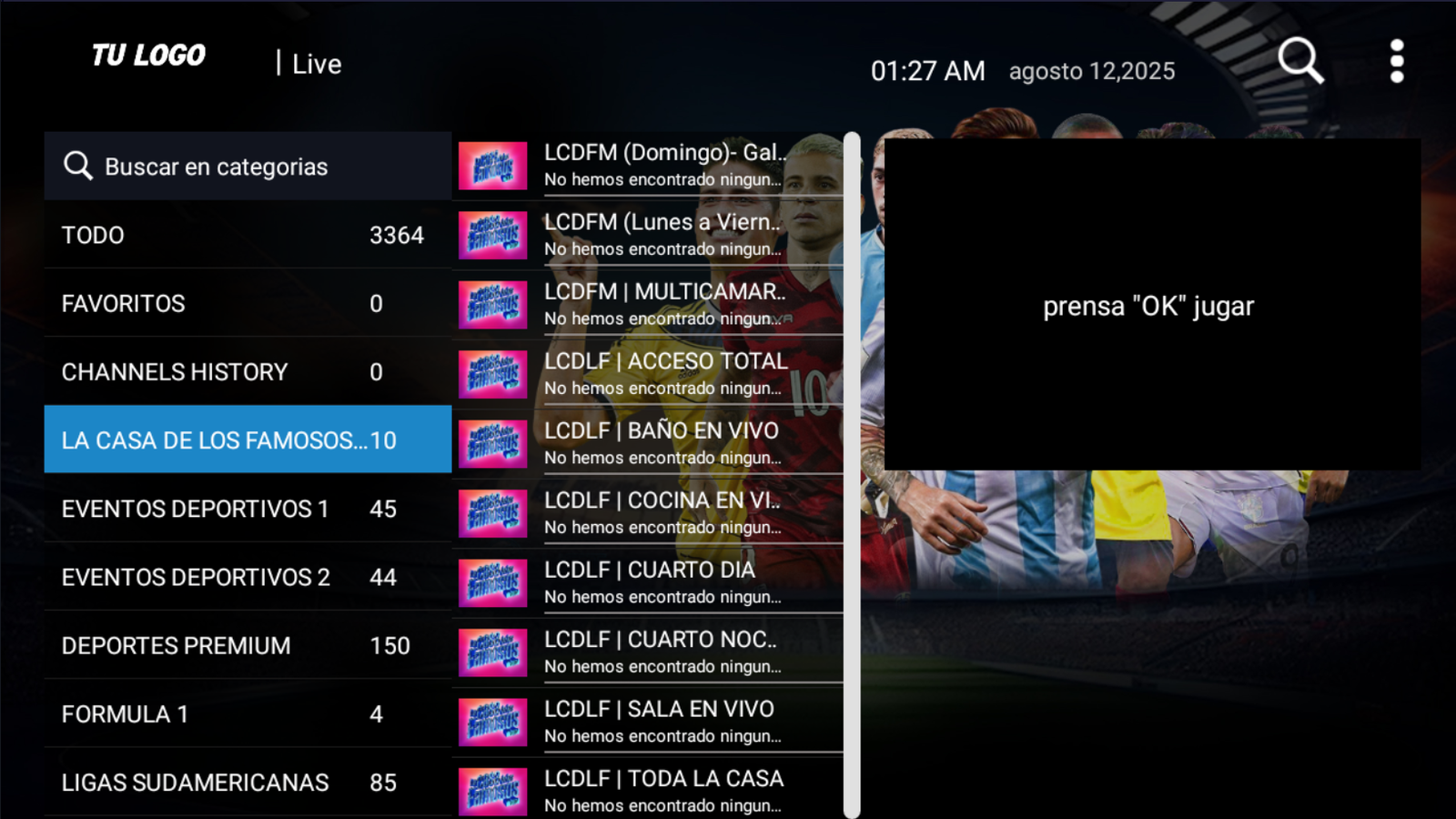
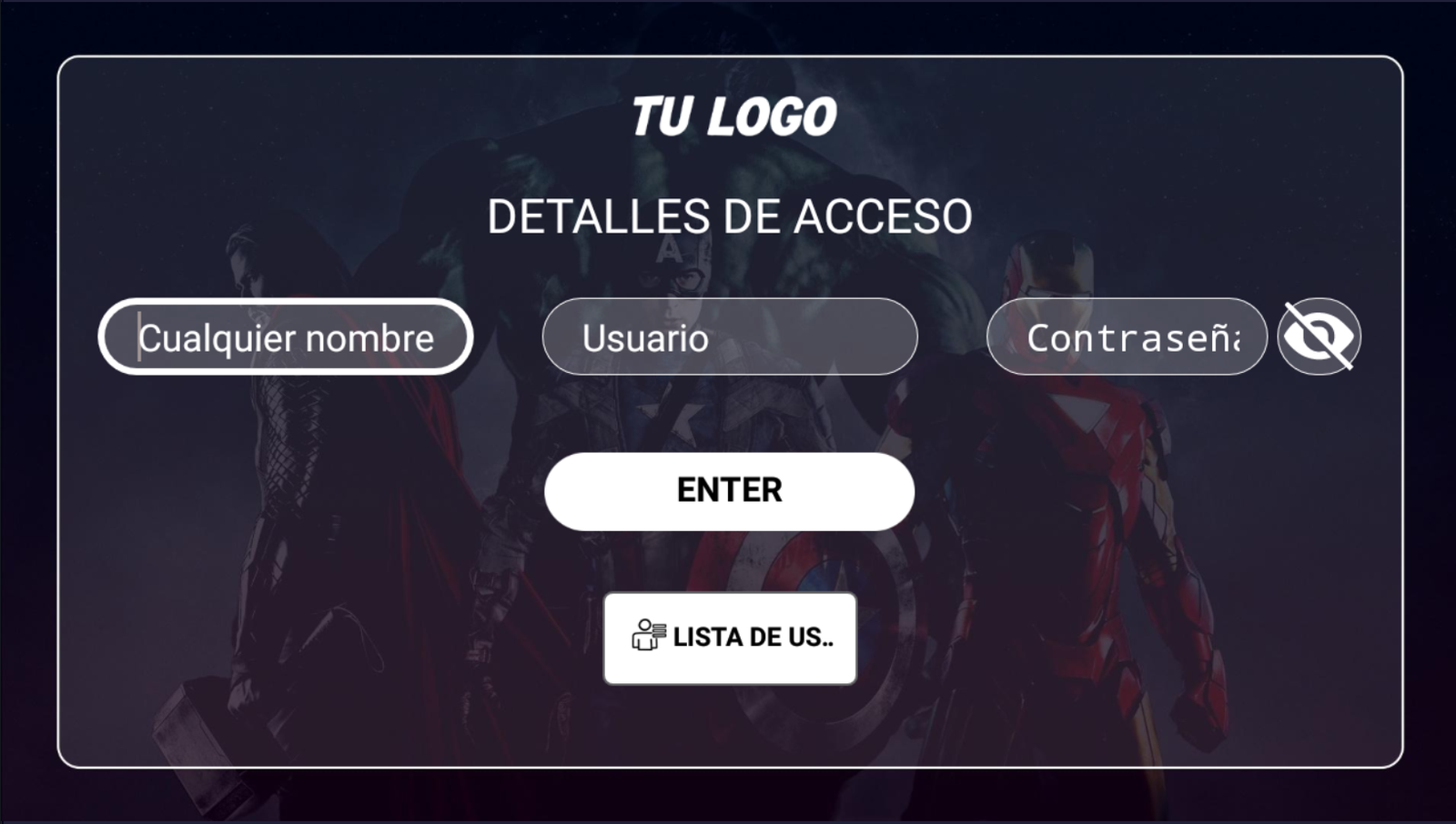
Three large cards — Live TV, Movies and Series — organise this theme's home screen, with the clock, master search and shortcuts to EPG, Screen and Catch Up sitting just above, plus the expiry date and connected user always in view. The live screen splits into three columns: categories with counts, the channel list and a preview window.
- Three large cards — Live TV, Movies and Series — organise this theme's home screen, with the clock, master search and shortcuts to EPG, Screen and Catch Up sitting just above, plus the expiry date and connected user always in view. The live screen splits into three columns: categories with counts, the channel list and a preview window.
- MULTIDNS PANEL
- YOUR BRAND LOGO AND NAME
- COMPATIBLE WITH ANDROID SYSTEM
SMARTER V4 BANNER + ADS
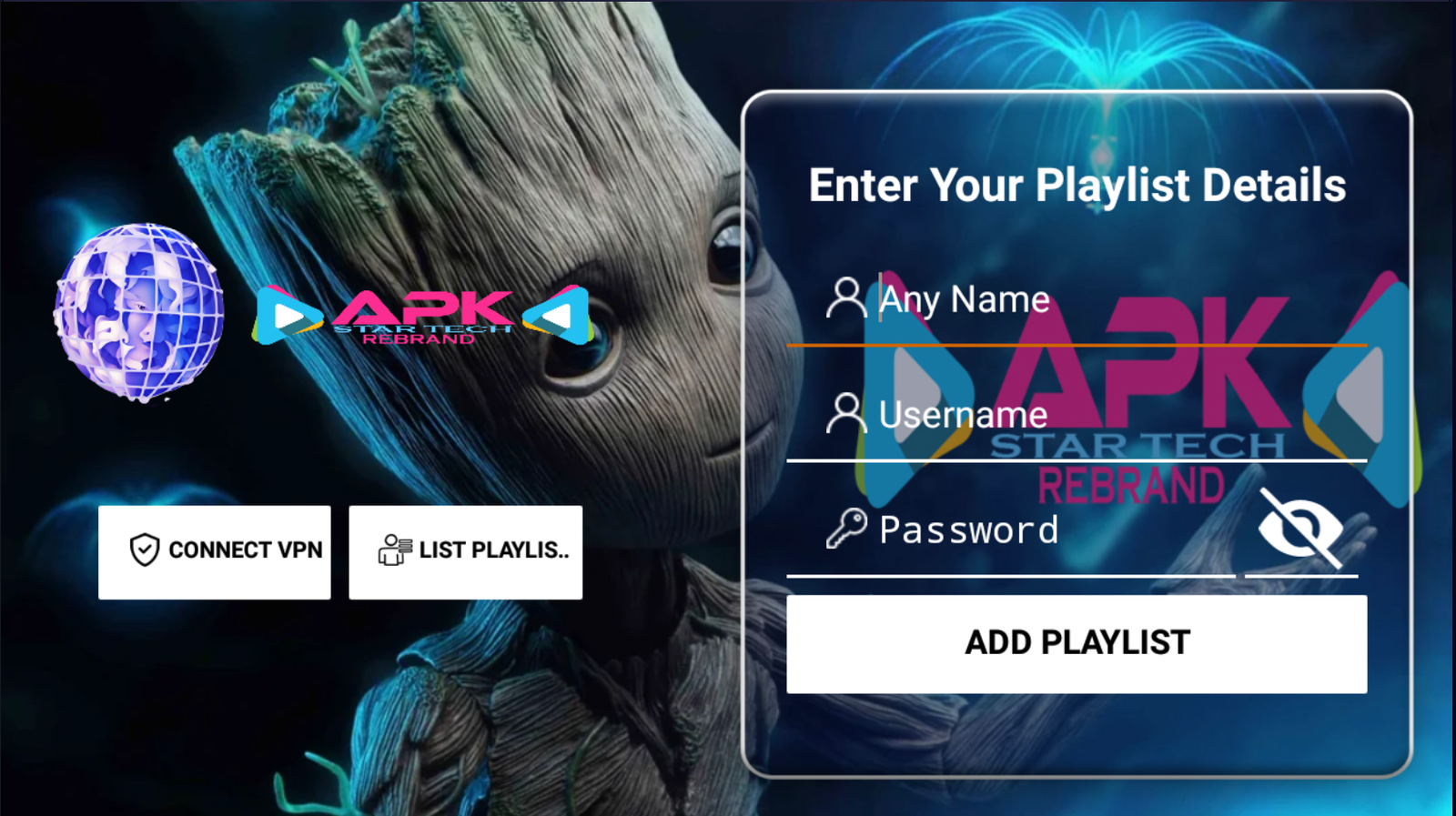
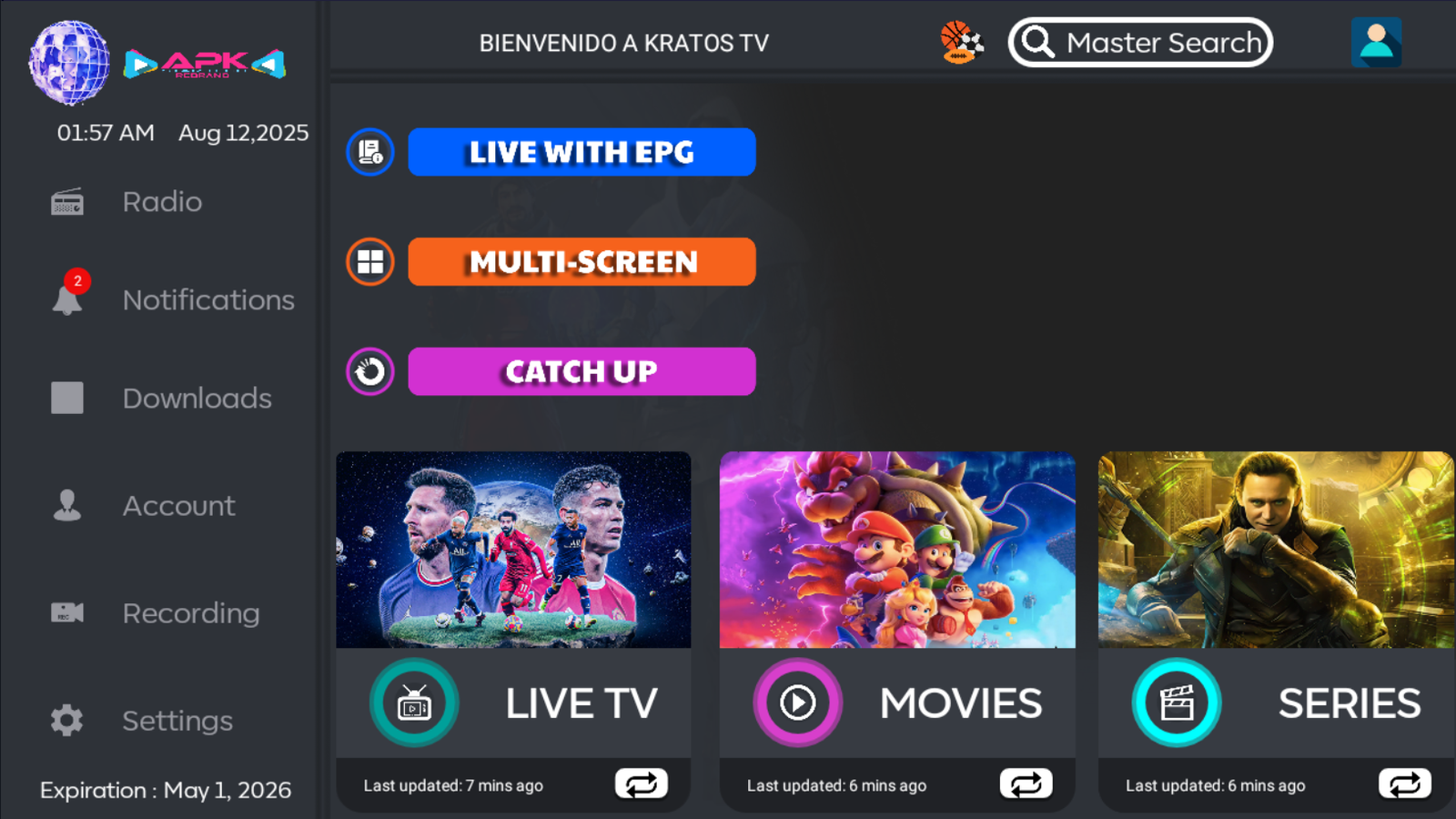
An Android IPTV app run by its sidebar: Radio, Notifications, Downloads, Account, Recording and Settings stay within reach while the centre lays out three colour-coded buttons - Live with EPG, Multi-Screen and Catch Up - above the Live TV, Movies and Series cards. Sign-in asks for a profile name, username and password, and offers a VPN or a saved playlist.
- An Android IPTV app run by its sidebar: Radio, Notifications, Downloads, Account, Recording and Settings stay within reach while the centre lays out three colour-coded buttons - Live with EPG, Multi-Screen and Catch Up - above the Live TV, Movies and Series cards. Sign-in asks for a profile name, username and password, and offers a VPN or a saved playlist.
- WITH YOUR BRAND LOGO
- YOUR BRAND NAME
- MULTI DNS PANEL
SMARTERS VERDE
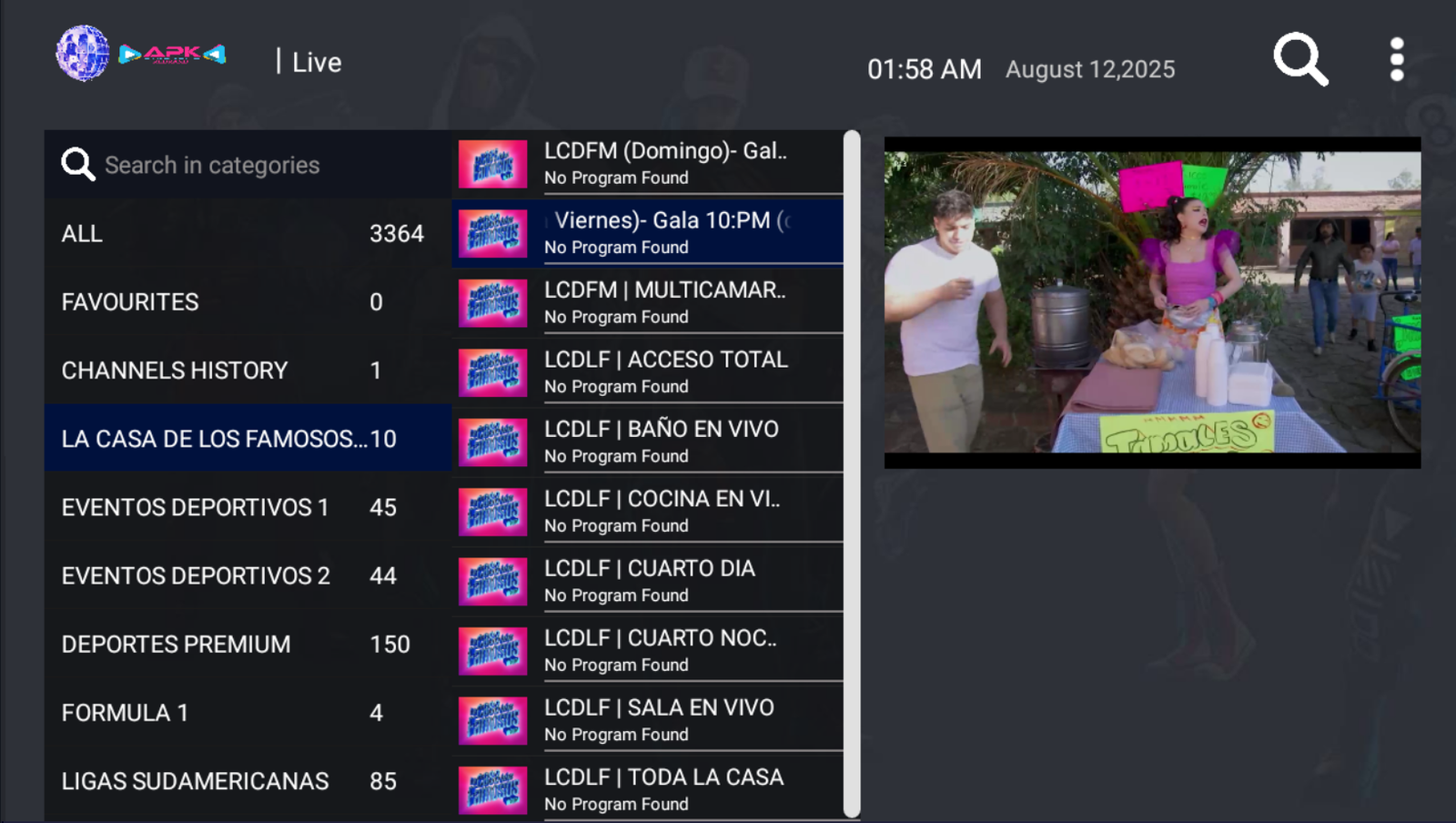
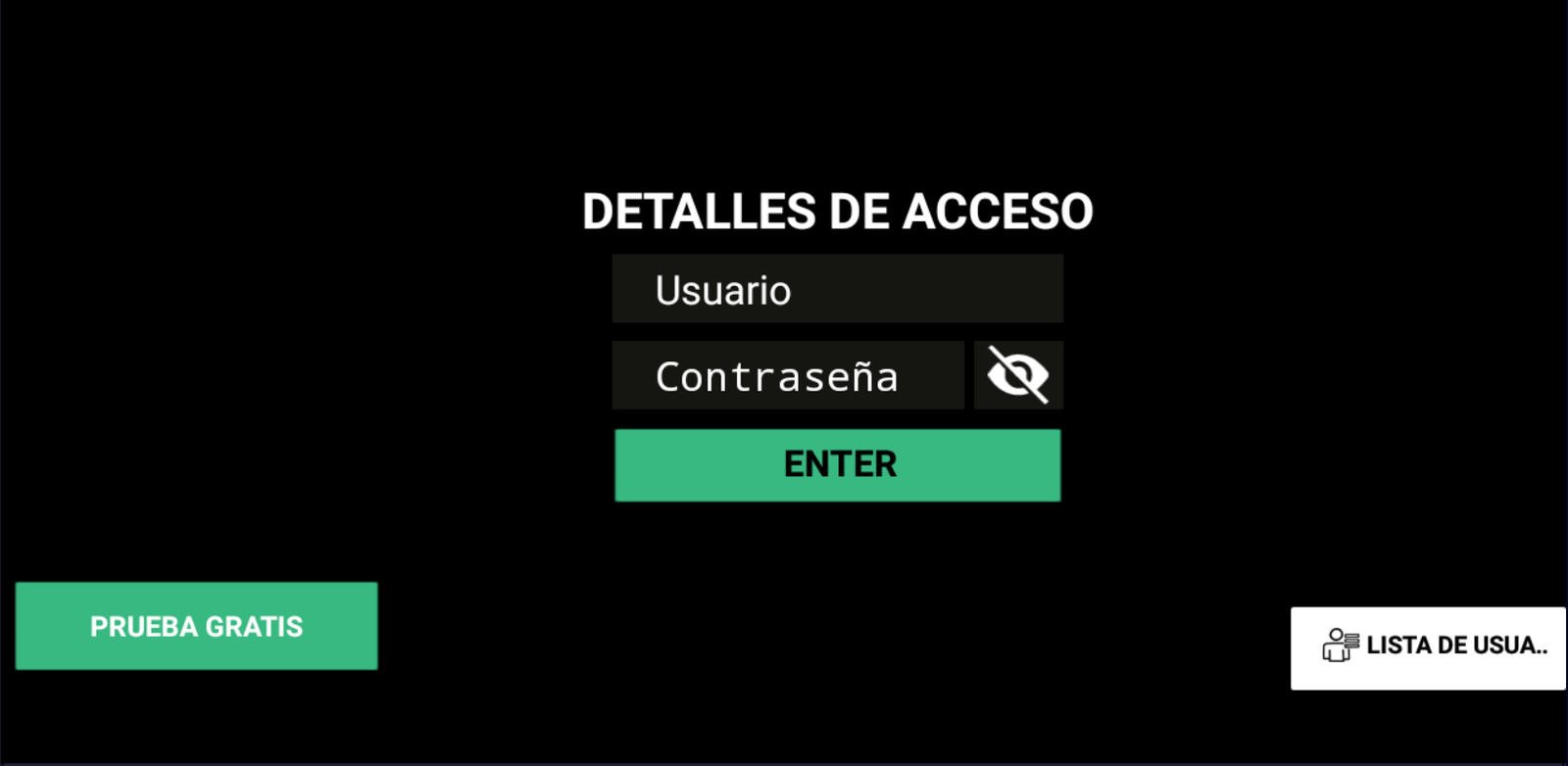
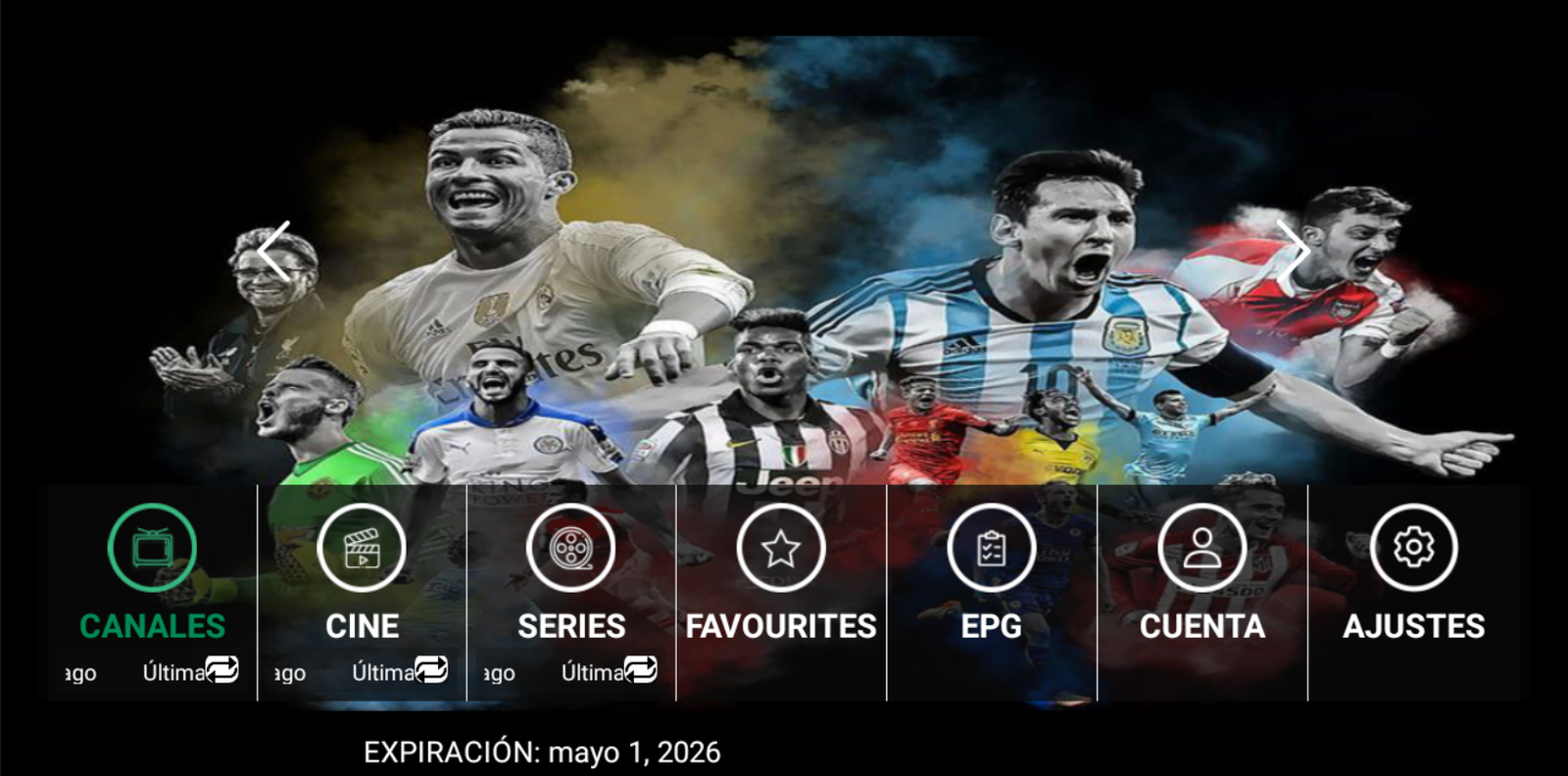
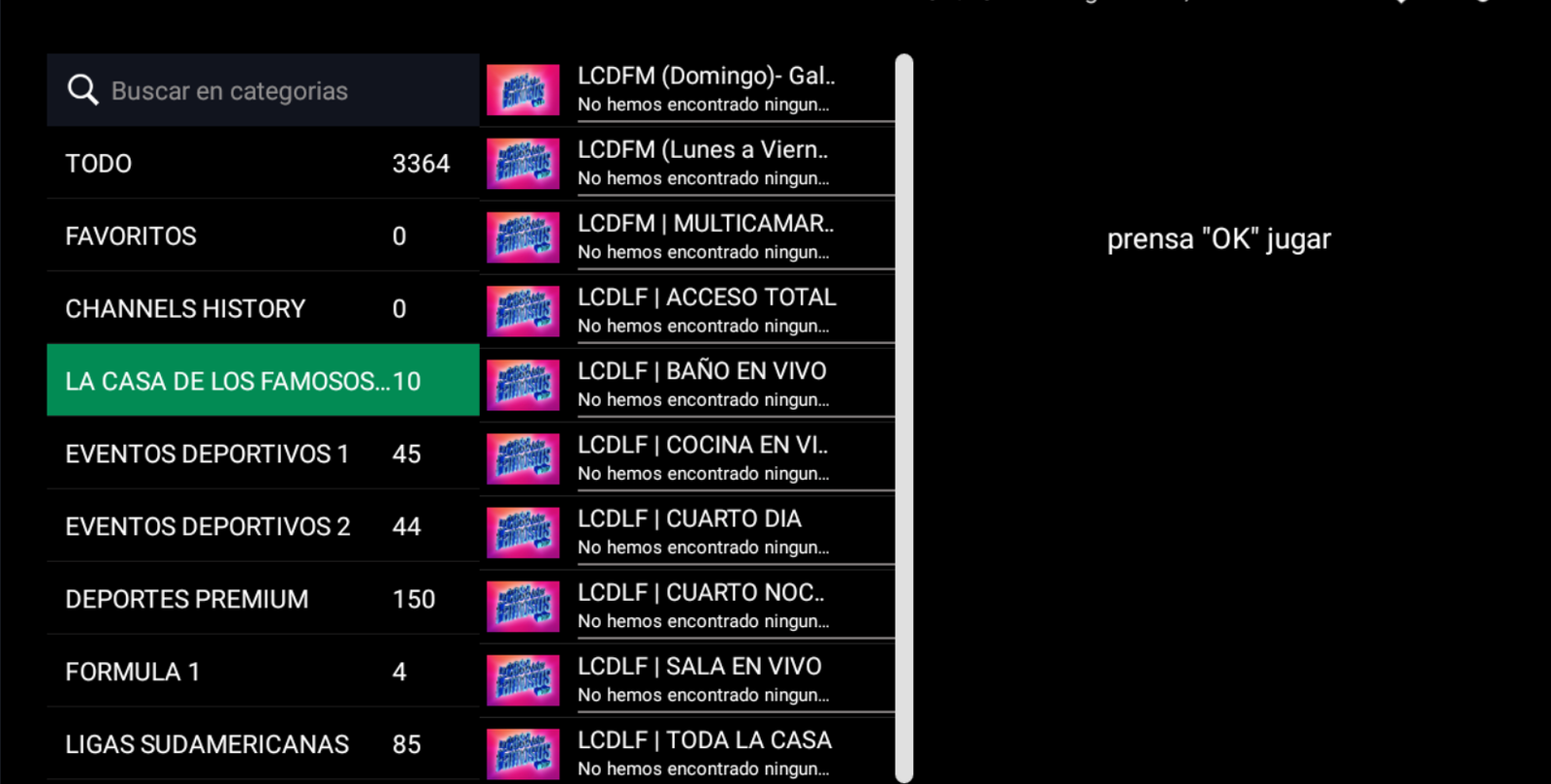
An Android IPTV rebrand where green is the signature: a green ENTER button on the sign-in screen, flanked by Free Trial and the saved user list. The home screen is a single row of seven round shortcuts - Channels, Movies, Series, Favourites, EPG, Account and Settings - under a wide banner you page through with arrows.
- An Android IPTV rebrand where green is the signature: a green ENTER button on the sign-in screen, flanked by Free Trial and the saved user list. The home screen is a single row of seven round shortcuts - Channels, Movies, Series, Favourites, EPG, Account and Settings - under a wide banner you page through with arrows.
- WITH YOUR BRAND LOGO
- YOUR BRAND NAME
- MULTI DNS PANEL
SMARTER V4 TEMA 7
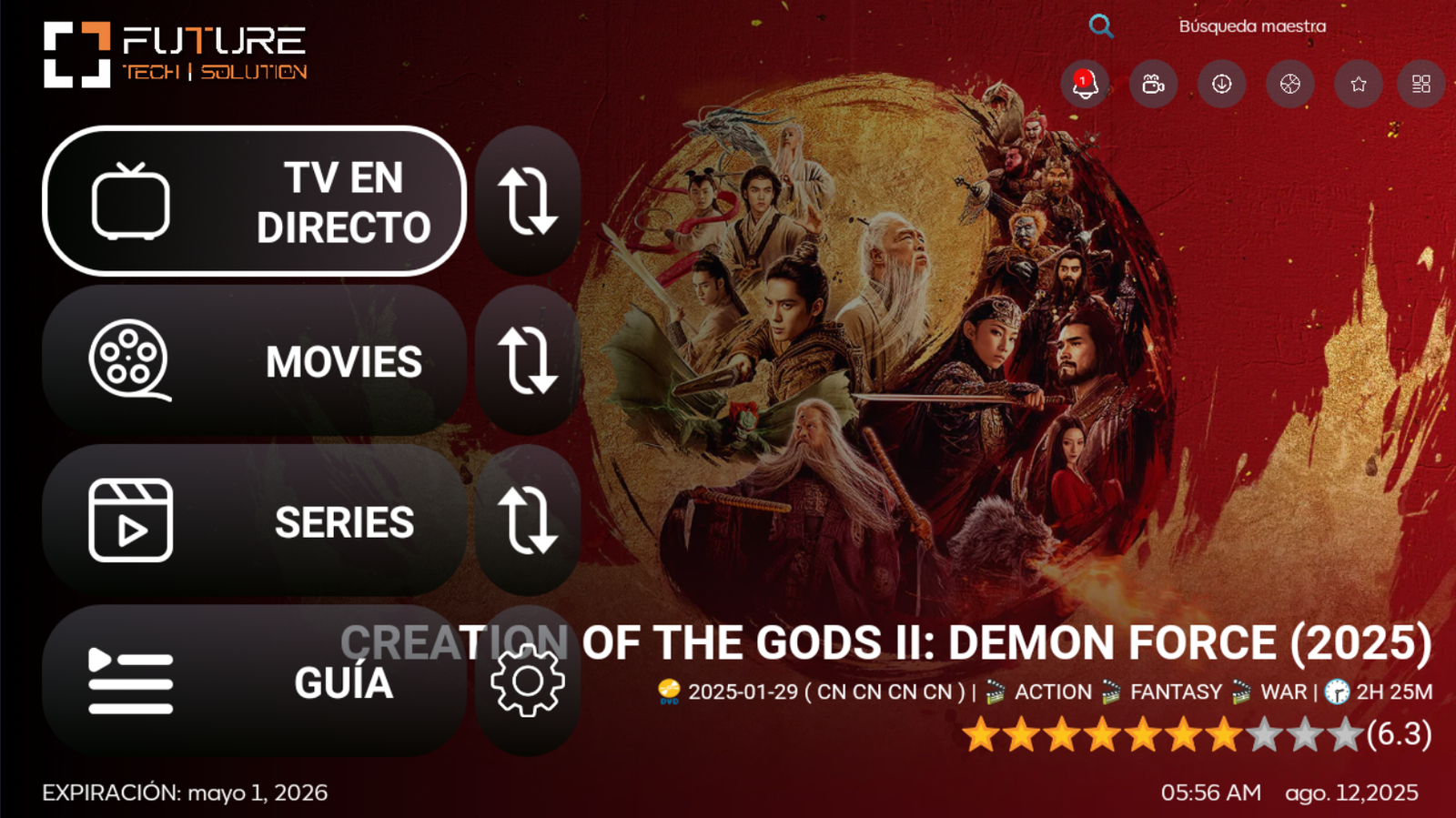
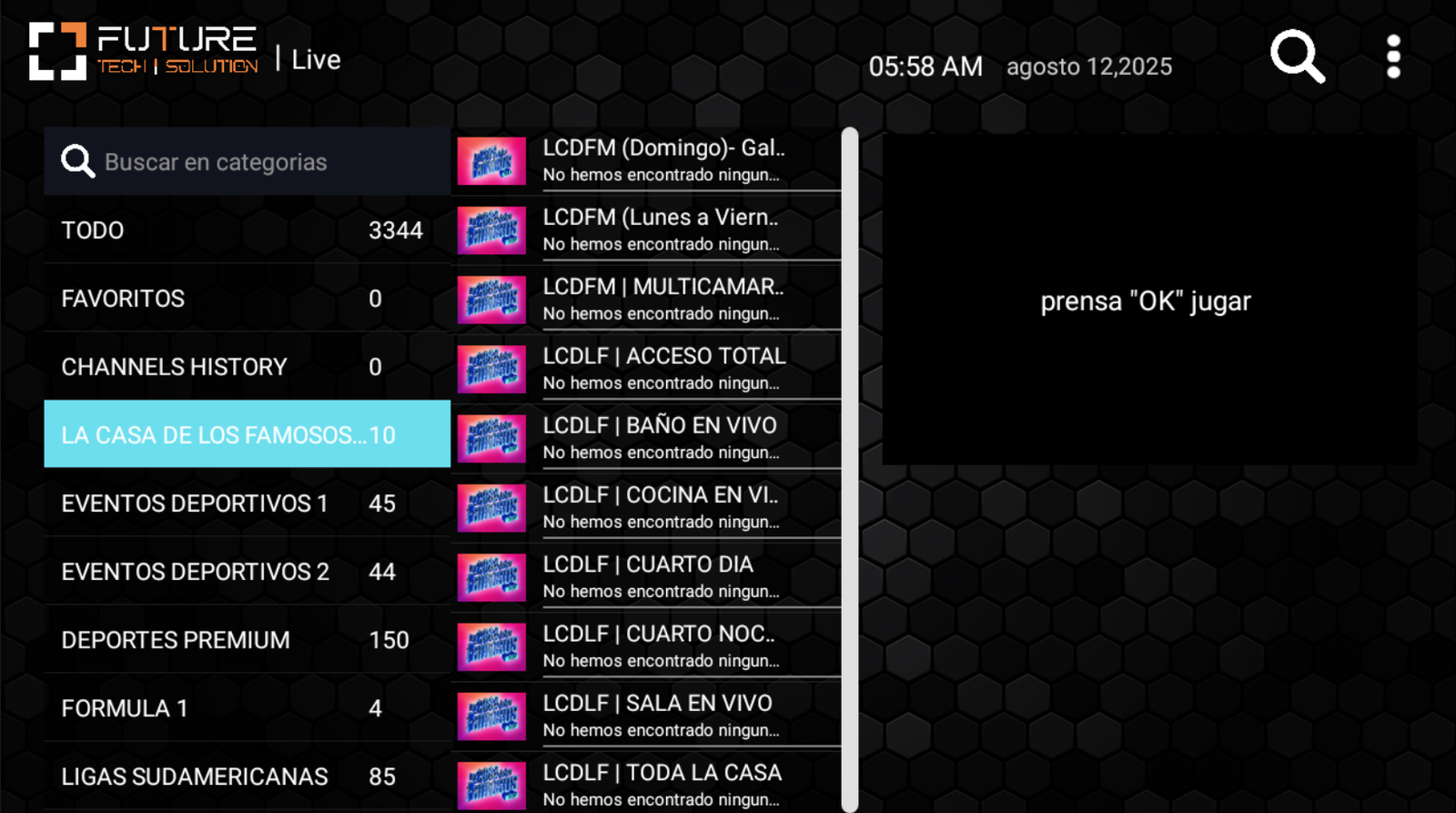
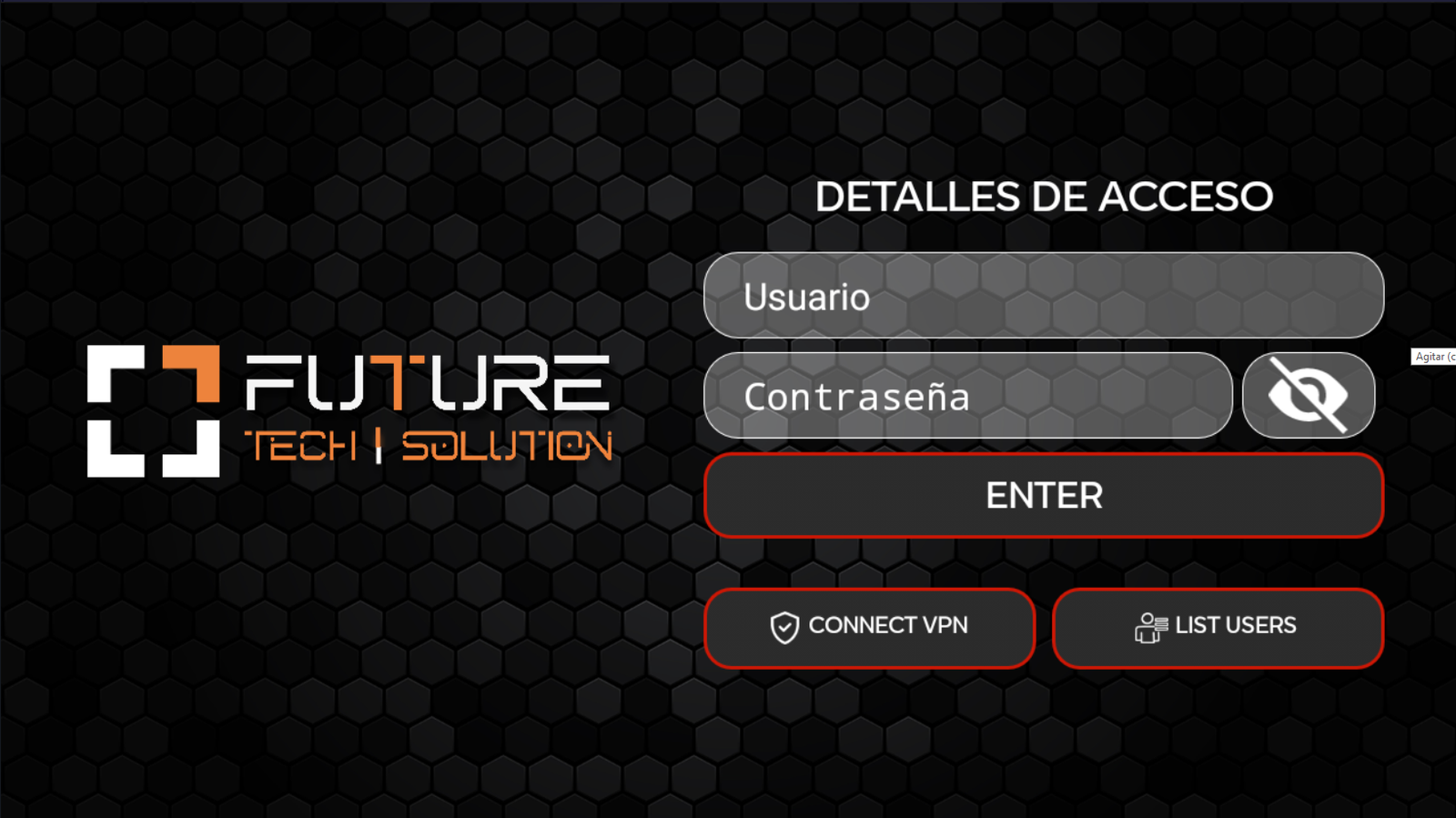
Four stacked pills - Live TV, Movies, Series and Guide - leave the right half free for a film card with its artwork, genres, running time and star rating. The first three carry their own refresh button to reload that list. The channel screen switches to a hexagon background, where categories, channel list and preview sit side by side with the focus in cyan.
- Four stacked pills - Live TV, Movies, Series and Guide - leave the right half free for a film card with its artwork, genres, running time and star rating. The first three carry their own refresh button to reload that list. The channel screen switches to a hexagon background, where categories, channel list and preview sit side by side with the focus in cyan.
- WITH YOUR BRAND LOGO
- YOUR BRAND NAME
- MULTI-DNS PANEL
XTREAM WITH DOWNLOAD
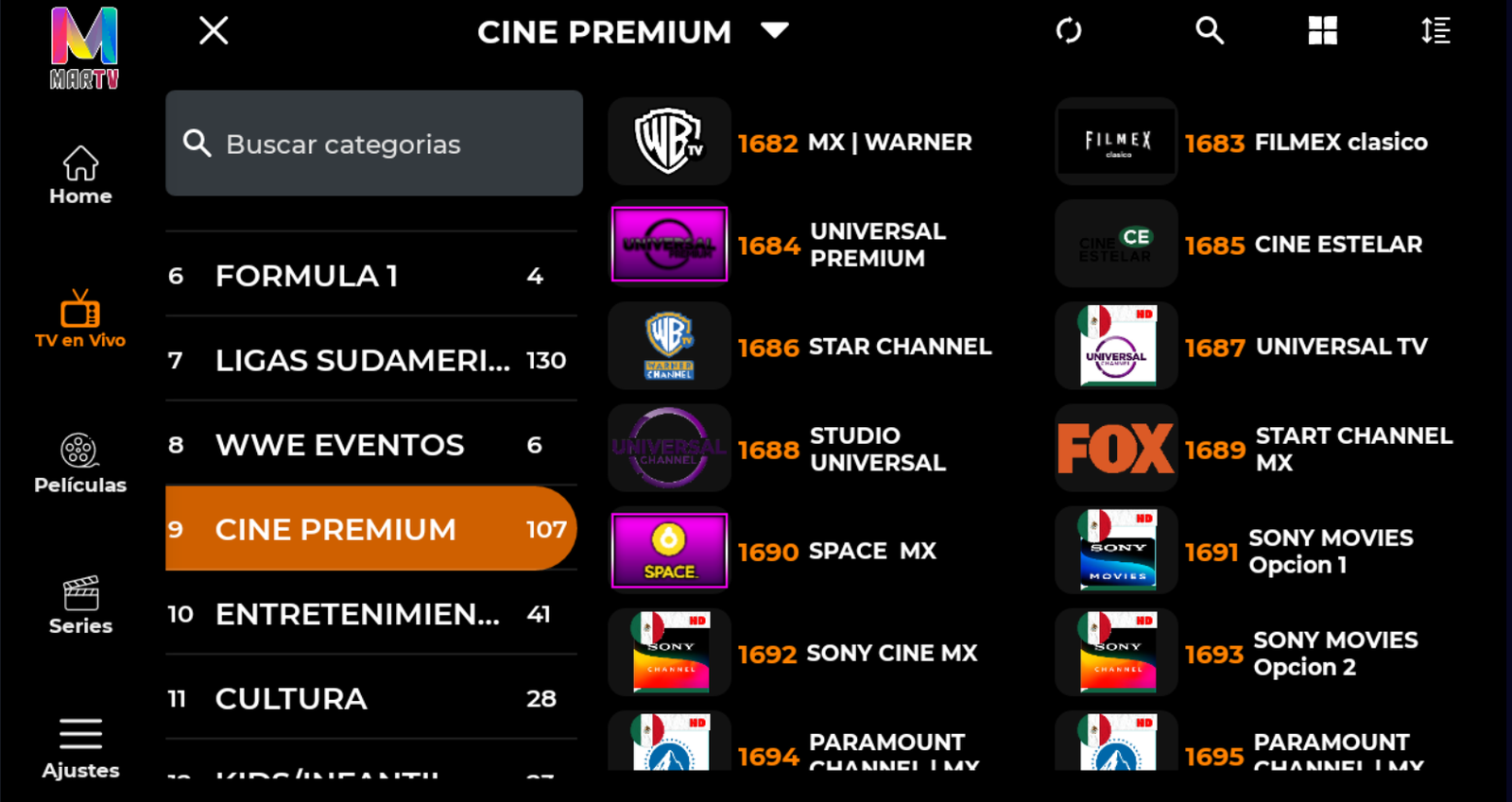
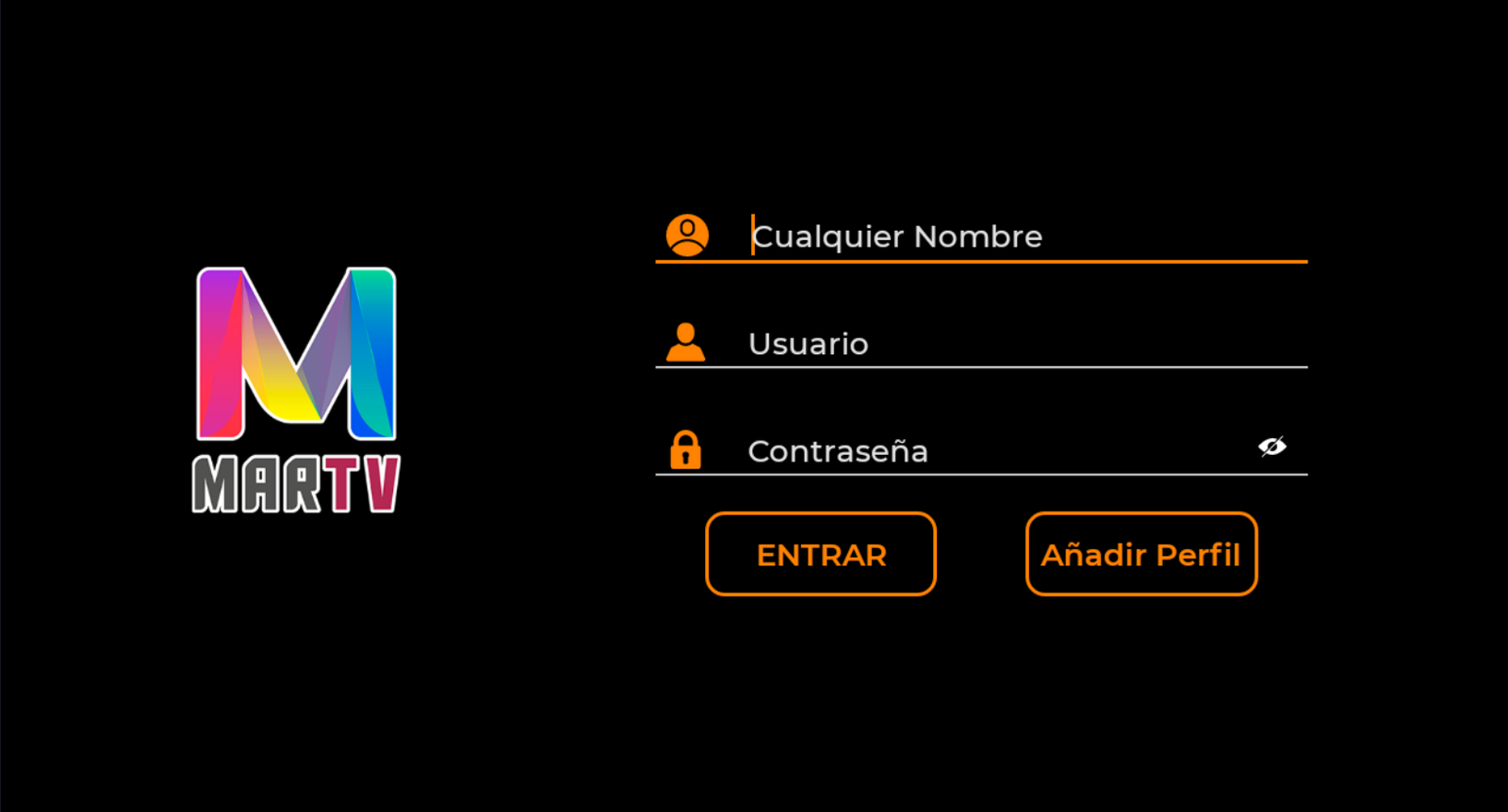
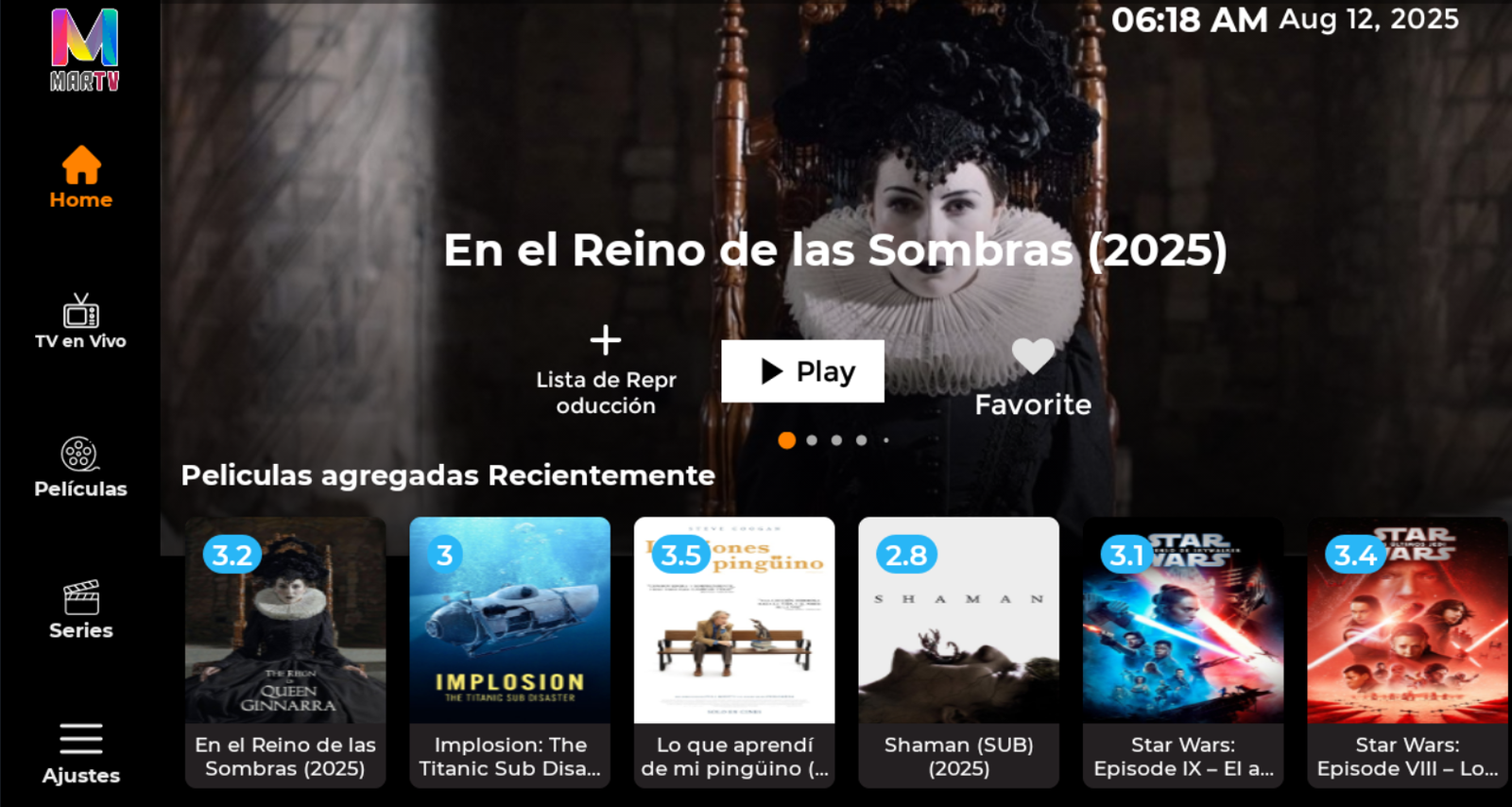
An Xtream Android IPTV app, orange on black, with more than one profile per device: the sign-in screen saves a name alongside each username and password. Inside, a narrow sidebar gathers Home, Live TV, Movies, Series and Settings, and the live section splits between numbered categories with counts and a two-column channel grid showing each logo and number.
- An Xtream Android IPTV app, orange on black, with more than one profile per device: the sign-in screen saves a name alongside each username and password. Inside, a narrow sidebar gathers Home, Live TV, Movies, Series and Settings, and the live section splits between numbered categories with counts and a two-column channel grid showing each logo and number.
- WITH YOUR BRAND LOGO
- YOUR BRAND NAME
- MULTI DNS PANEL
SMARTER TL
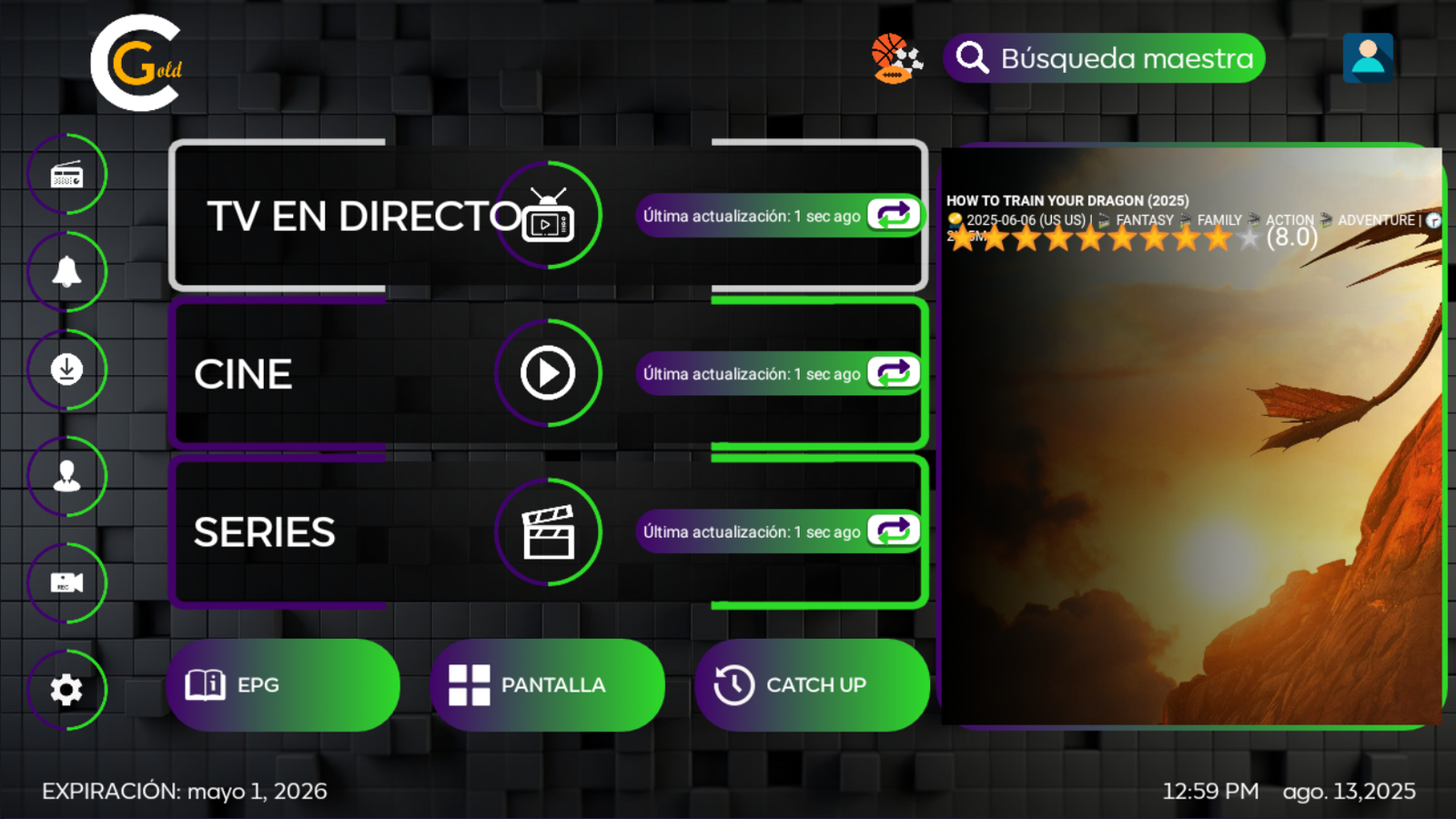
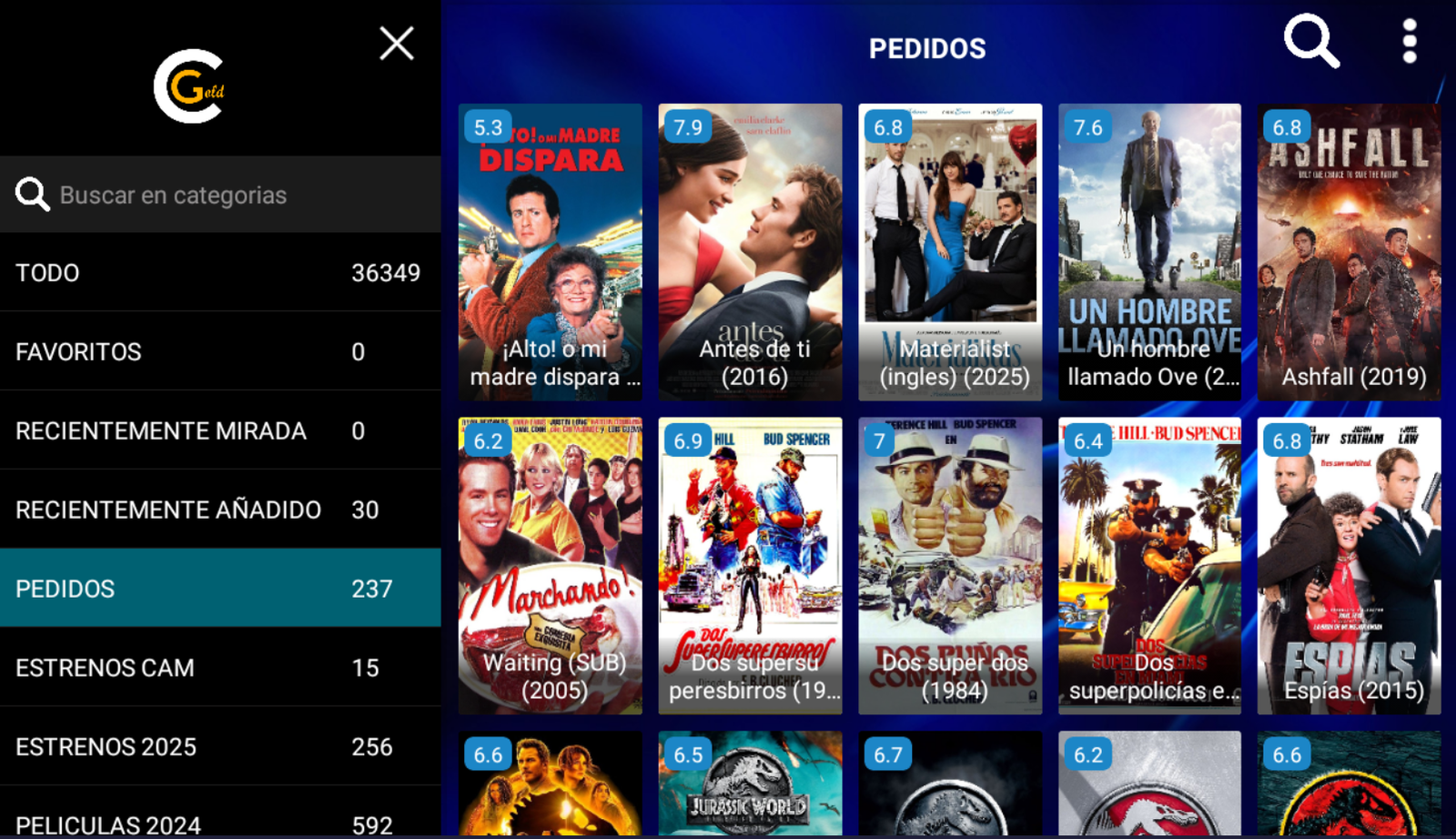
Purple and green over a cube-tiled background: the three wide shortcuts for Live TV, Movies and Series each show when they were last refreshed plus a button to refresh them again, with EPG, Screen and Catch Up on the row below and a rated film card to the right. The catalogue arrives as a poster grid, every title carrying its score.
- Purple and green over a cube-tiled background: the three wide shortcuts for Live TV, Movies and Series each show when they were last refreshed plus a button to refresh them again, with EPG, Screen and Catch Up on the row below and a rated film card to the right. The catalogue arrives as a poster grid, every title carrying its score.
- WITH YOUR BRAND LOGO
- YOUR BRAND NAME
- MULTI DNS PANEL
SMARTER ALL STAR
From the Smarters family, this Android rebrand lays out Live TV, Movies, Series, TV Guide and Catch Up as large tiles, with an icon sidebar, an on-screen clock and the user's expiry date always visible. Its entry screen asks for a profile name, username and password and keeps VPN and user-list buttons close by. An advertising section is included.
- From the Smarters family, this Android rebrand lays out Live TV, Movies, Series, TV Guide and Catch Up as large tiles, with an icon sidebar, an on-screen clock and the user's expiry date always visible. Its entry screen asks for a profile name, username and password and keeps VPN and user-list buttons close by. An advertising section is included.
- WITH YOUR BRAND LOGO
- YOUR BRAND NAME
- MULTI-DNS PANEL
PURPLE V10
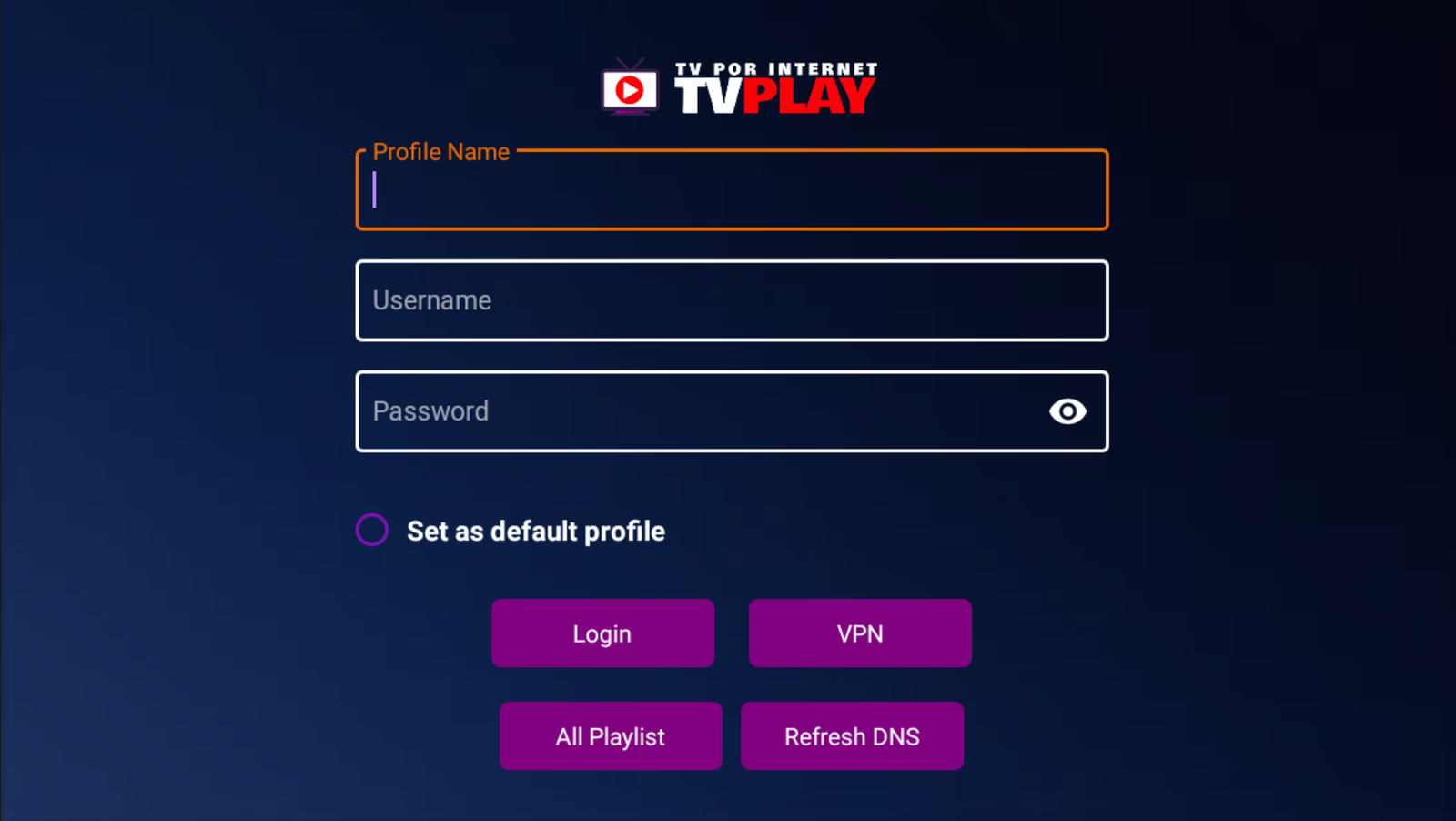
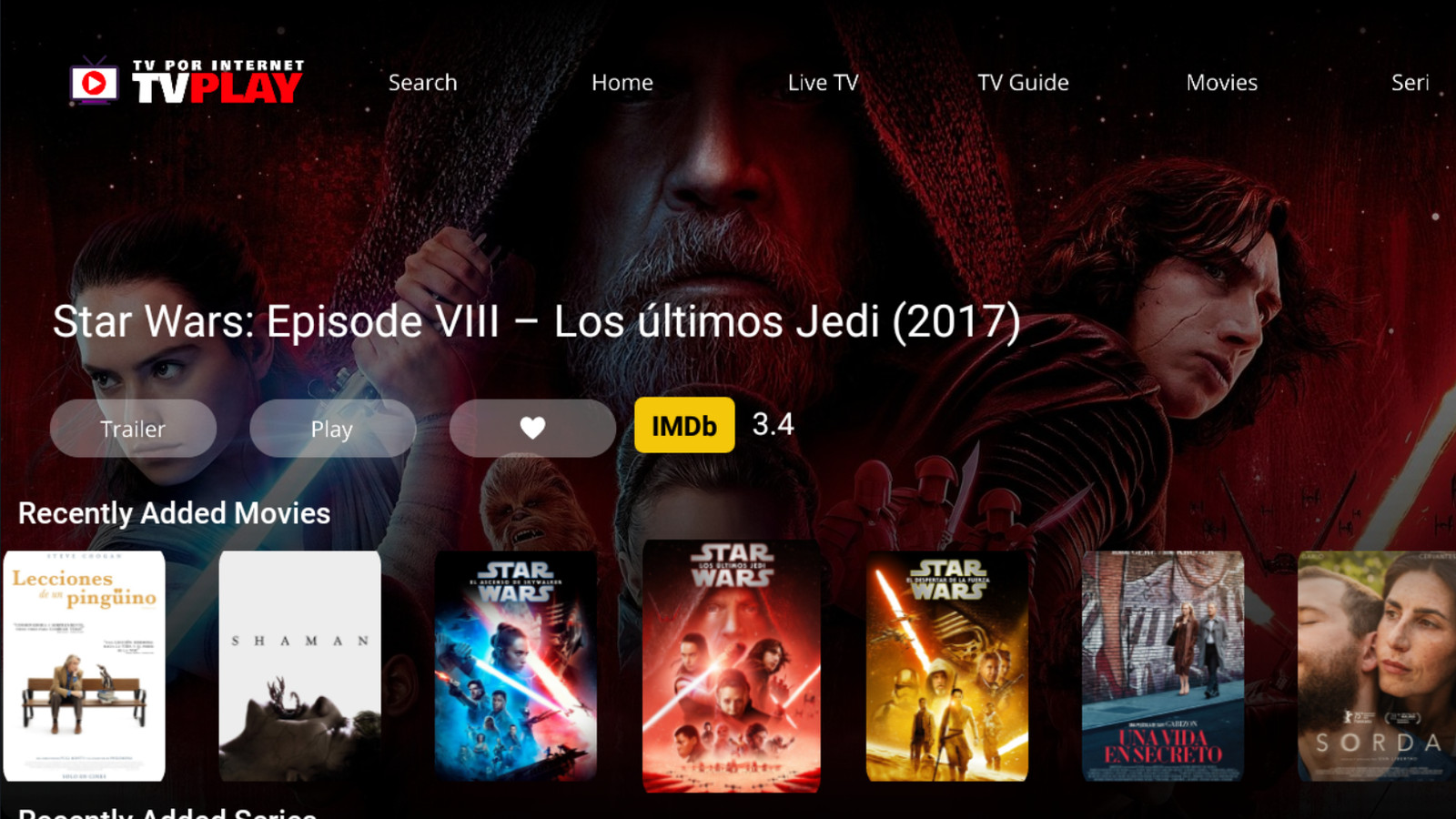
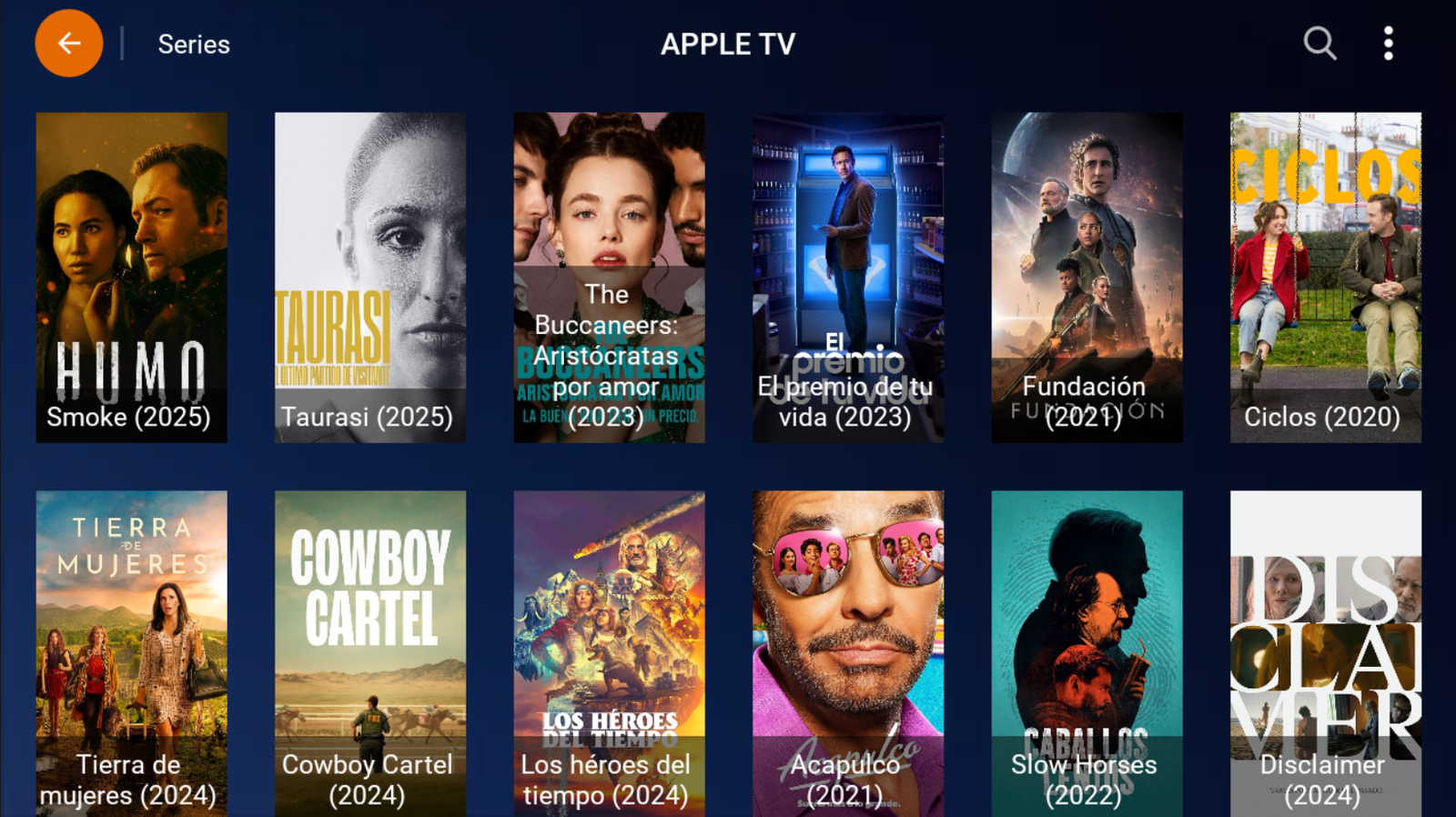
A poster-led Android storefront: a top menu with Search, Home, Live TV, TV Guide, Movies and Series, a full-width featured title with Trailer, Play, favourite and an IMDb score, and rows of recently added movies and series. Its English sign-in page, on midnight blue, stores a profile name, can set it as default and lines up Login, VPN, All Playlist and Refresh DNS.
- A poster-led Android storefront: a top menu with Search, Home, Live TV, TV Guide, Movies and Series, a full-width featured title with Trailer, Play, favourite and an IMDb score, and rows of recently added movies and series. Its English sign-in page, on midnight blue, stores a profile name, can set it as default and lines up Login, VPN, All Playlist and Refresh DNS.
- WITH YOUR BRAND LOGO
- YOUR BRAND NAME
- MULTI DNS PANEL
SMARTER TWEARK
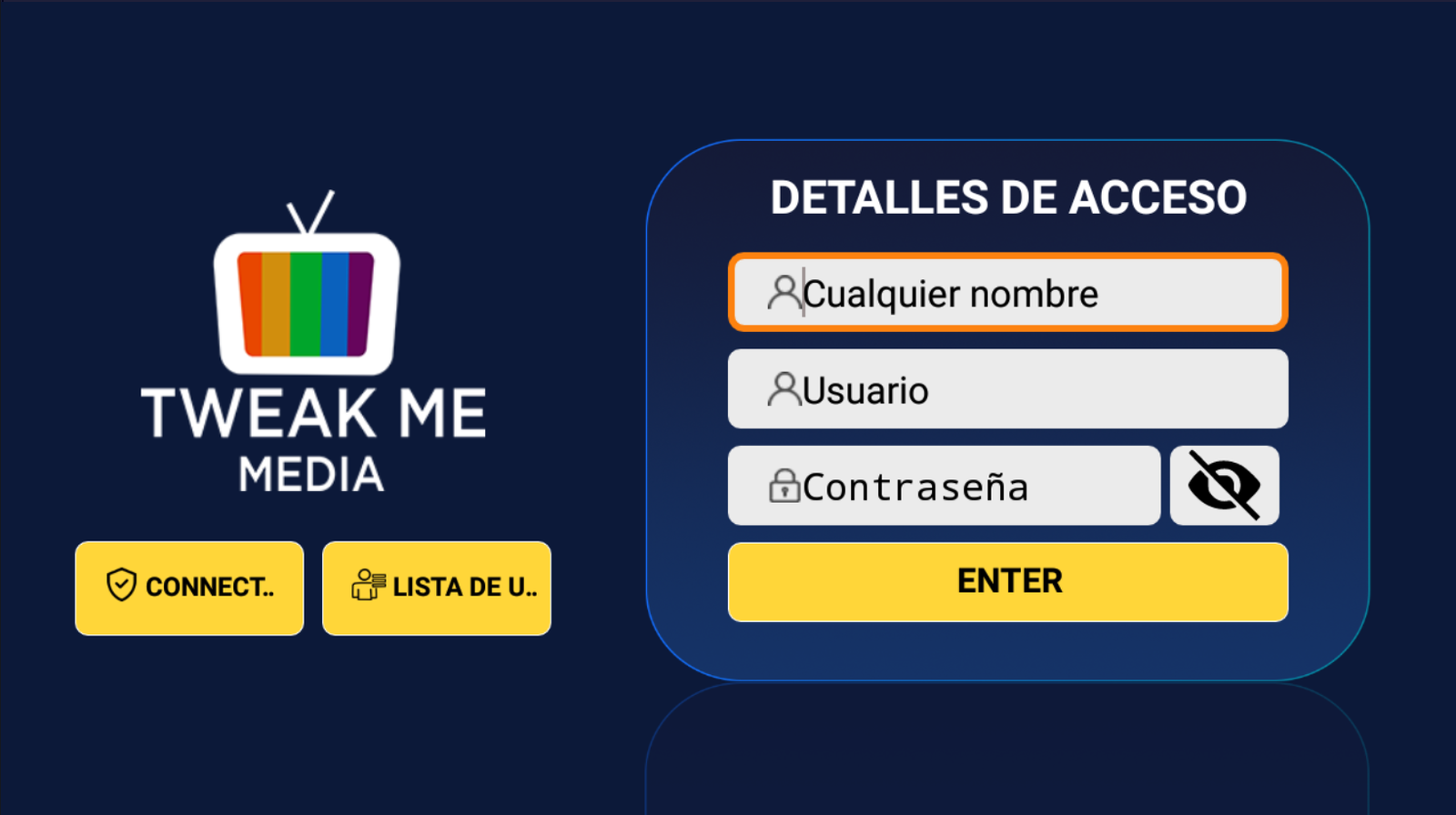
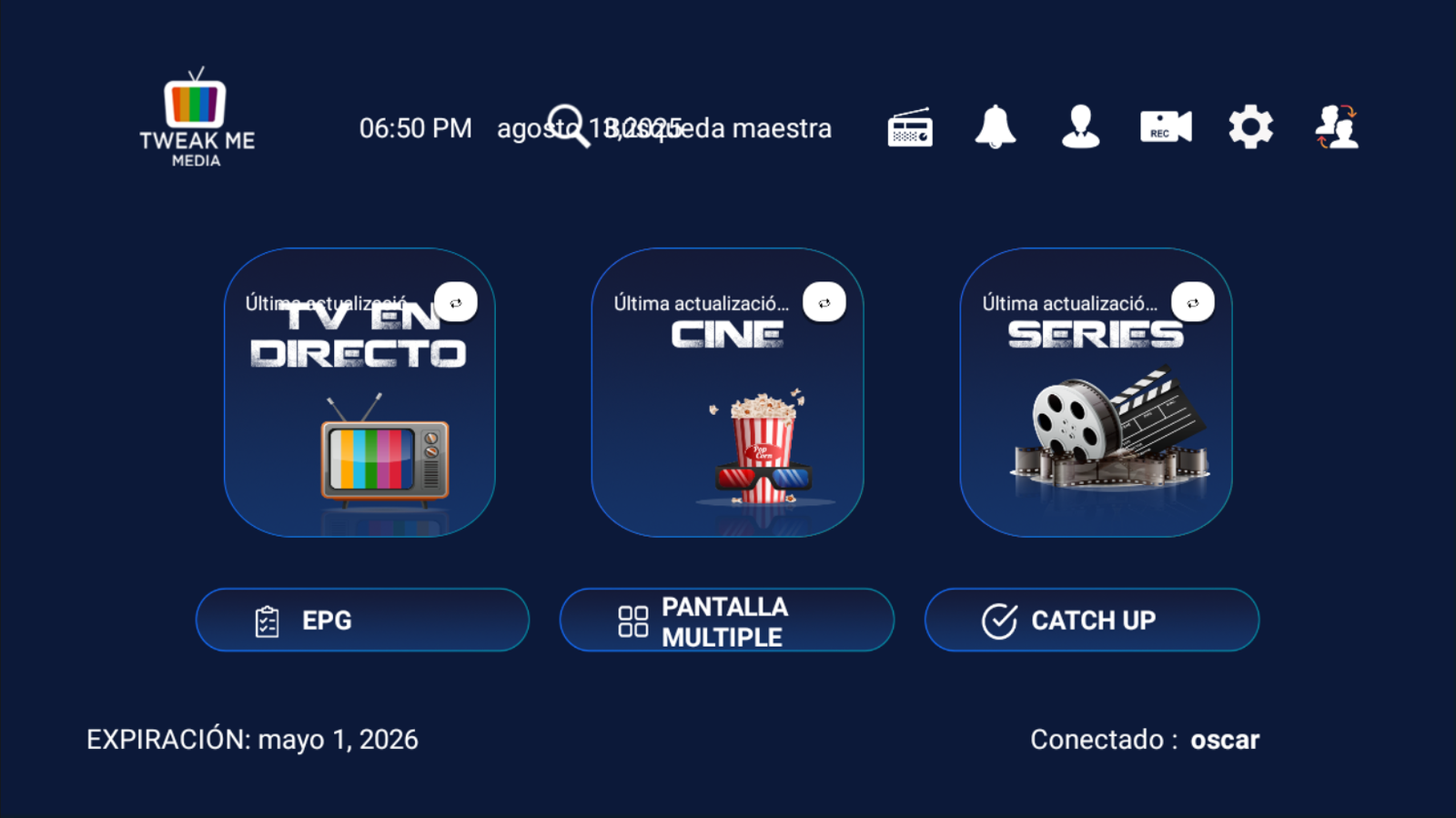
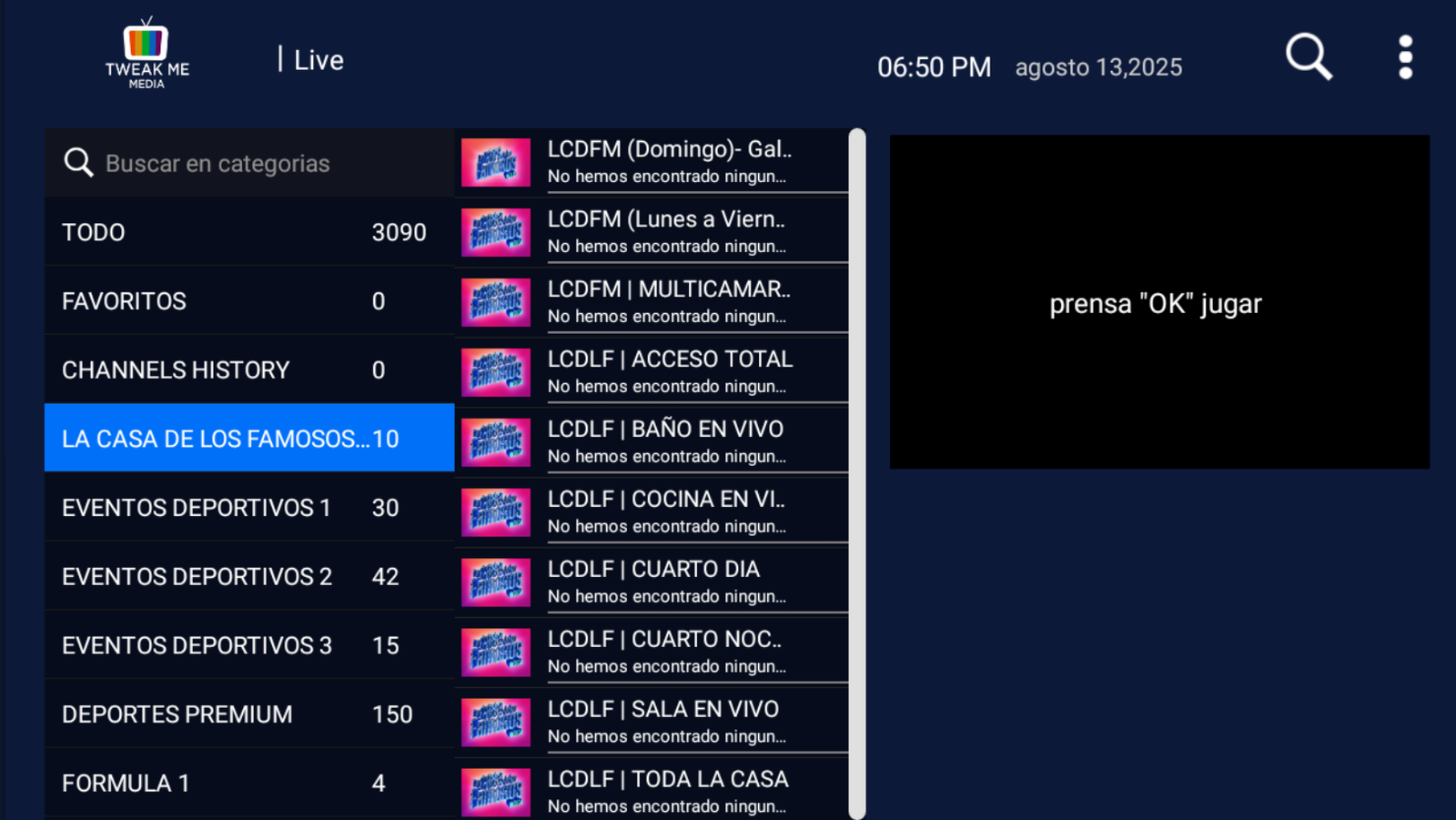
SMARTER Tweark dresses its home screen in navy with yellow accents: three square cards - Live TV, Cinema and Series - plus separate buttons for EPG, multi-screen and Catch Up. The top bar adds radio, recording, profiles and settings next to the clock and master search; the footer shows expiry and the connected user. Sign in by name, username and password.
- SMARTER Tweark dresses its home screen in navy with yellow accents: three square cards - Live TV, Cinema and Series - plus separate buttons for EPG, multi-screen and Catch Up. The top bar adds radio, recording, profiles and settings next to the clock and master search; the footer shows expiry and the connected user. Sign in by name, username and password.
- WITH YOUR BRAND LOGO
- YOUR BRAND NAME
- MULTI DNS PANEL
IBO HULK
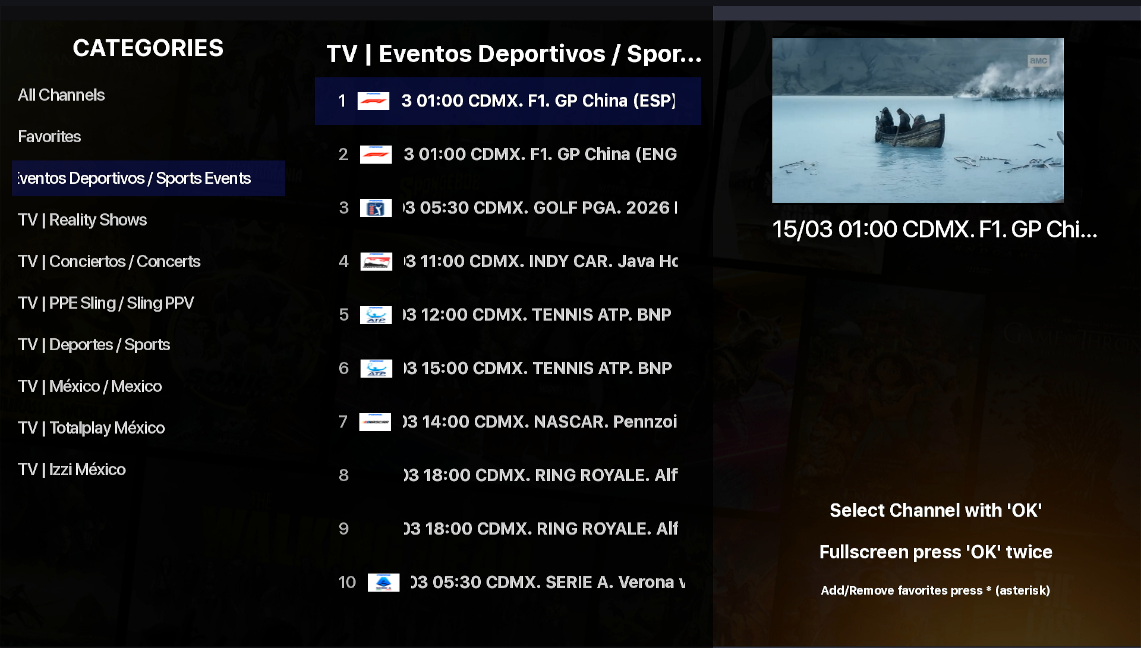
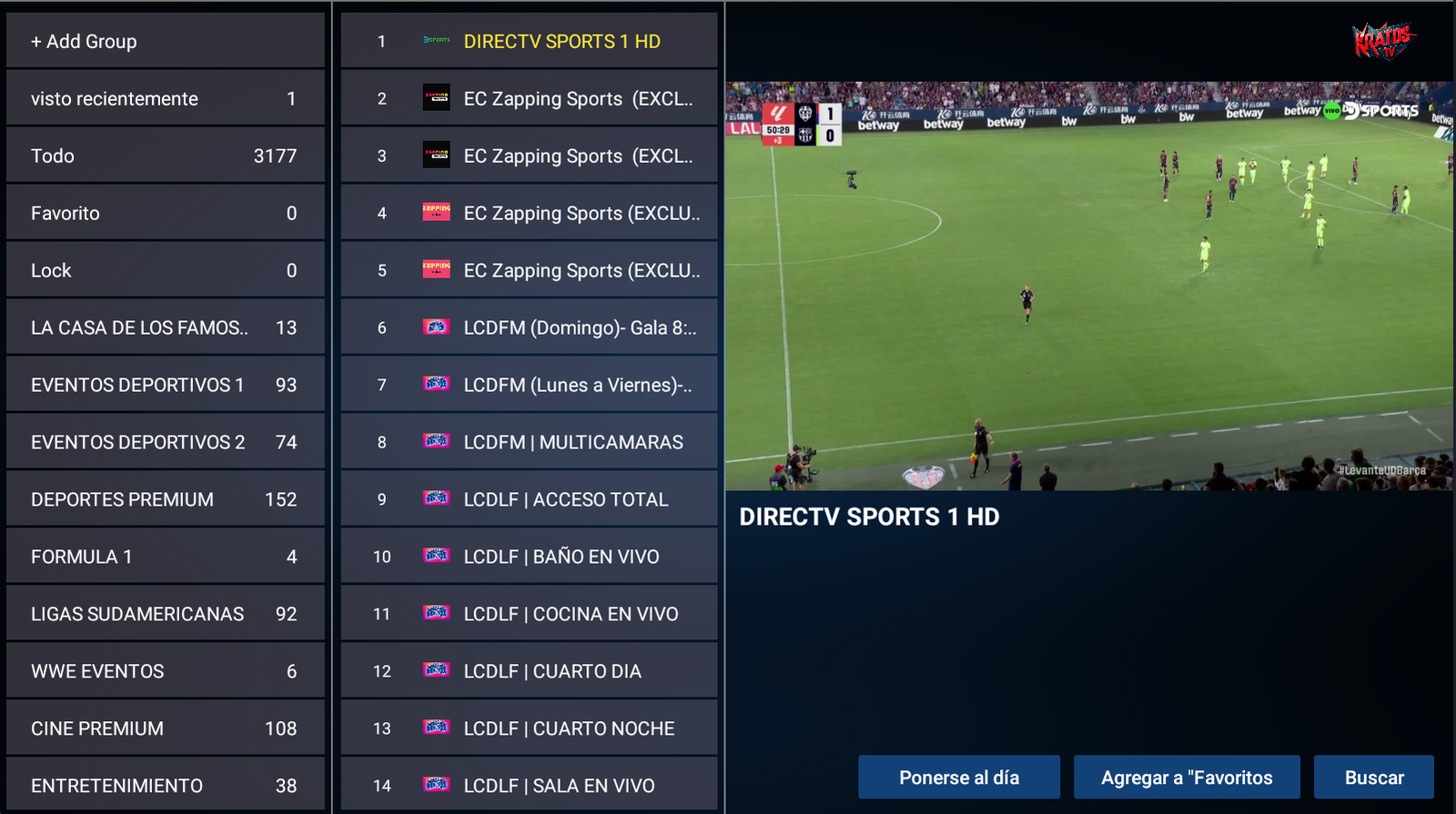
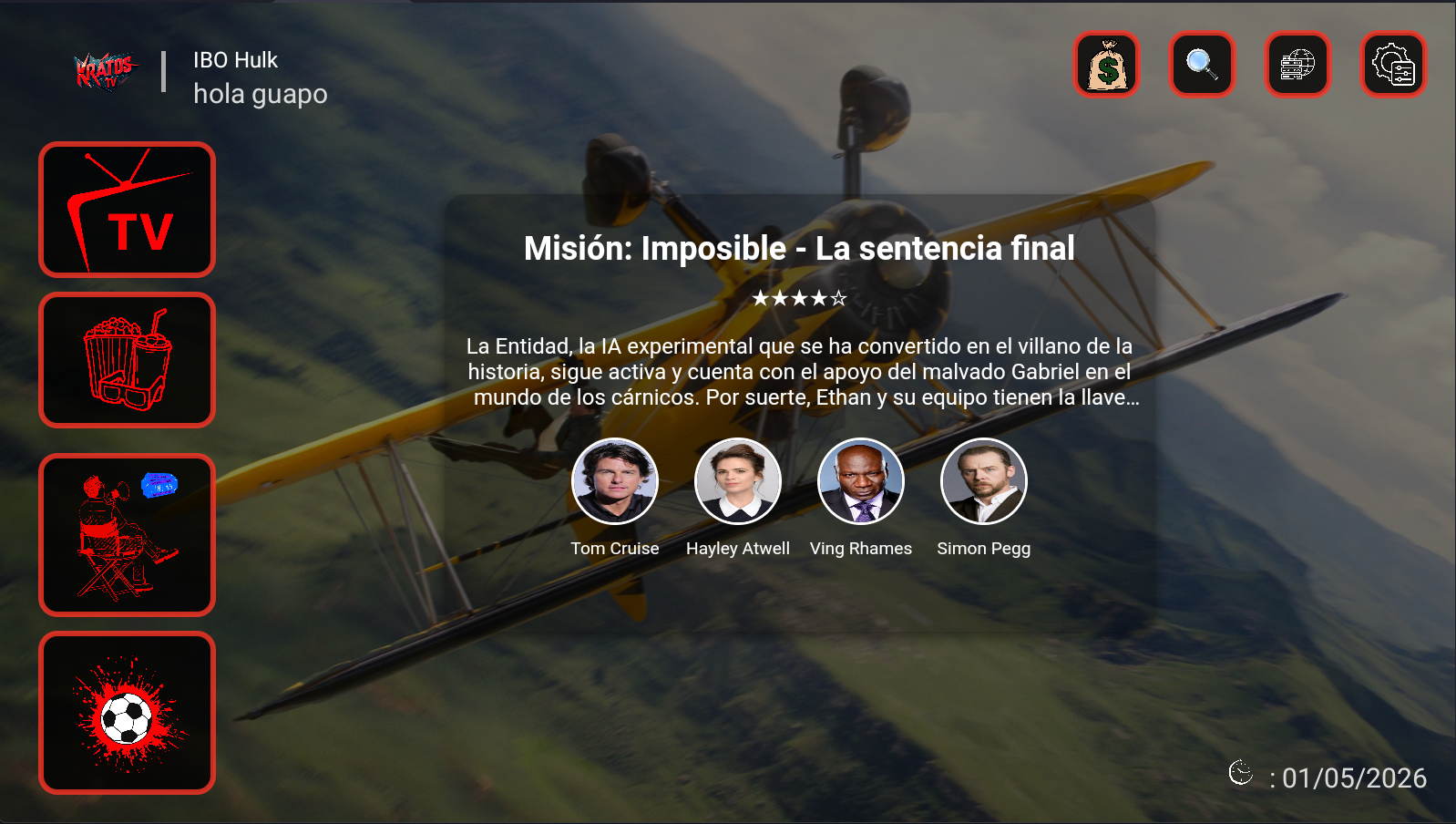
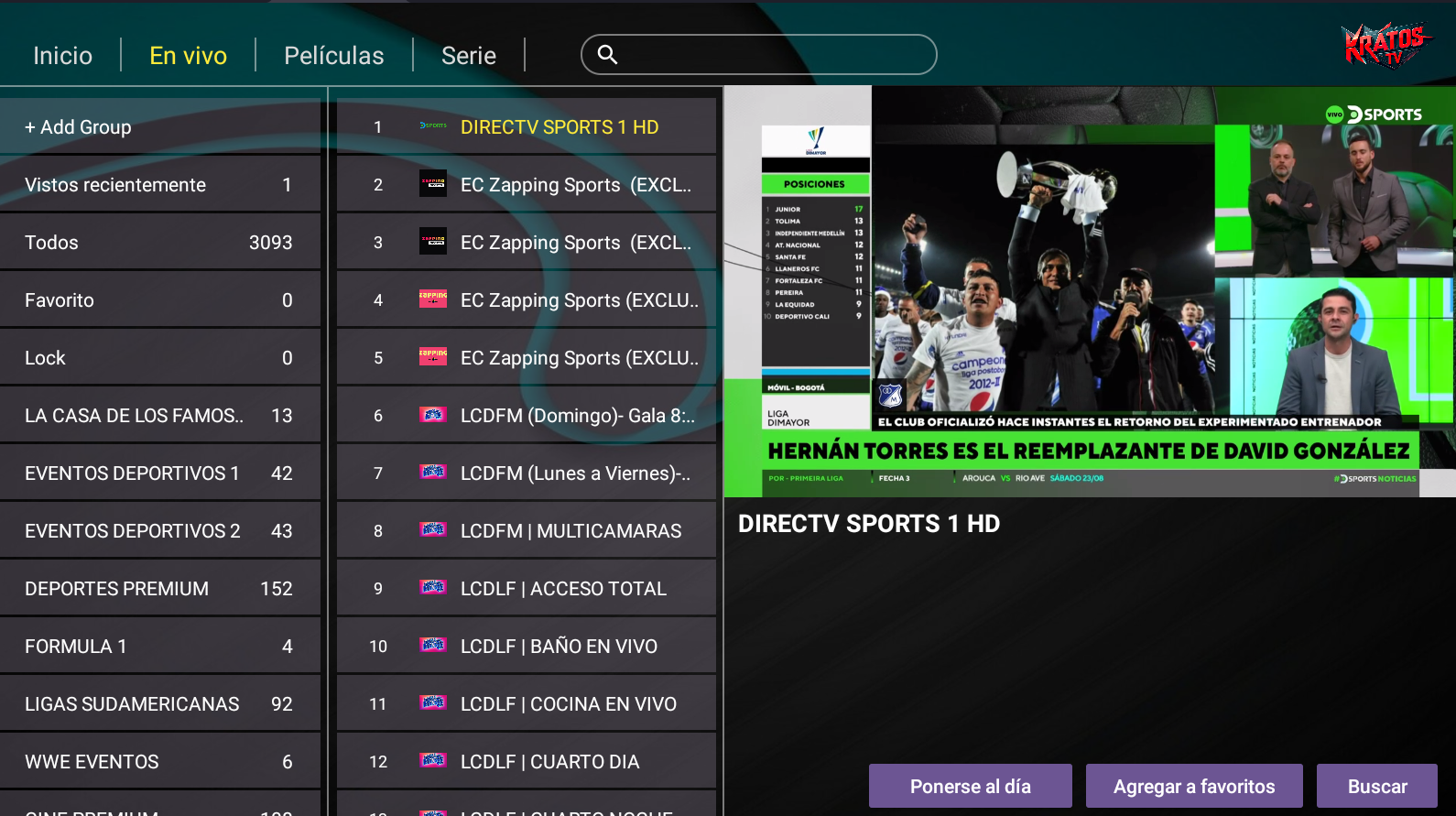
It opens with a full-screen loading splash over your logo, and Live TV then arrives in three columns: categories with their channel counts, plus recent, favourites and locked, on the left; the numbered channel list with per-channel logos in the middle; and the video on the right with catch-up, favourite and search.
- It opens with a full-screen loading splash over your logo, and Live TV then arrives in three columns: categories with their channel counts, plus recent, favourites and locked, on the left; the numbered channel list with per-channel logos in the middle; and the video on the right with catch-up, favourite and search.
- Video intro
- MultiDNS Panel
- Activation via username and password from the application
IBO 4.3
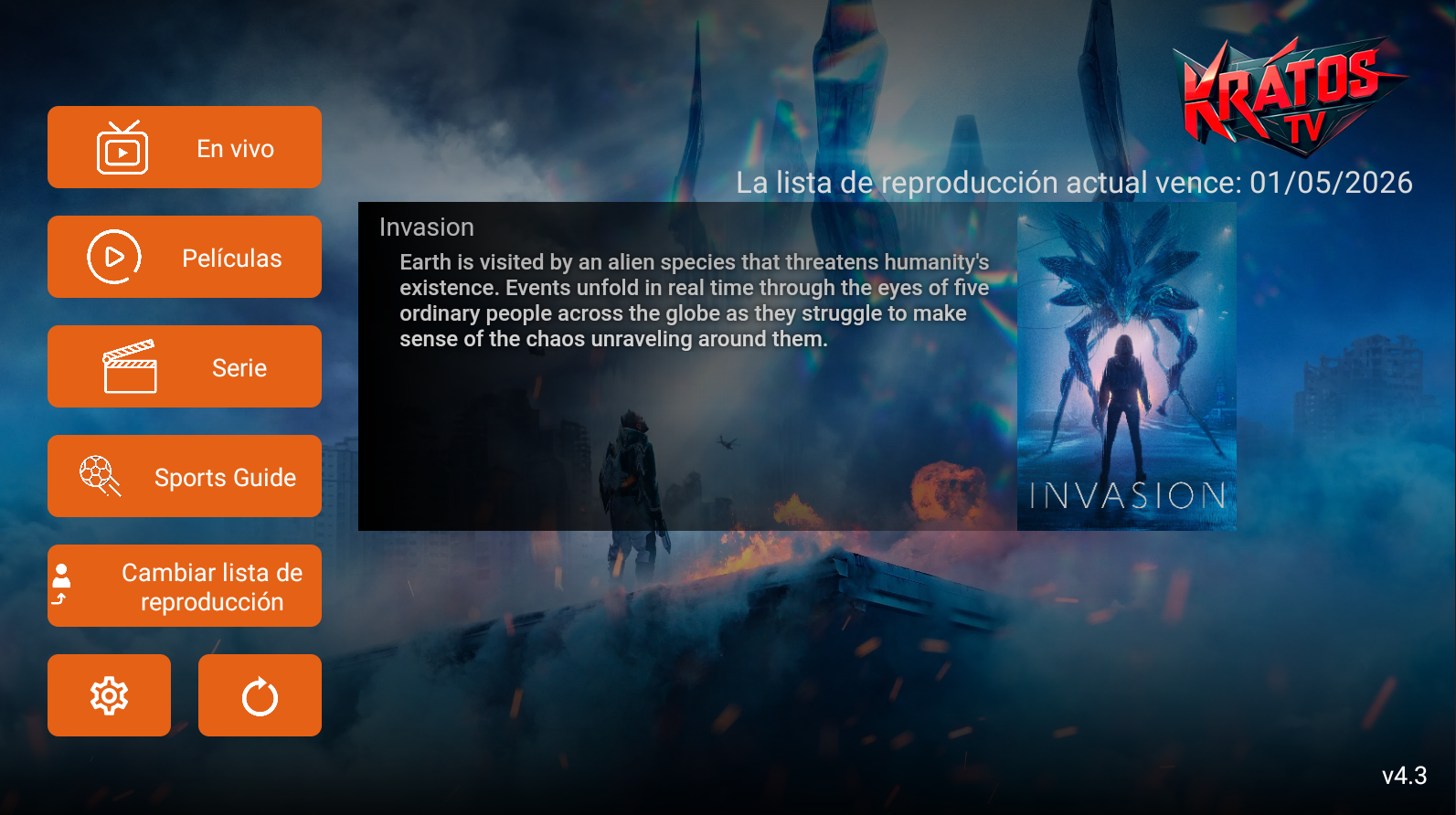
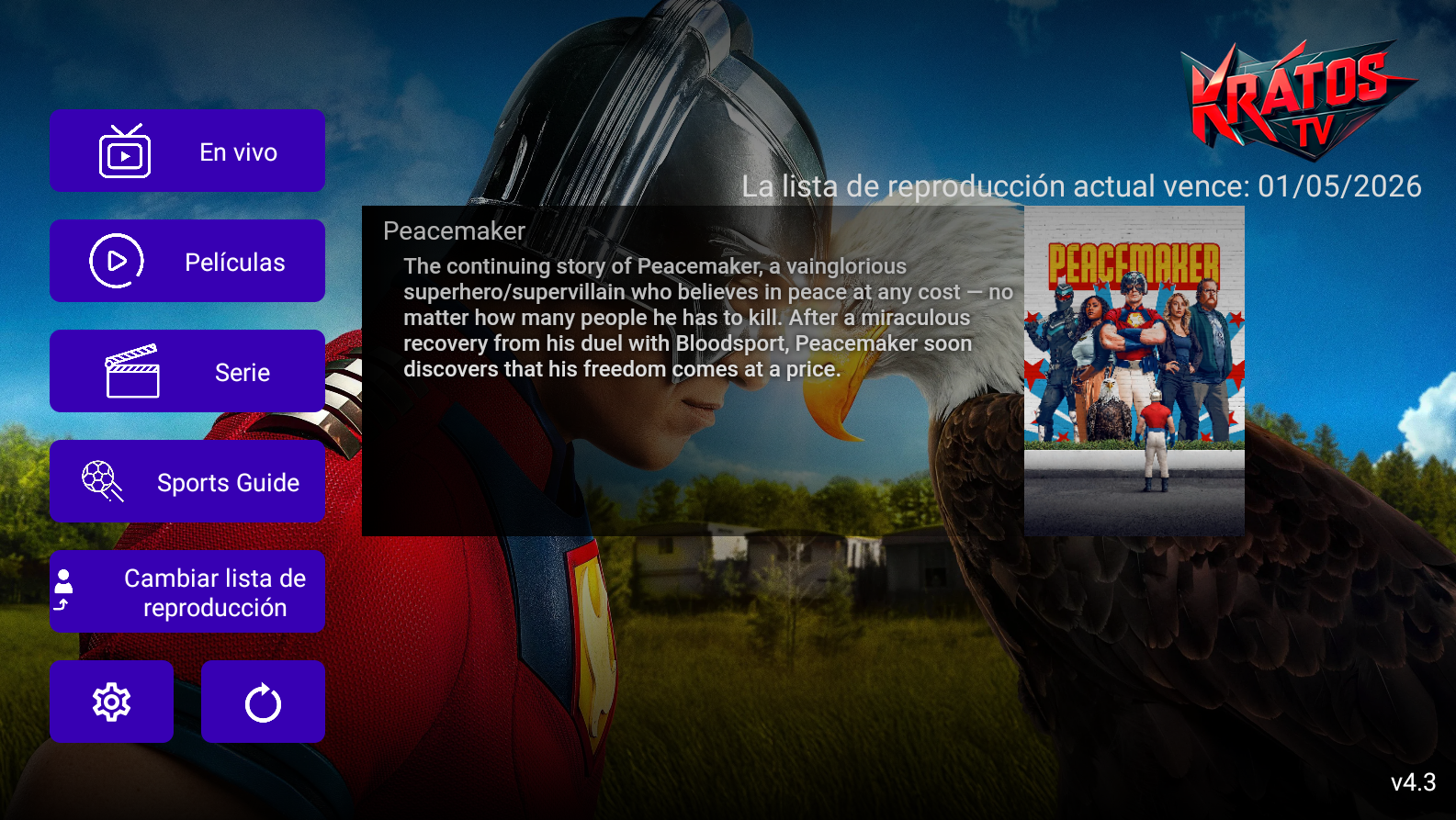
A column of orange buttons drives this Android app: Live, Movies, Series, Sports Guide and change playlist, plus settings and reload. The rest of the screen goes to the featured title's artwork and synopsis, while a line on top states when the current playlist expires; version 4.3 is stamped in the corner.
- A column of orange buttons drives this Android app: Live, Movies, Series, Sports Guide and change playlist, plus settings and reload. The rest of the screen goes to the featured title's artwork and synopsis, while a line on top states when the current playlist expires; version 4.3 is stamped in the corner.
- Multi-DNS Panel
- Activation via username and password from the application
- Activation via MAC address from the Admin panel
IBO FLASH
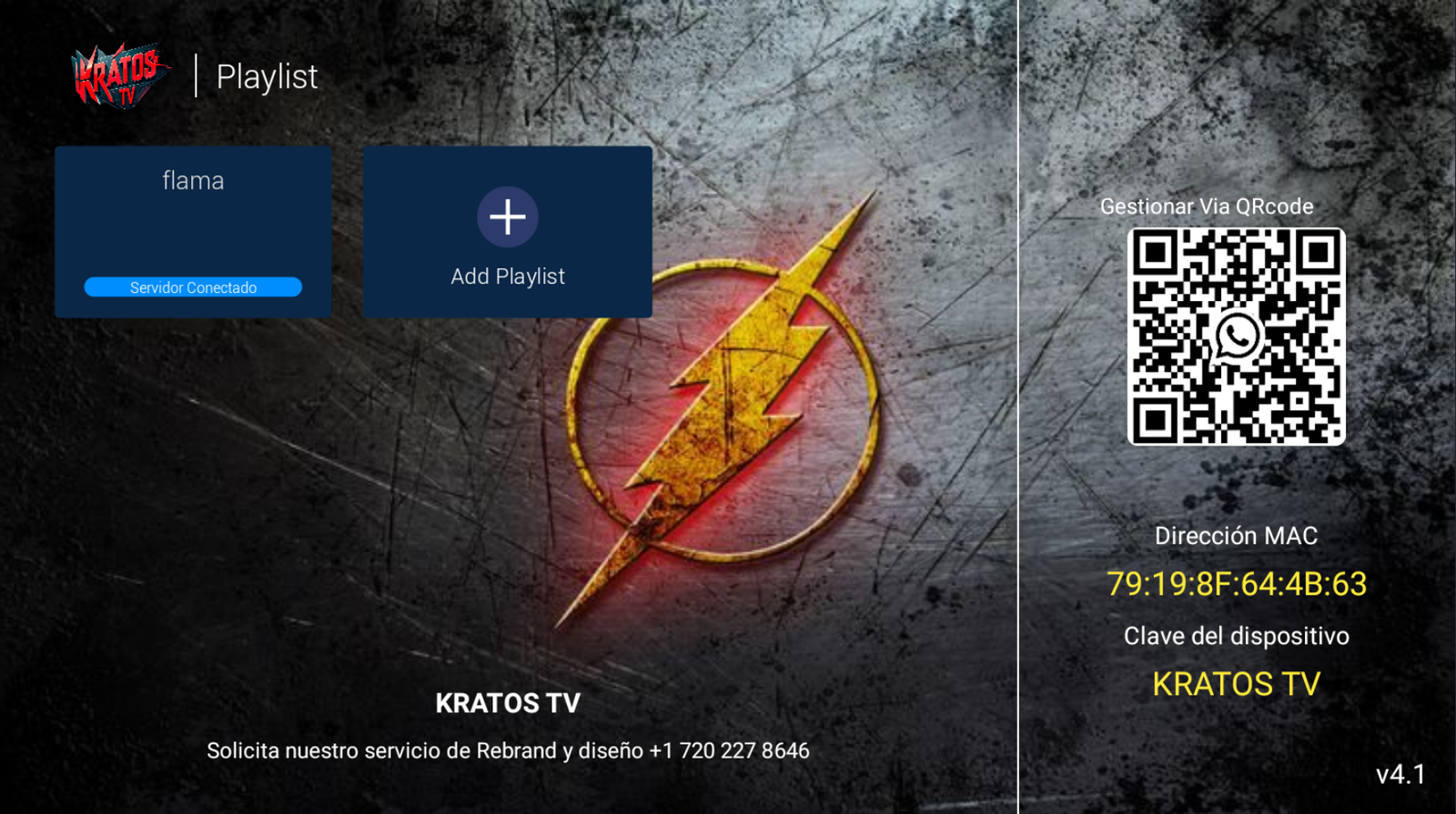
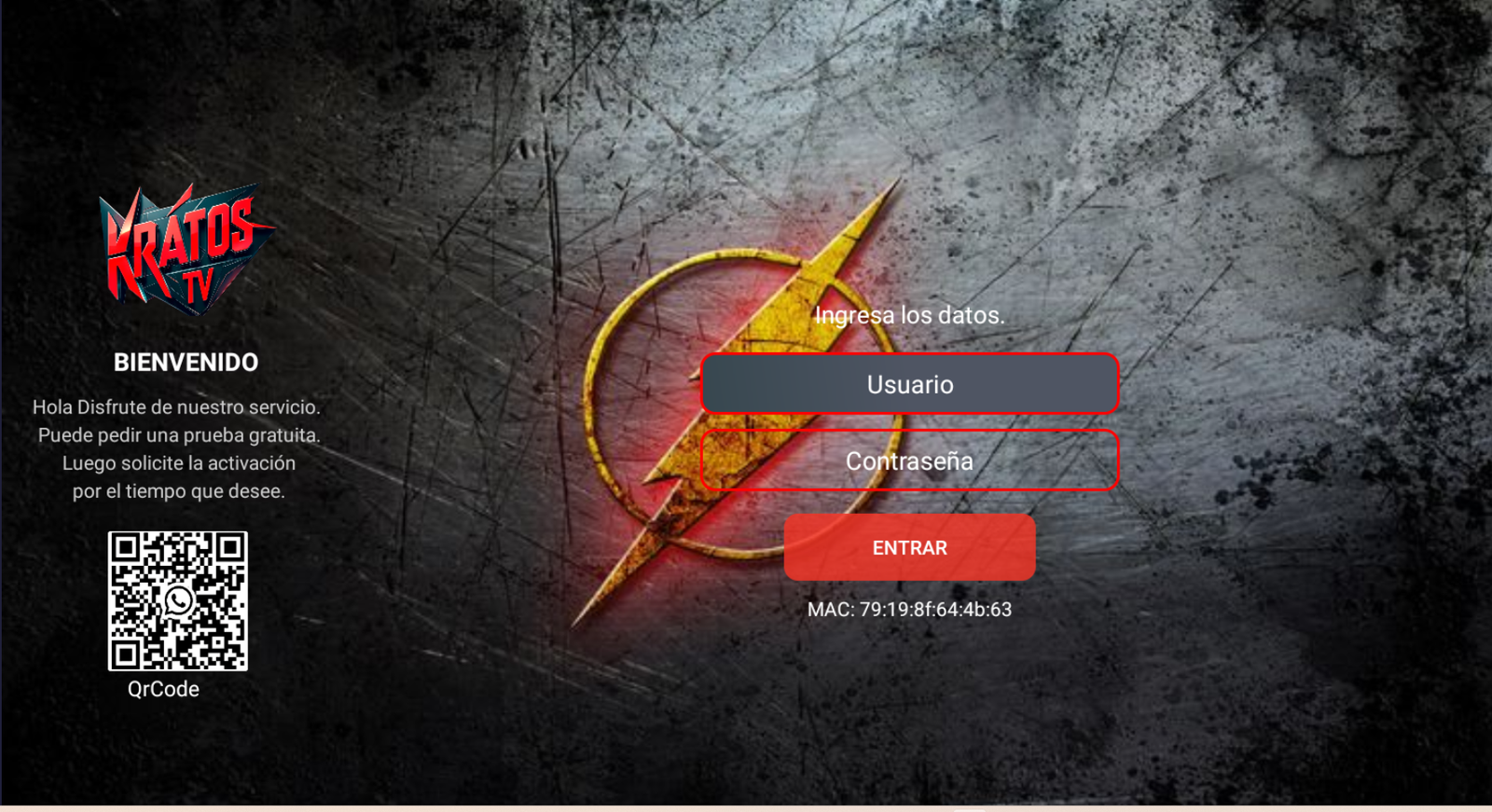
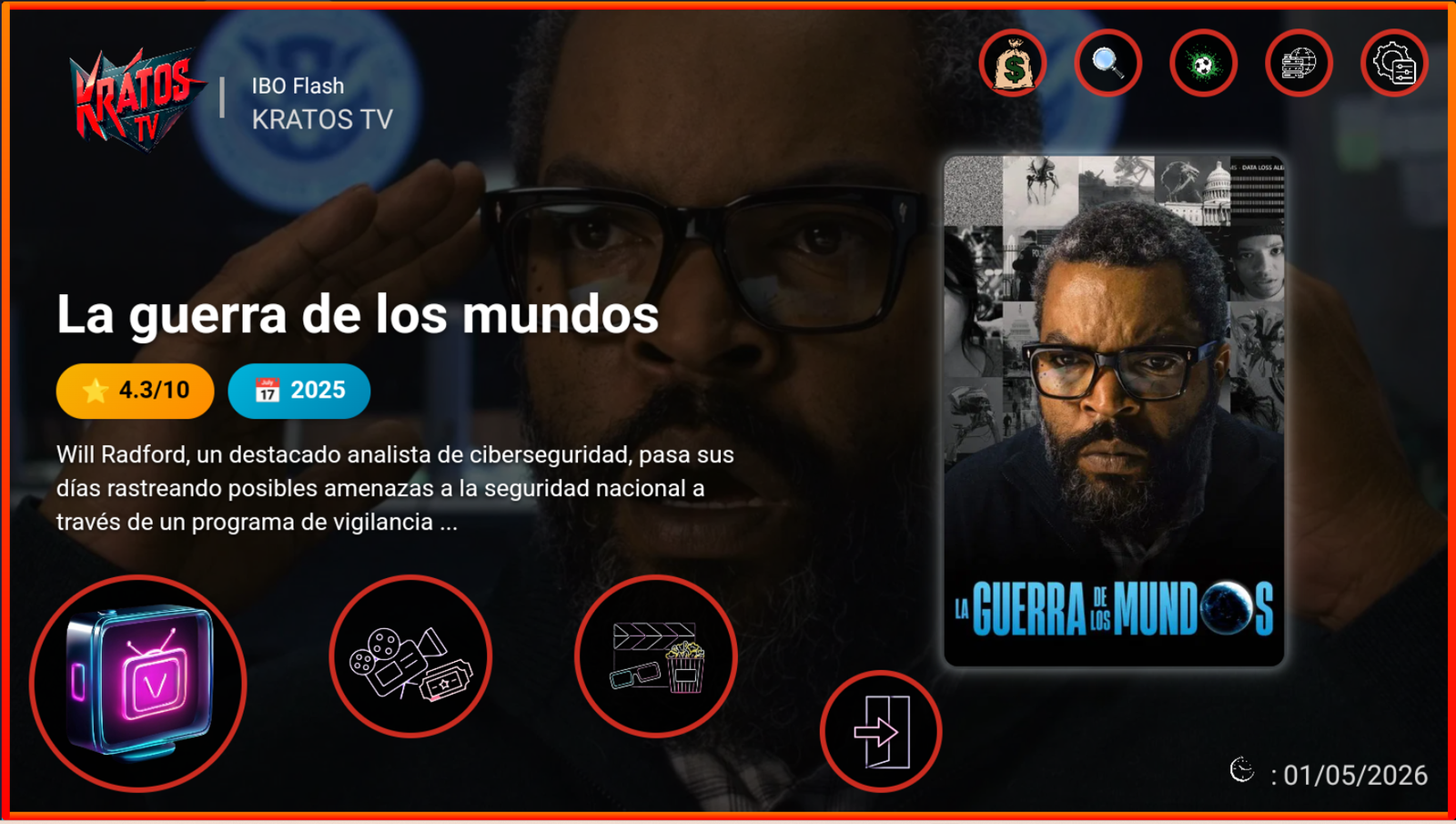
An Android IPTV app, playlist manager first: it opens on the saved playlists, each with a connected-server badge, plus a button to add another. On the right sit the MAC address, the device key and a management QR code; the footer text is set from the panel. A loading screen with your logo comes first.
- An Android IPTV app, playlist manager first: it opens on the saved playlists, each with a connected-server badge, plus a button to add another. On the right sit the MAC address, the device key and a management QR code; the footer text is set from the panel. A loading screen with your logo comes first.
- Video intro
- MultiDNS Panel
- Activation via username and password from the application
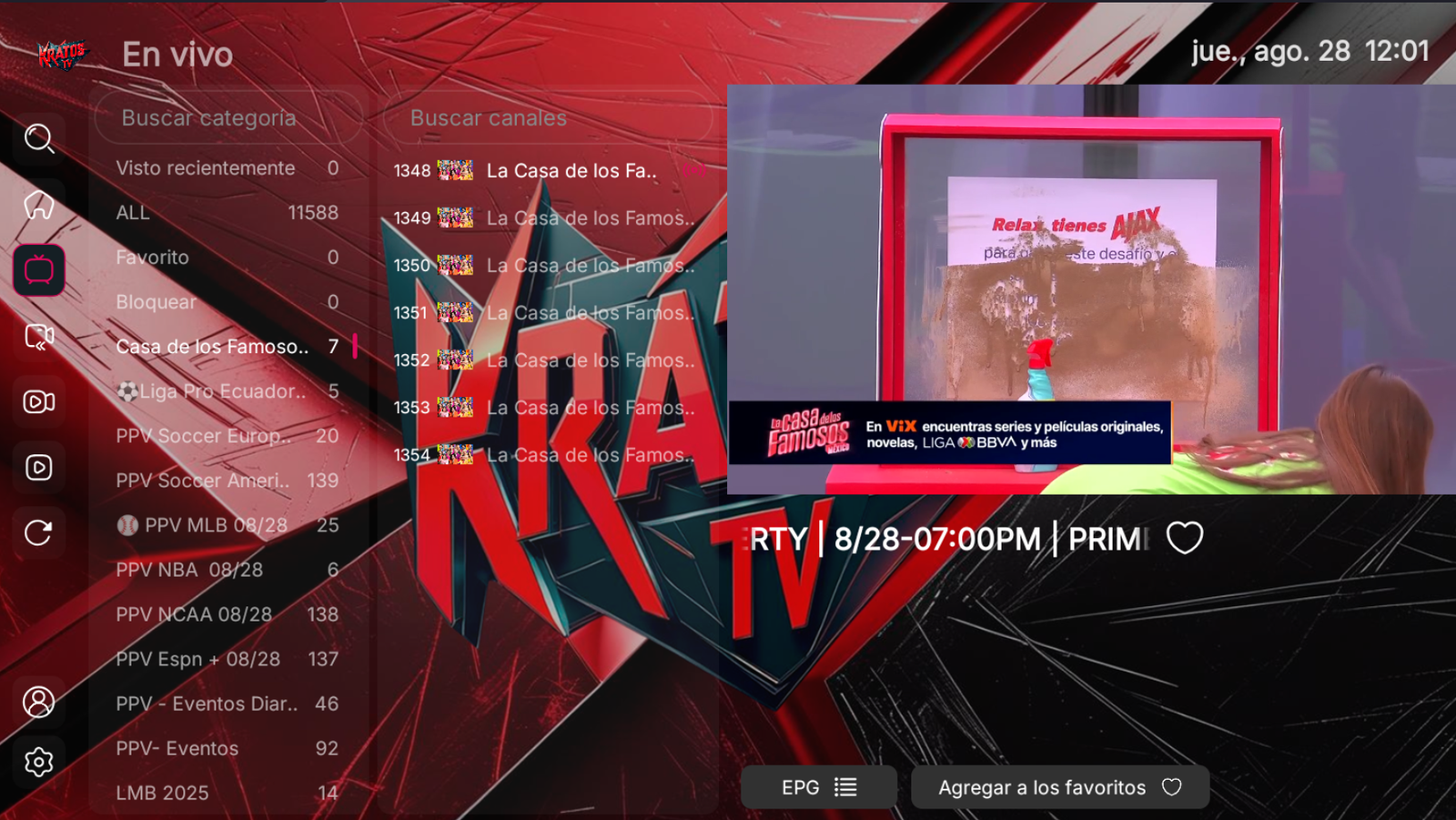
IBO SMARTERS
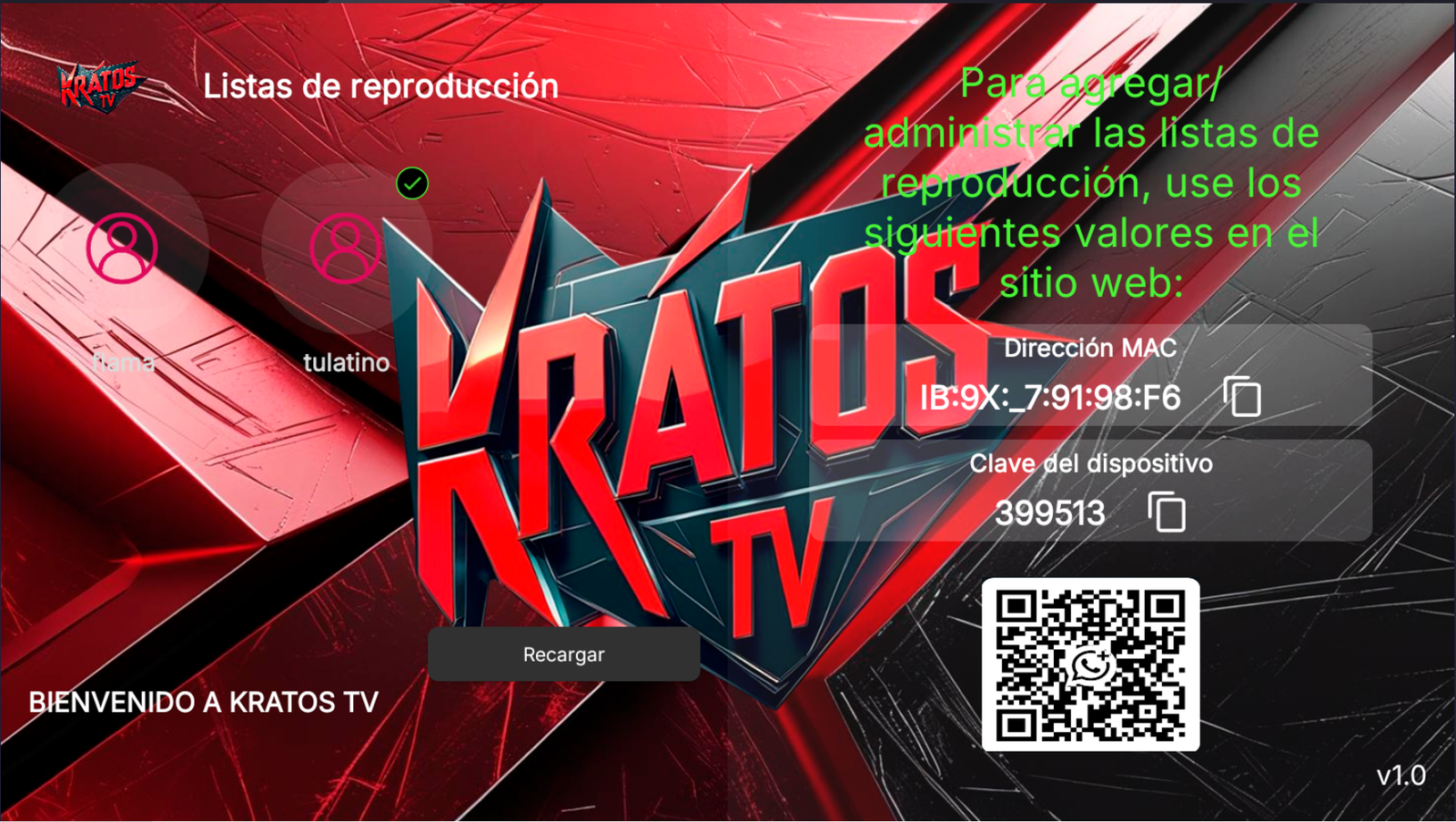
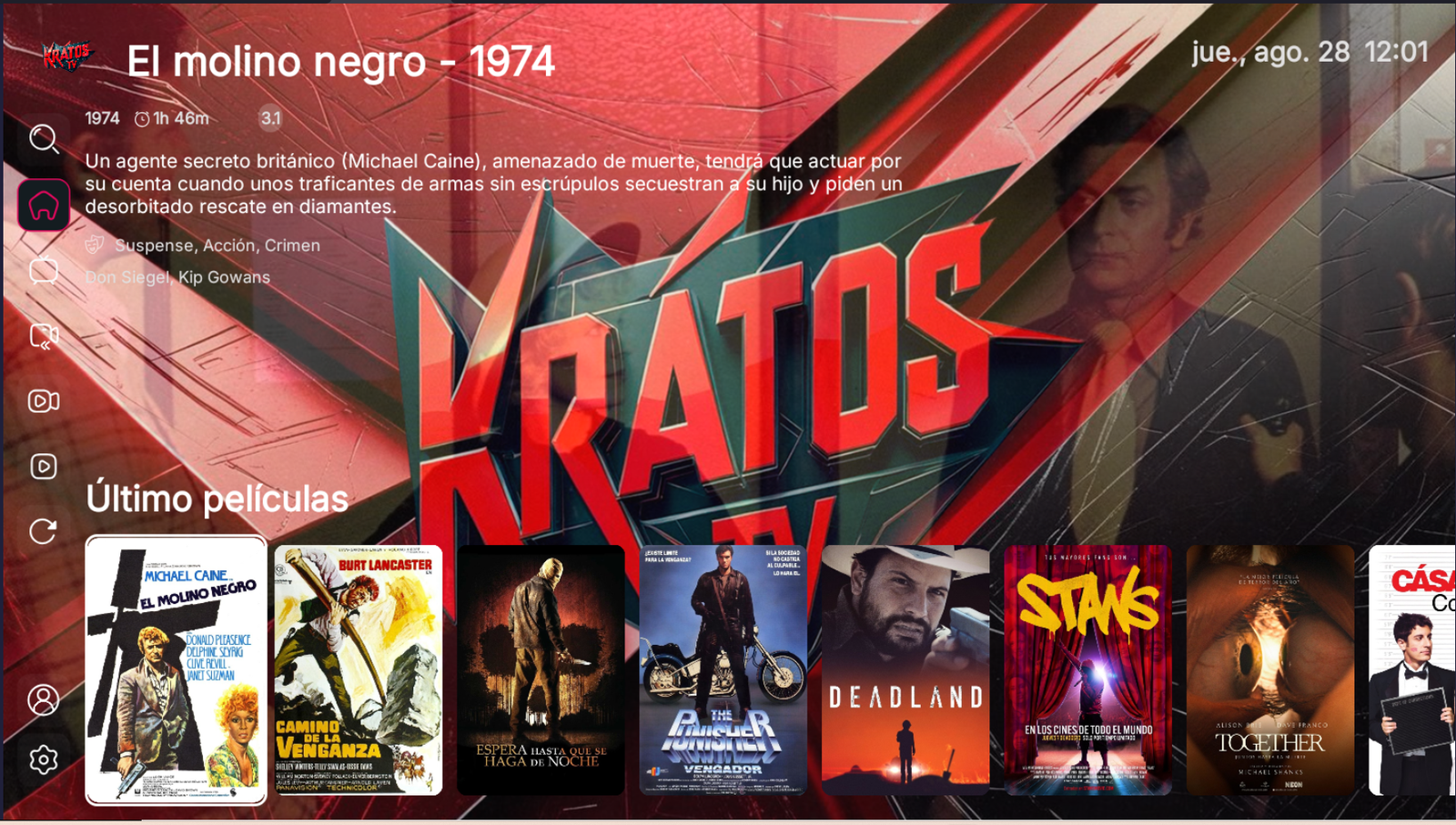
An Android IPTV player activated only from the panel: the first screen shows the MAC address and device key with copy buttons, a QR code and the playlists as avatar profiles. Inside, an icon sidebar sits beside the featured title card - year, runtime, rating, genres and synopsis - above a row of the latest movies.
- An Android IPTV player activated only from the panel: the first screen shows the MAC address and device key with copy buttons, a QR code and the playlists as avatar profiles. Inside, an icon sidebar sits beside the featured title card - year, runtime, rating, genres and synopsis - above a row of the latest movies.
- MultiDNS Panel
- Only activated from the panel
- Activation via MAC address from the Admin panel
WAVE TV
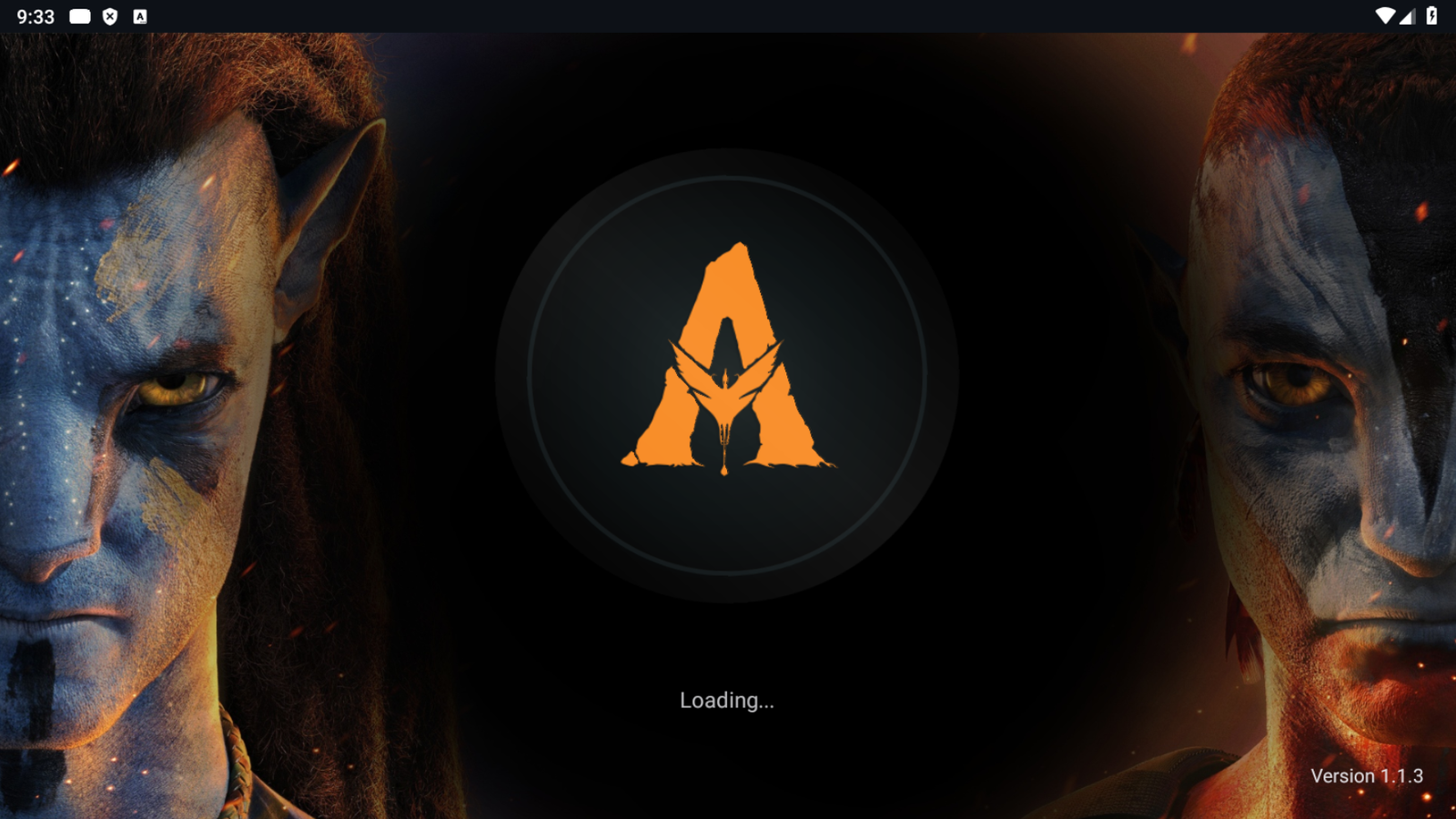
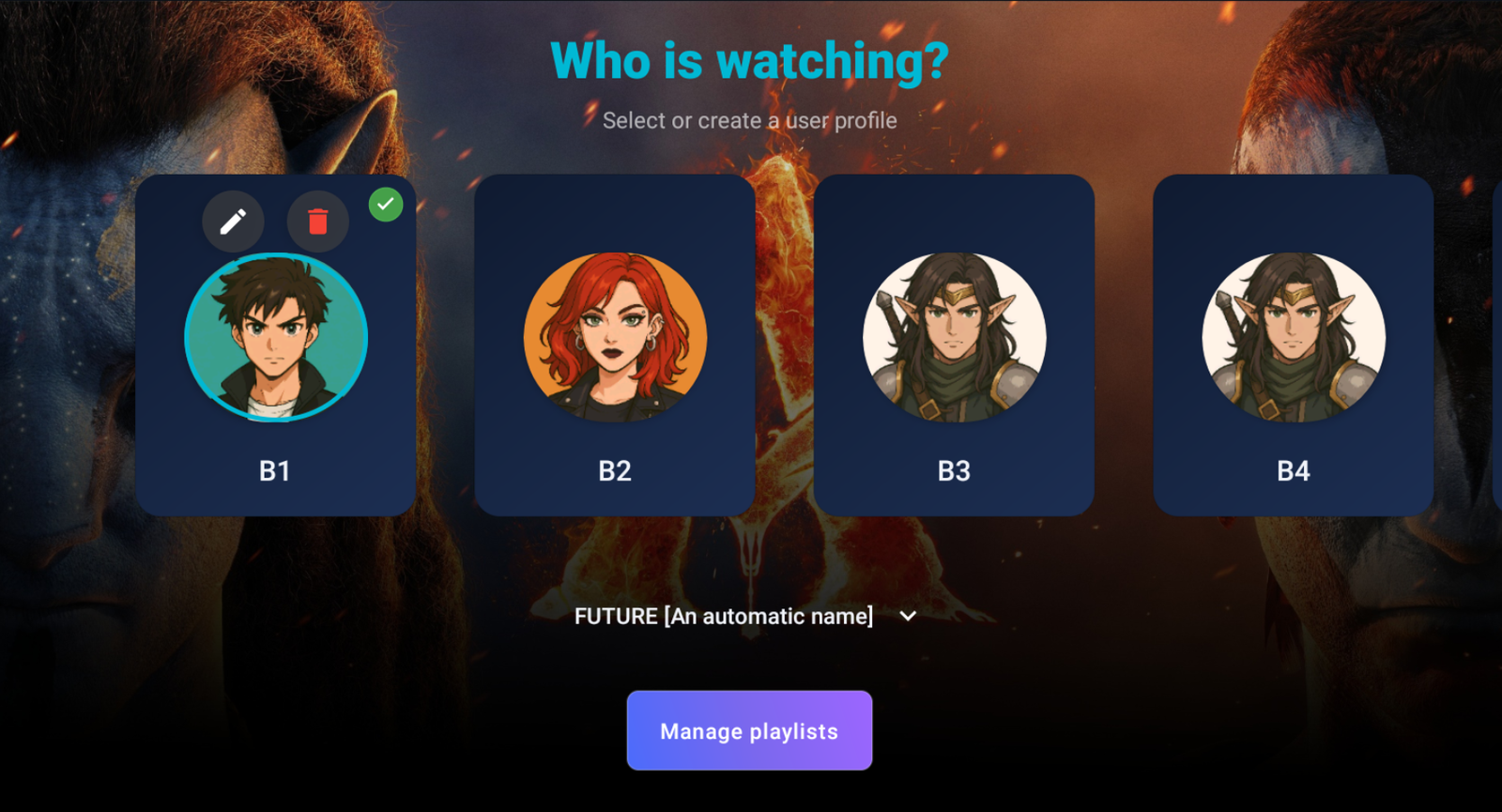
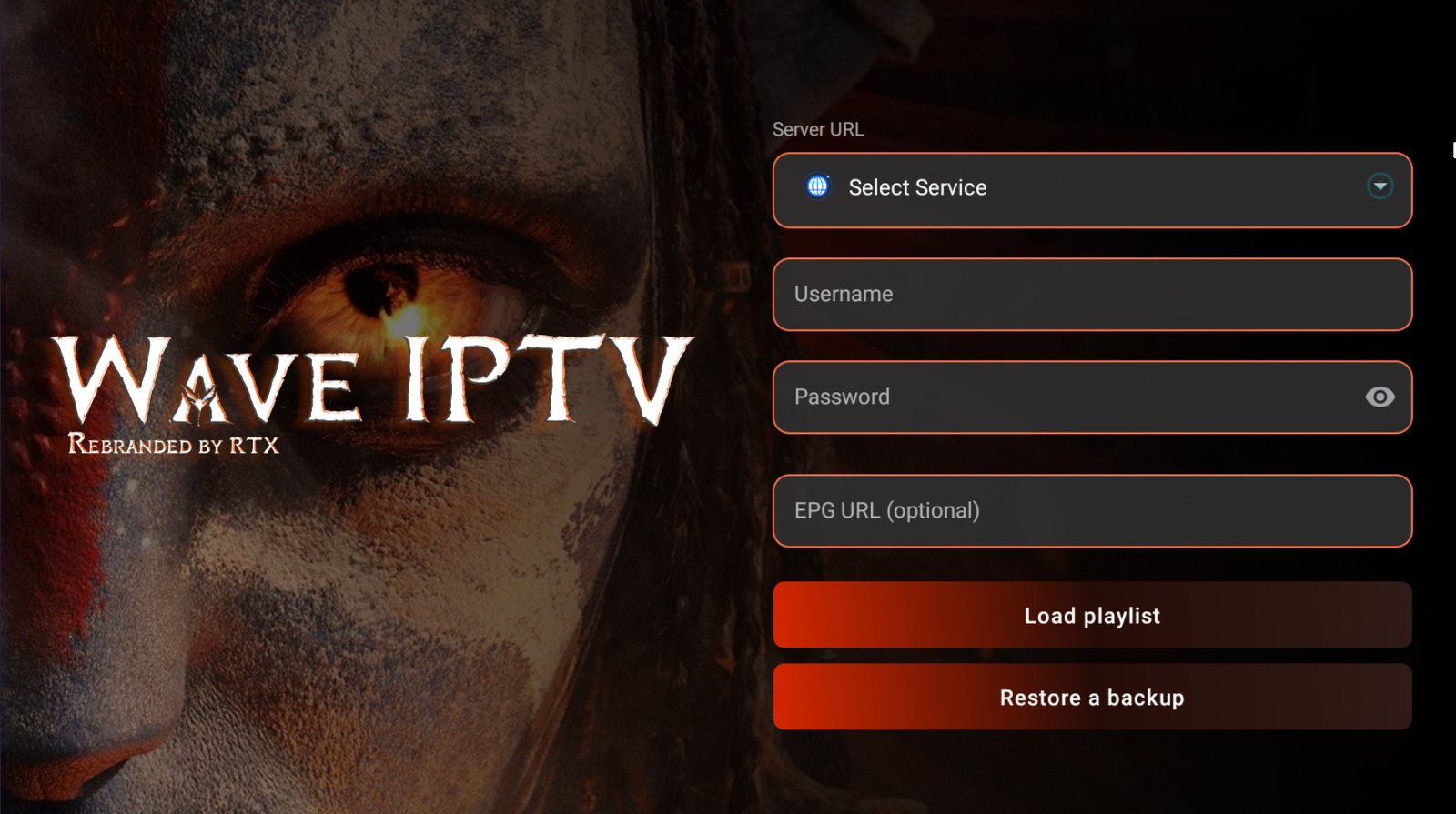
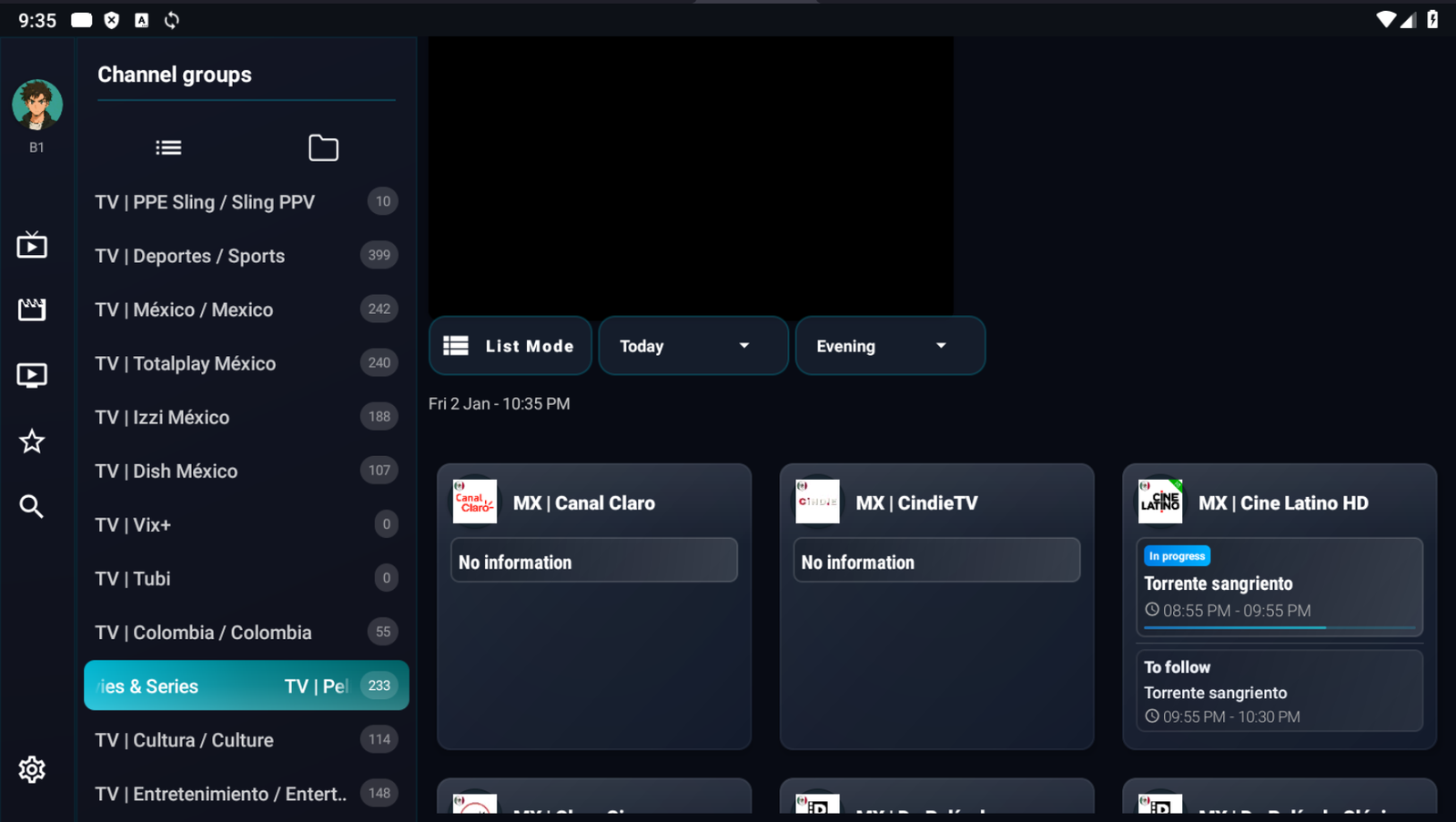
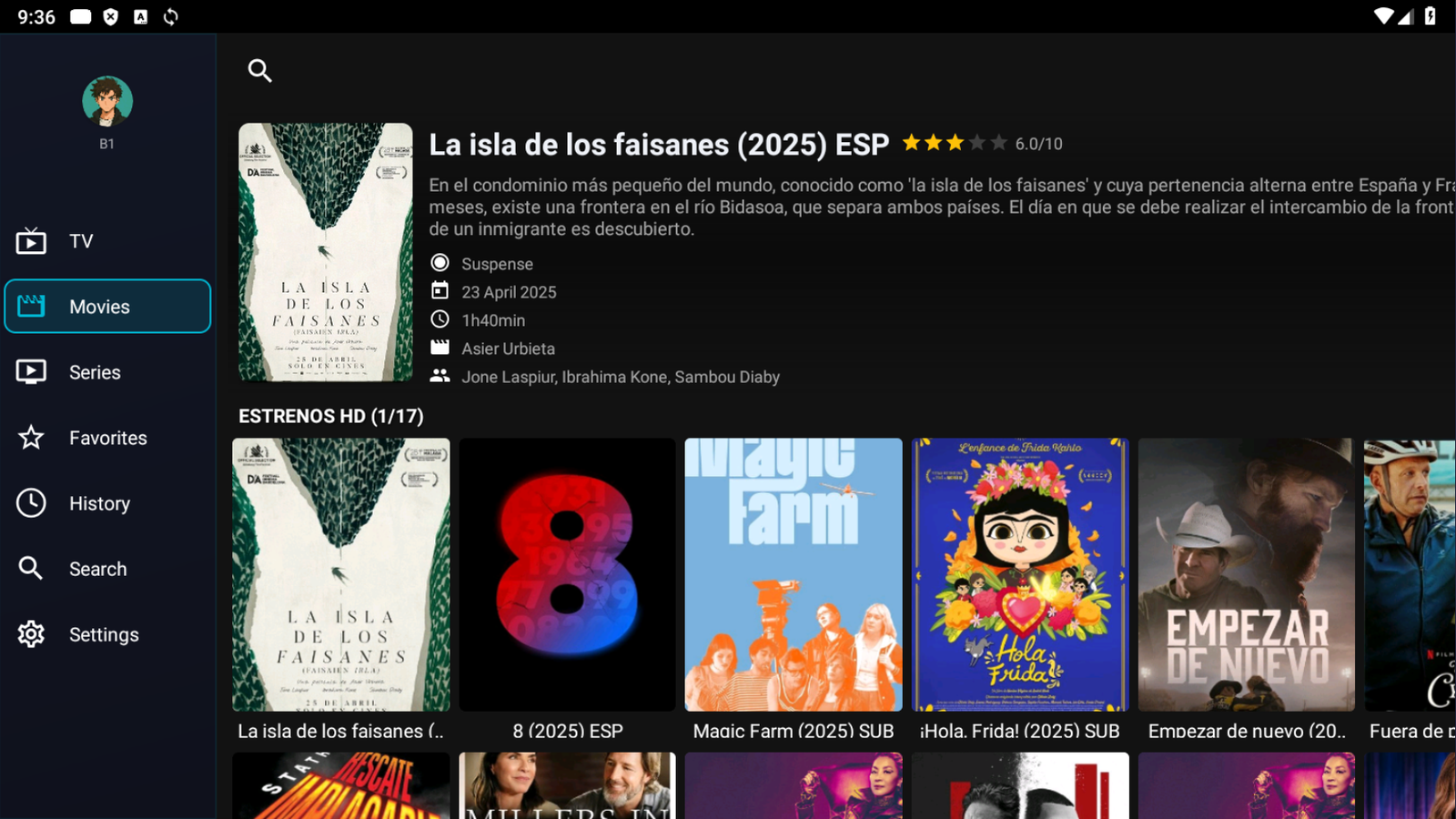
A landscape Android IPTV app, dark theme, that opens by asking who is watching: profile cards with avatars you can create, edit or delete right there, plus a button to manage playlists. Before that, a loading screen shows the round logo and version number. Sign-in is by username and password.
- A landscape Android IPTV app, dark theme, that opens by asking who is watching: profile cards with avatars you can create, edit or delete right there, plus a button to manage playlists. Before that, a loading screen shows the round logo and version number. Sign-in is by username and password.
- MULTI-DNS PANEL
- ACTIVATION VIA USERNAME AND PASSWORD
- MODERN INTERFACE
NIO PLAYER
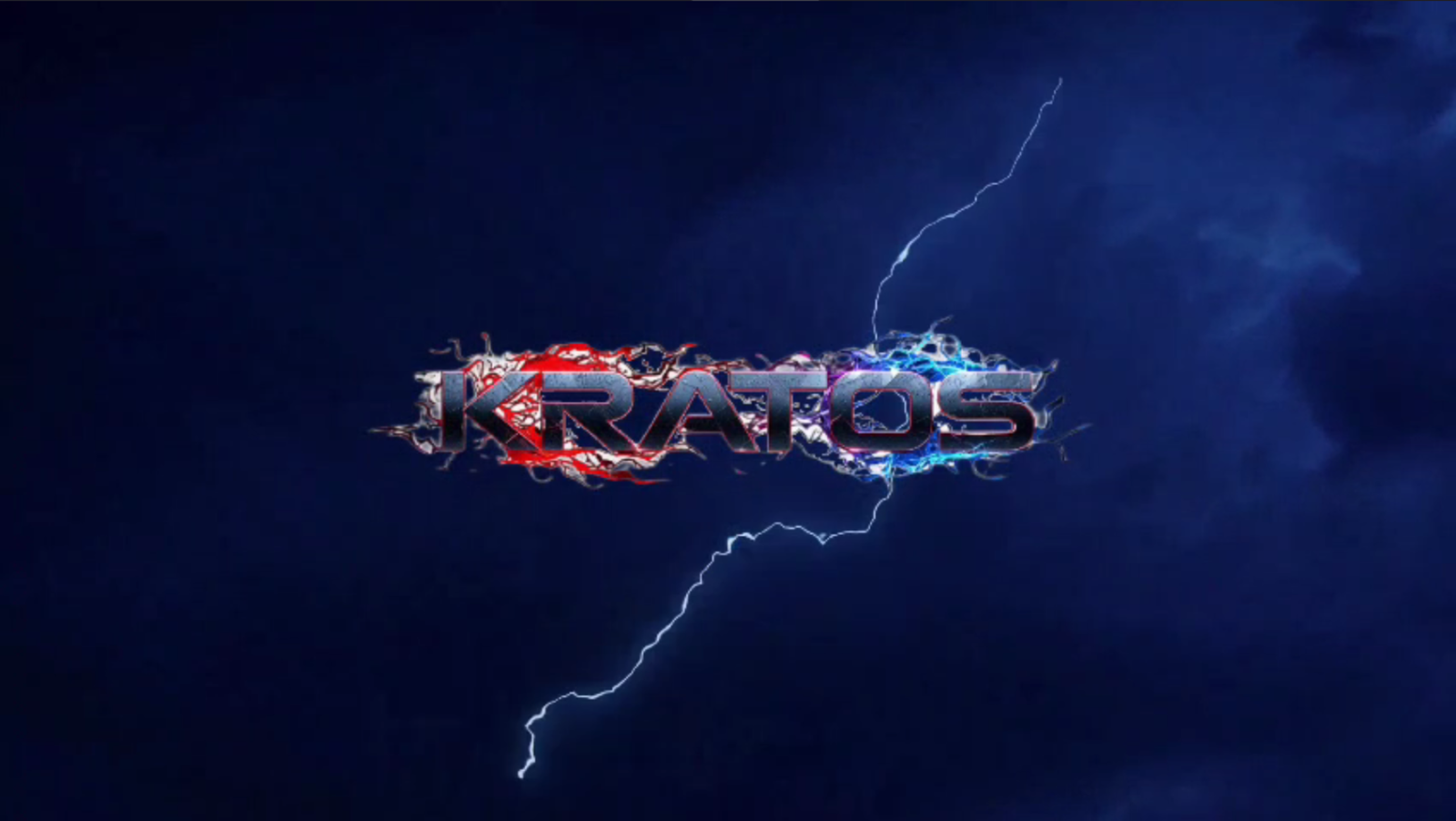
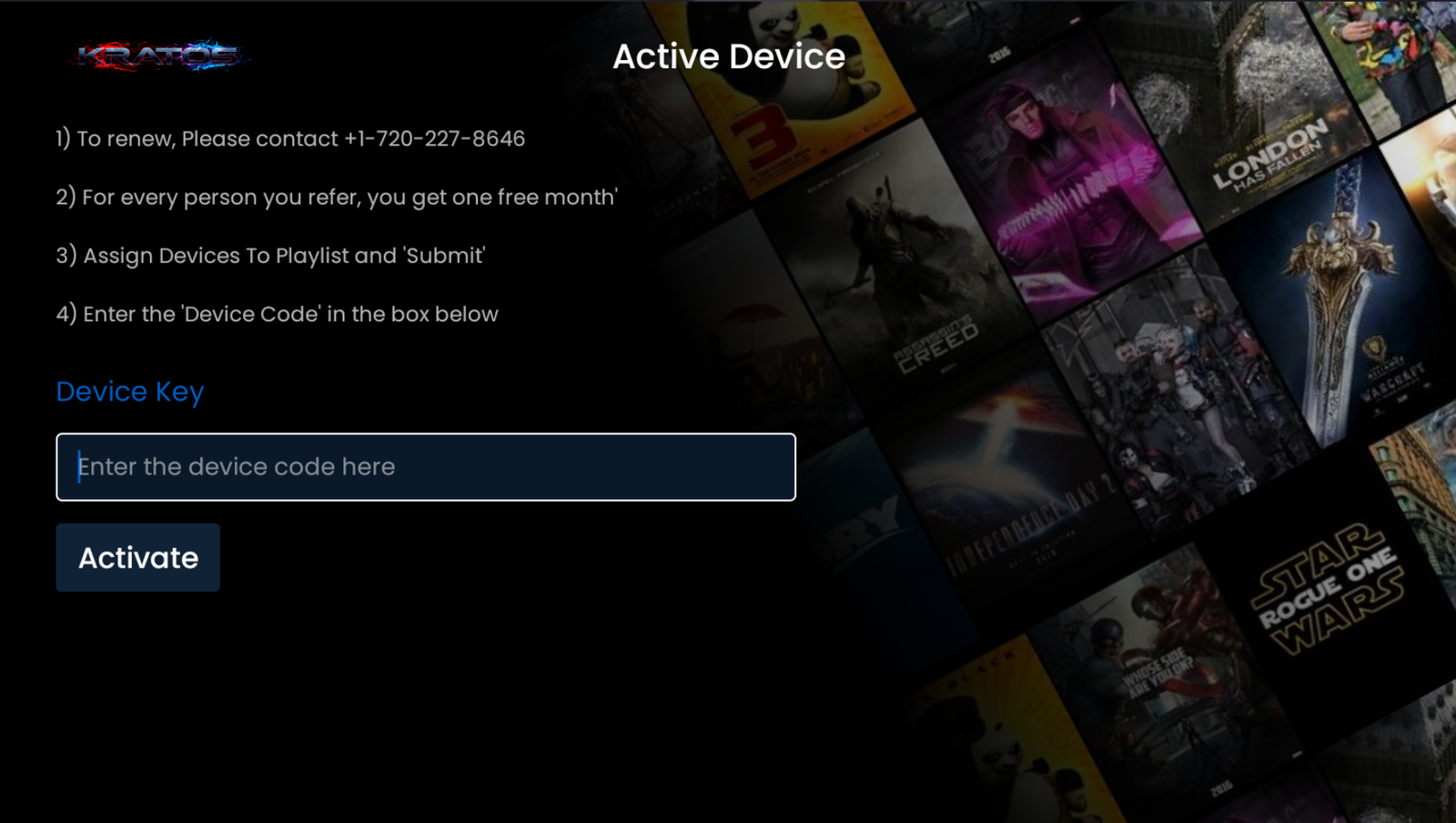
A landscape Android IPTV player that opens with an animated logo intro over a stormy sky, then the activation screen: four numbered steps, a device key field and an Activate button, next to a tilted mosaic of film posters. Dark theme with blue accents; sign in with a code or with username and password.
- A landscape Android IPTV player that opens with an animated logo intro over a stormy sky, then the activation screen: four numbered steps, a device key field and an Activate button, next to a tilted mosaic of film posters. Dark theme with blue accents; sign in with a code or with username and password.
- MULTIDNS PANEL
- INTRO VIDEO
- ACTIVATION BY CODE OR USERNAME AND PASSWORD
YOUTIVI AUTO-DEMO
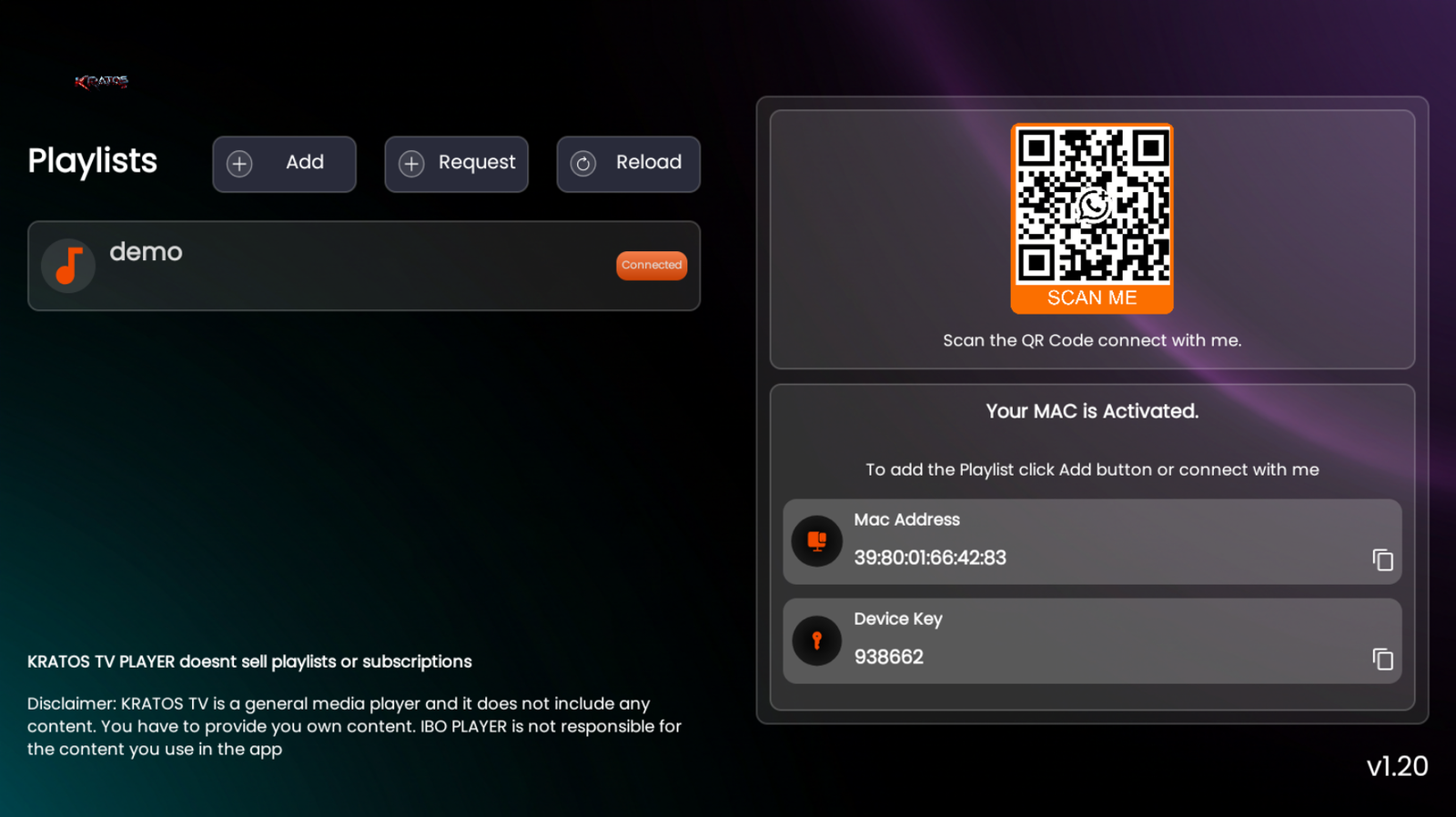
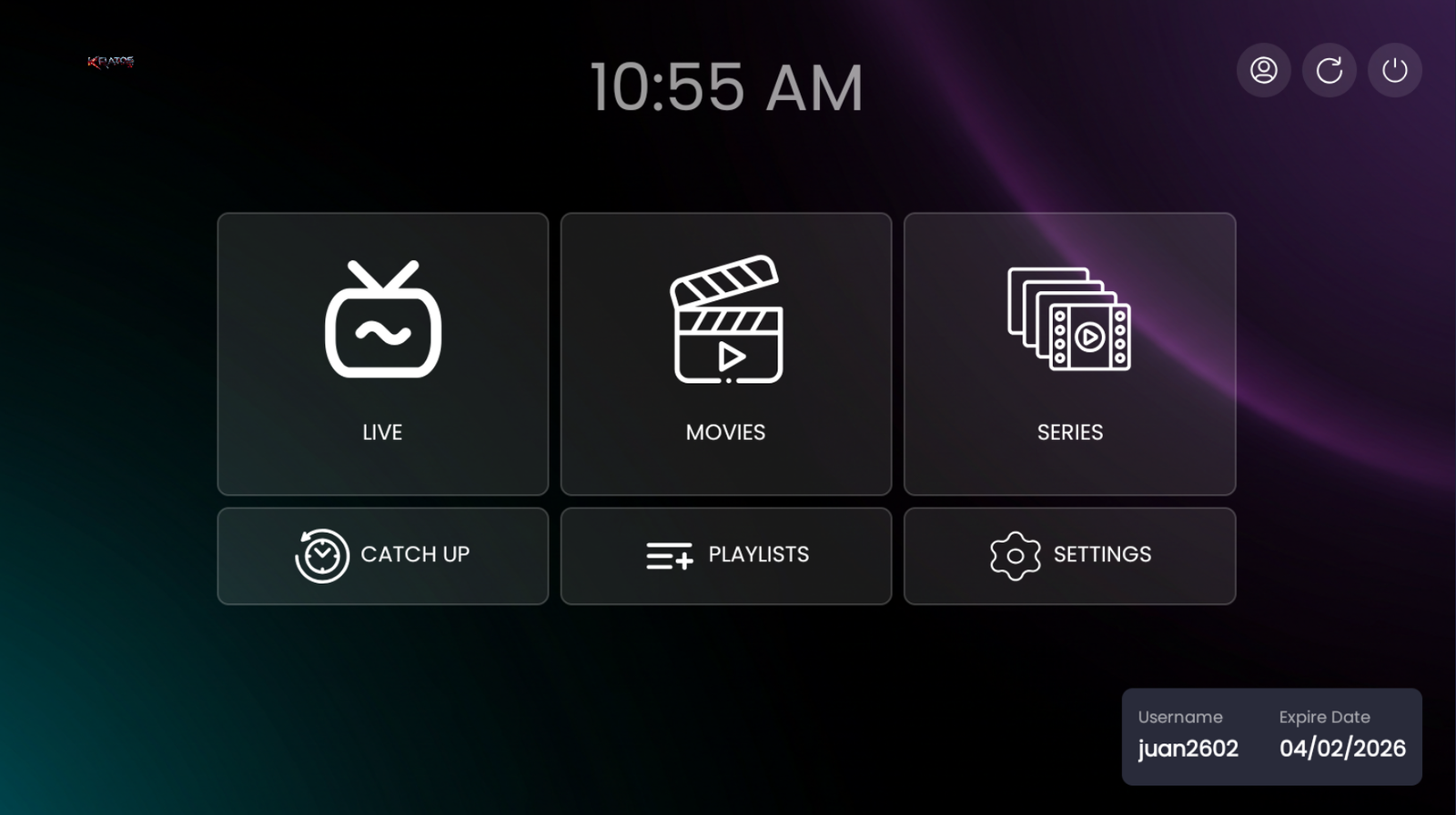
Android IPTV app built so the customer can try before paying: the demo is added from the panel and the device identifies itself with its MAC address, device key and an on-screen QR code on the playlists page. The menu is three large tiles, Live, Movies and Series, plus three smaller ones for Catch Up, Playlists and Settings, with a clock on top and a username-and-expiry card at the bottom.
- Android IPTV app built so the customer can try before paying: the demo is added from the panel and the device identifies itself with its MAC address, device key and an on-screen QR code on the playlists page. The menu is three large tiles, Live, Movies and Series, plus three smaller ones for Catch Up, Playlists and Settings, with a clock on top and a username-and-expiry card at the bottom.
- ADD A DEMO FROM THE PANEL
- WITH YOUR BRAND LOGO
- YOUR BRAND NAME
KTS TV
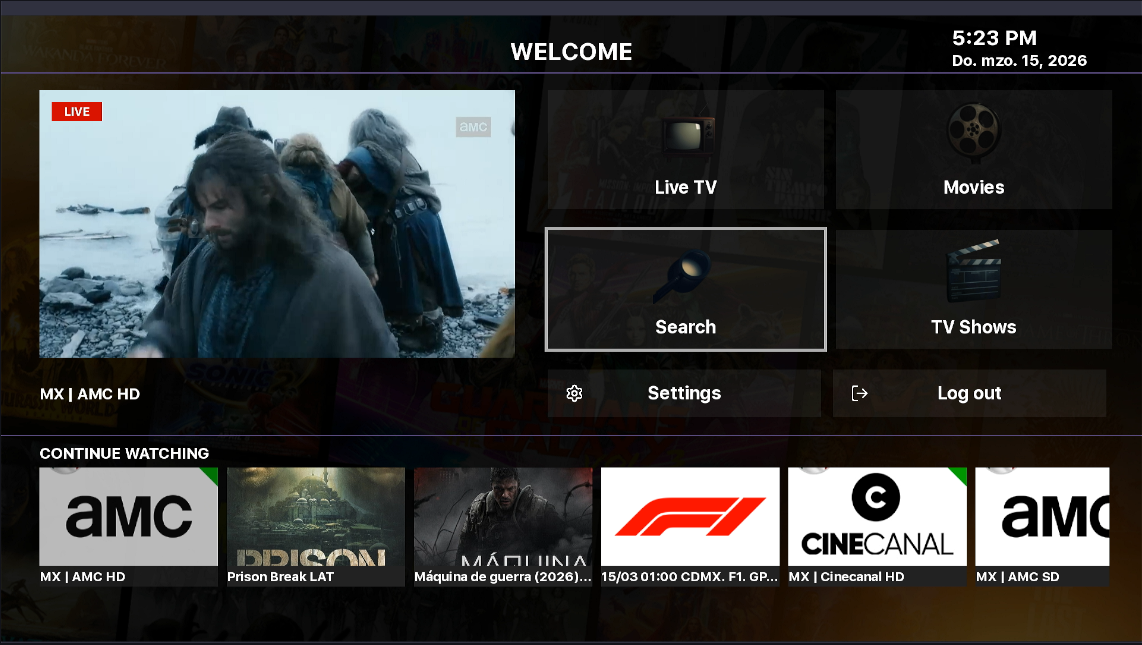
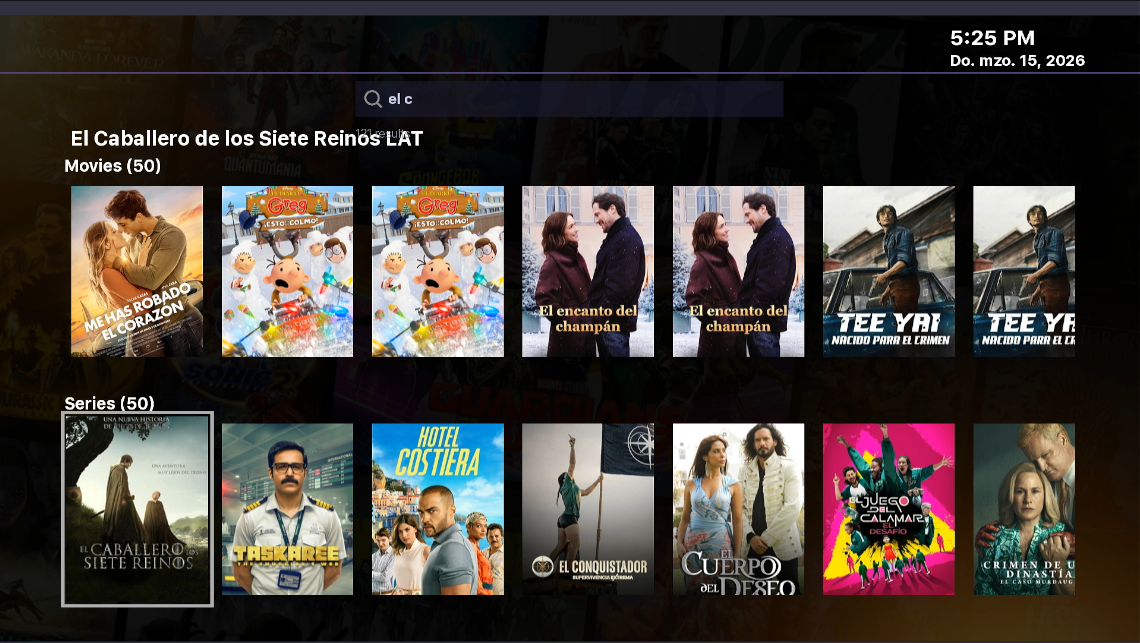
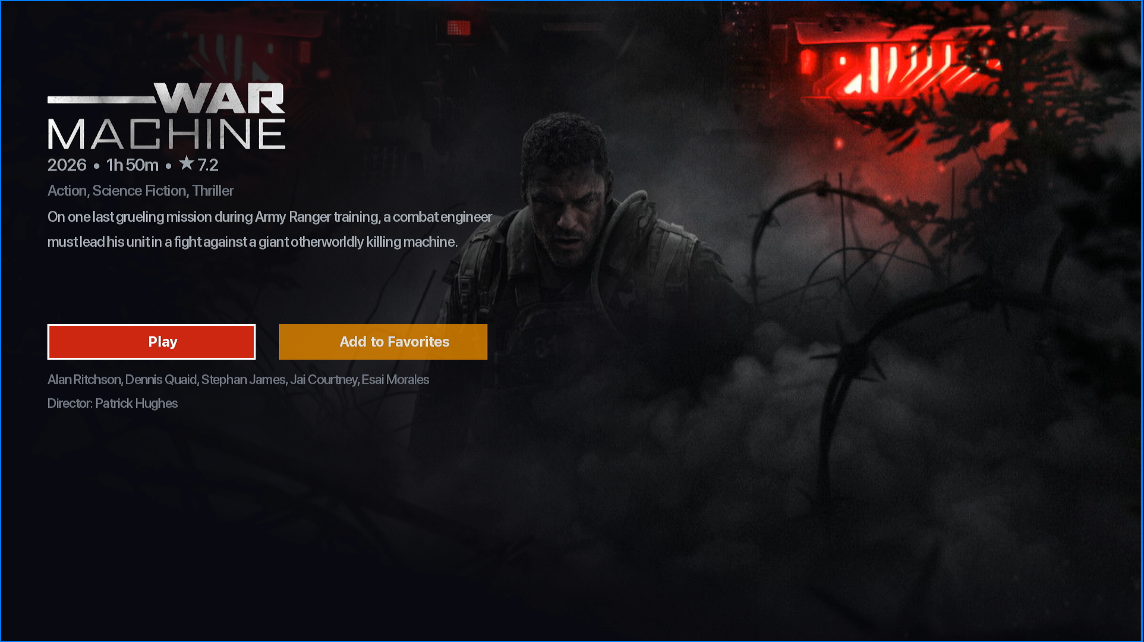
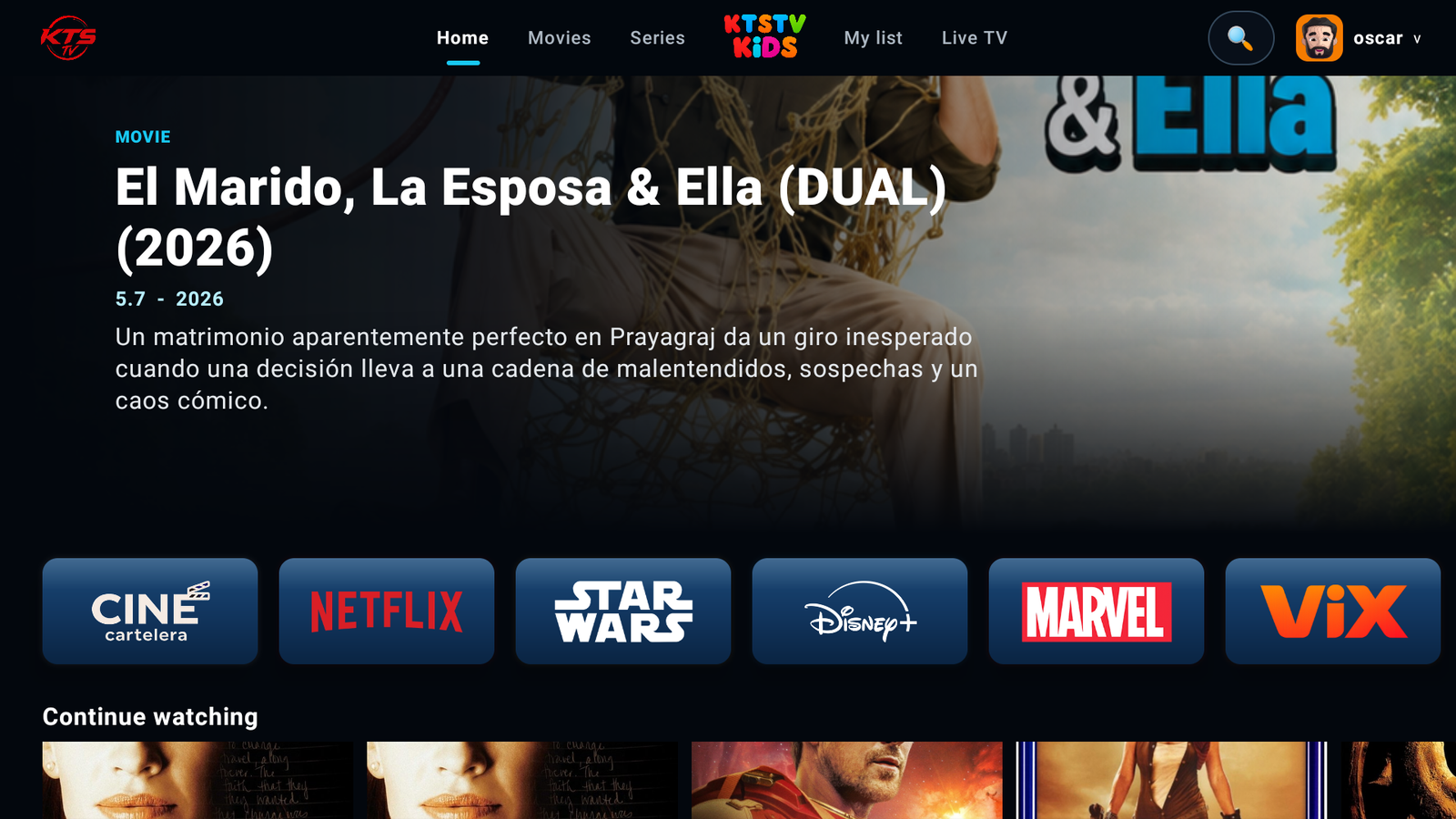
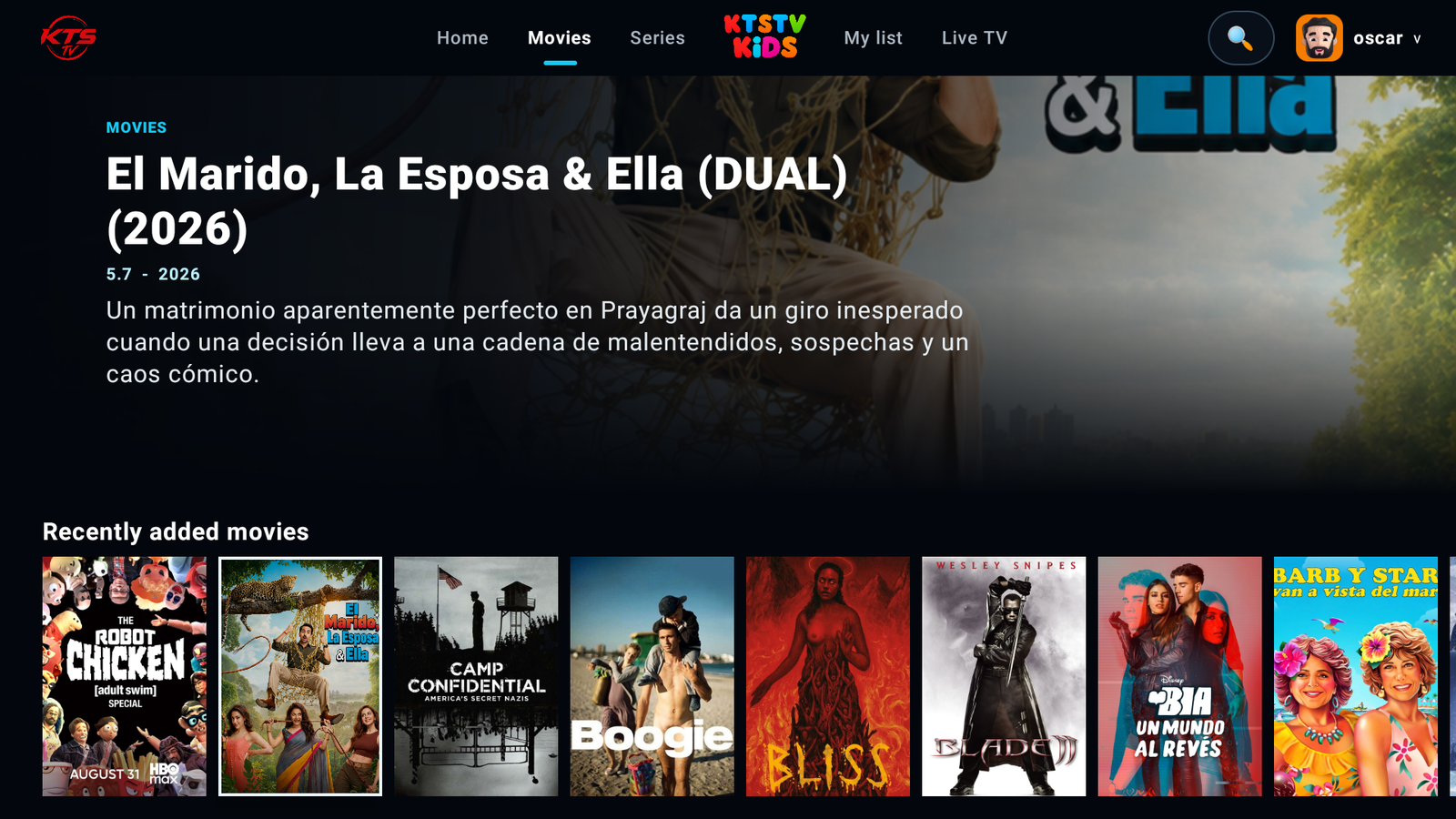
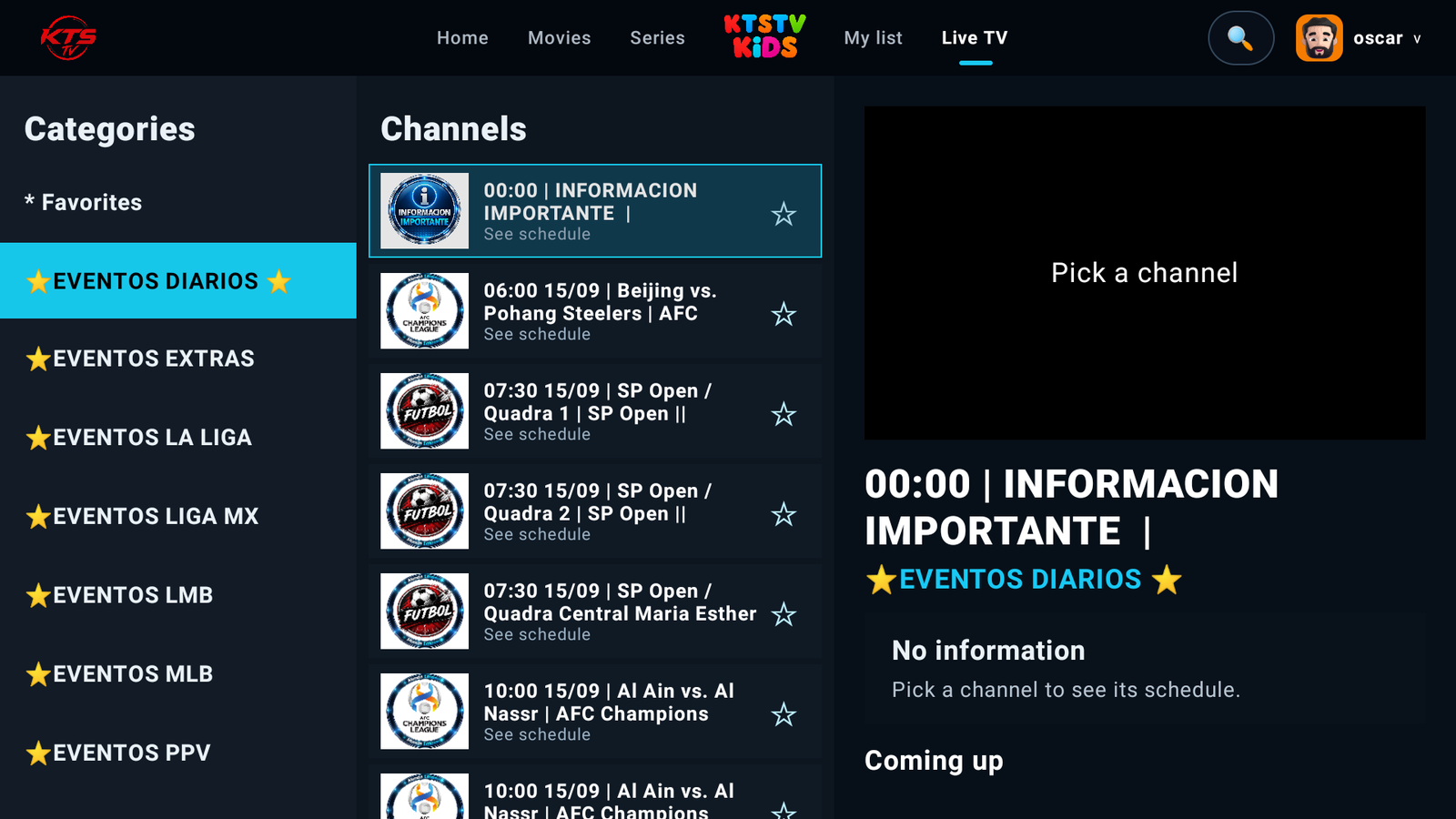
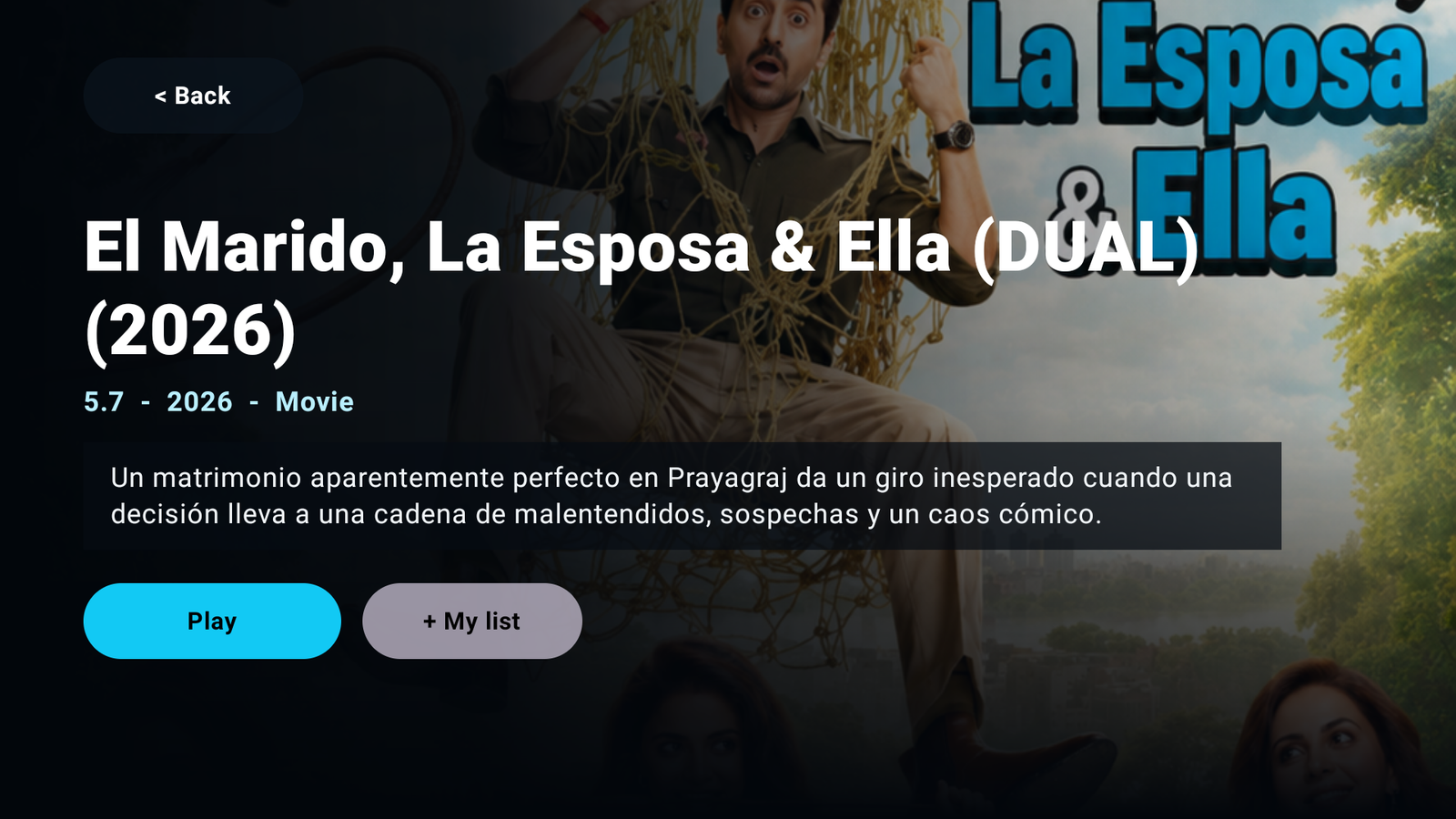
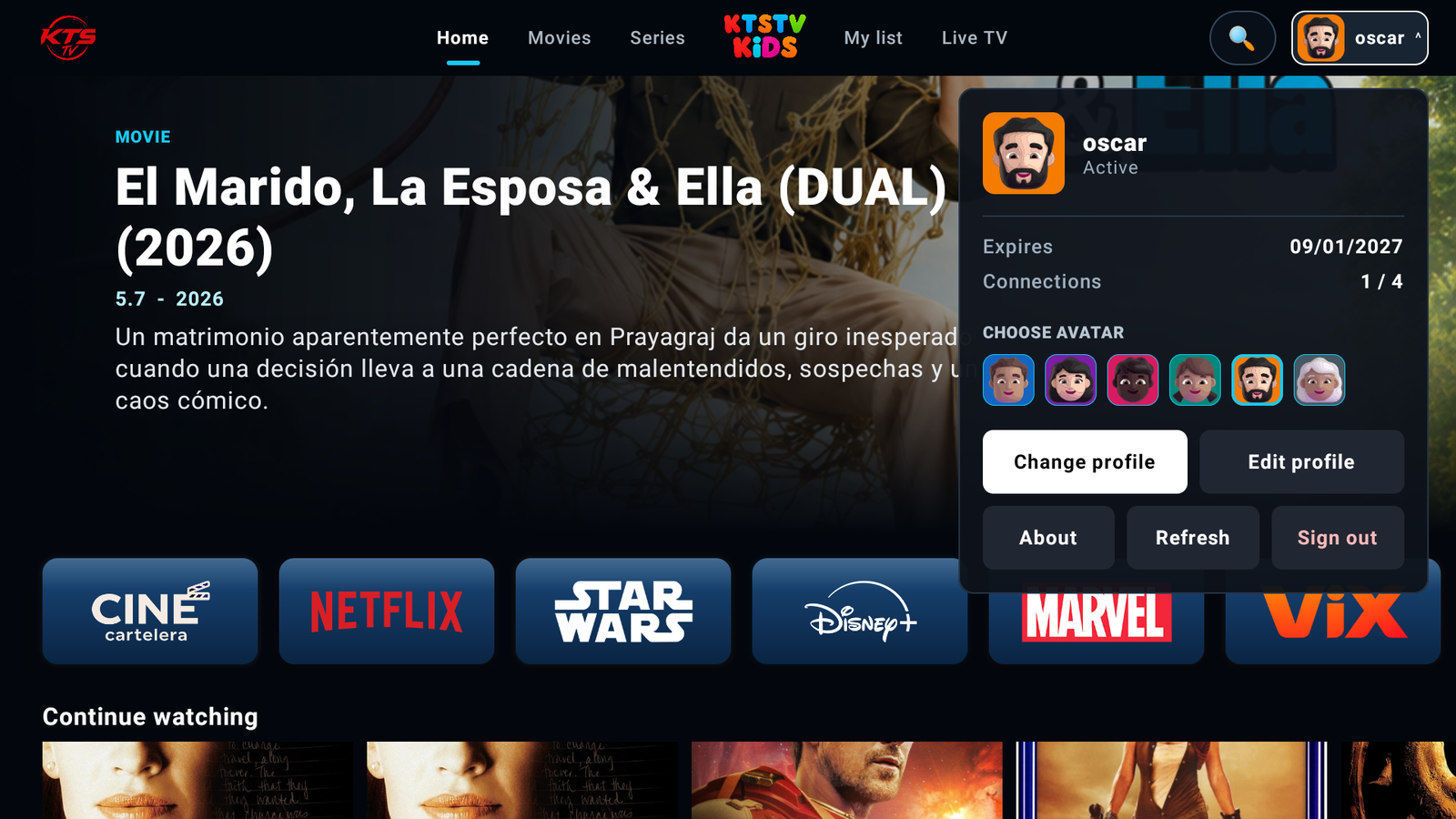
Everything hangs off a top bar with Home, Movies, Series, a kids section, My list and Live TV, alongside search and the profile avatar showing its name. The featured title fills the screen with a Spanish synopsis, rating and year, and below it sit the platform shortcuts, Continue watching and the recently added movies.
- Everything hangs off a top bar with Home, Movies, Series, a kids section, My list and Live TV, alongside search and the profile avatar showing its name. The featured title fills the screen with a Spanish synopsis, rating and year, and below it sit the platform shortcuts, Continue watching and the recently added movies.
- APP FOR FIRE TV AND ANDROID TV WITH YOUR BRAND
- EDITORIAL HOME WITH FEATURED AND SHELVES
- MOVIES AND SERIES ORGANIZED